How Much Did Amazon Pay for Pages Read in July, 2015?

Image from ShutterStock.

Image from ShutterStock.

KENP: PAYMENT FOR PAGES READ

Amazon KDP is paying $0.005779 per page read for KDP Select books in July, 2015.

The payment for KENP is right on the money: almost exactly the expected $0.0058 per page read.

(The prediction came from the $11M KDP Select Global Fund divided by the 1.9B pages read in June, 2015.)

Here are a few examples of how to interpret the payout for KENP:

  • A book with a KENPC of 225 pages earns $1.30 when read to 100%. That’s what it takes to earn the same as in previous months. (But remember, a print book with 150 pages or so might have a KENPC of 225 pages. The way that a ‘page’ is defined is fairly generous, except for fixed-format books.)
  • A book with a KENPC of 100 pages earns $0.58 when read to 100%.
  • A book with a KENPC of 400 pages earns $2.31 when read to 100%.
  • A book with a KENPC of 700 pages earns $4.04 when read to 100%.
  • Just multiply your KENPC by 0.005779.

Of course, not all books are read to 100%.

The new payout appears to favor longer books, but only when you compare the new payout to the old payout.

If you forget how it used to be and ask yourself, “How long a book should I write?” it really doesn’t favor longer books. Whether you write 300 pages as a single book or 6 books, you get paid the same amount per page read.

The only difference between short and long books is reader engagement. In which case are you more likely to get more pages read?

Paying per page, the new system really favors reader engagement.

There were 1.9B pages read in June, 2015, which led to a prediction of $0.0058 per page, and now in July we find that the actual payout is almost identical to the prediction.

What does this mean?

  • Evidently, there wasn’t much abuse of the new system (or most of the attempts were caught red-handed). The old system suffered from ways to abuse the system, whereas the new system requires actually reading pages (and Amazon can surely catch attempts to fool the system). If there were significant abuse, the payout should have been significantly affected, but it wasn’t.
  • The coming months will tell, but I take this as a positive indicator. Authors now expect to earn approximately $0.0058 per page when they enroll their books in KDP Select. With this strong expectation now reinforced by the first payout, I don’t expect this to change significantly in the future. Amazon has long paid about $1.30 to $1.40 per borrow, which translates to $0.0058 per page with the new system. This seems to be a steady-state solution. If you feel otherwise, all you need to do is wait a few months and time will show whether or not this is right.

Write happy, be happy. 🙂

Chris McMullen

Copyright © 2015

Chris McMullen, Author of A Detailed Guide to Self-Publishing with Amazon and Other Online Booksellers

  • Volume 1 on formatting and publishing
  • Volume 2 on marketability and marketing
  • 4-in-1 Boxed set includes both volumes and more
  • Kindle Formatting Magic (coming soon)

Follow me at WordPress, find my author page on Facebook, or connect with me through Twitter.

Comments

Click here to jump to the comments section.

Looking for Math & Science Books for Kindle Unlimited

Math Science

KINDLE UNLIMITED

I have published some math and science e-books which are available through Kindle Unlimited. In fact, all of my Kindle e-books can presently be borrowed for free through Kindle Unlimited.

But I’m looking for more books. I’d like to add a page to my website featuring math and science books on Kindle Unlimited, and not just my own books.

It seems like this may be helpful for Kindle Unlimited subscribers looking for math and science e-books they can borrow for free.

And it seems like it might provide a little exposure for authors of math and science books enrolled in KDP Select.

Are you an author of a math or science book that’s in Kindle Unlimited? If so, please leave a comment and include a link to your book (or at least provide the ASIN, or the title and author name, so that I can easily find it). Or you can use the Contact Me button on my blog if you prefer.

I’d love to hear from fellow math and science authors in Kindle Unlimited, and include information about your books on my website.

Write happy, be happy. 🙂

Chris McMullen

Copyright © 2015

Chris McMullen, Author of A Detailed Guide to Self-Publishing with Amazon and Other Online Booksellers

  • Volume 1 on formatting and publishing
  • Volume 2 on marketability and marketing
  • 4-in-1 Boxed set includes both volumes and more
  • Kindle Formatting Magic (coming soon)

Follow me at WordPress, find my author page on Facebook, or connect with me through Twitter.

Comments

Click here to jump to the comments section.

Amazon’s Kindle Scout Publishing Program

Image from ShutterStock

Image from ShutterStock.

KINDLE SCOUT

Most authors know that you can self-publish with Amazon using Kindle Direct Publishing or CreateSpace.

But not everyone knows that you can also land a contract with Amazon’s Kindle Scout publishing program.

If your book gets published through Kindle Scout, it’s published, not self-published. But it’s not the label that matters. (Right?)

You have better odds with Kindle Scout compared to many other forms of traditional publishing.

  • You need a complete, edited, ready-to-publish, never-before-published professional manuscript. That already limits the pool. You’re not pitching an idea or a rough draft. It needs to be complete, professional, and ready to go. Most authors who reach that stage are eager to press the self-publish button. Less competition gives you better odds.
  • You don’t need an agent for Kindle Scout. You don’t have to buy an expensive book listing addresses of publishers. You don’t have to write a query letter and make a self-addressed stamped envelope. Yet still it’s much less competitive.
  • It’s reader-powered publishing. It’s not one editor with a room filled with manuscripts deciding what deserves to get published. The Kindle Scout team does get involved, but readers play a strong role.

Better odds still isn’t a guarantee. But what’s there to lose? The worst that can happen is that your book doesn’t get published. The campaign only lasts 30 days, so it’s relatively quick decision.

Whether or not you land a publishing deal with Kindle Scout, there is still much to gain from the process:

  • First of all, they’re looking for polished, edited, complete manuscripts. This motivates you to go the extra distance to polish your work. That will pay off whether or not your book gets chosen.
  • The program motivates you to think about marketing. A good cover improves your chances of creating reader interest, and it will help you even if you wind up self-publishing. You want to create reader interest in your Kindle Scout submission, which encourages you to learn and practice some basic marketing skills to help create buzz for your book—helpful no matter how you publish.
  • Your submission itself can create reader interest. Readers check out Kindle Scout and nominate books that catch their interest. They have an incentive as they can get free books from their nominations. So whether or not you get published through Kindle Scout, your nomination can help build an initial audience for your book.

Here is an example: The Garden of Hestia by Ellen Larson. You can explore the Kindle Scout page for this book by clicking on the thumbnail below.

Click to view this title at Kindle Scout.

Why try Kindle Scout?

  • The $1500 advance is compelling. Many self-published authors earn far less. For an author who doesn’t already tend to earn more than this, this advance is attractive.
  • Although the royalty rate of 50% is less than the 70% you can earn through Kindle Direct Publishing, there are benefits to offset this difference. For one, you would be published, not self-published. For another, if they are paying a $1500 advance, they must expect Kindle Scout titles to sell pretty well.
  • Your book would have the Kindle Press label in the publishing field. Kindle Scout seeks polished work, which gives some value to the Kindle Press label.
  • Visit the Kindle Scout page, scroll to the bottom, and check out books that have been published through Kindle Scout. Or better yet, visit Amazon, choose the Kindle Store, and click on Advanced Search. Type Kindle Press in the publisher field. I found several books with numerous customer reviews and overall sales ranks below 10,000. Not every book was like this, but enough were to show me that books published through Kindle Scout have strong potential.
  • It’s different from traditional publishing in that it’s Kindle focused. It’s not bookstore oriented; it’s not print oriented at all. You can self-publish the print edition with CreateSpace even while the Kindle edition is published with Kindle Press. Many novels sell far more in Kindle than print anyway, and what better way to reach the Kindle market than through one of Amazon’s own publishing programs?

As a reader, have you checked out Kindle Scout? Have you nominated any books? Have you read any books from Kindle Press?

As an author, have you submitted to Kindle Scout? Was your book accepted? How was your experience?

If I ever finish my sci-fi novel, I might submit it to Kindle Scout. It looks attractive.

Write happy, be happy. 🙂

Chris McMullen

Copyright © 2015

Chris McMullen, Author of A Detailed Guide to Self-Publishing with Amazon and Other Online Booksellers

  • Volume 1 on formatting and publishing
  • Volume 2 on marketability and marketing
  • 4-in-1 Boxed set includes both volumes and more
  • Kindle Formatting Magic (coming soon)

Follow me at WordPress, find my author page on Facebook, or connect with me through Twitter.

Comments

Click here to jump to the comments section.

Optimizing Amazon’s Free Kindle Textbook Creator Publishing Tool

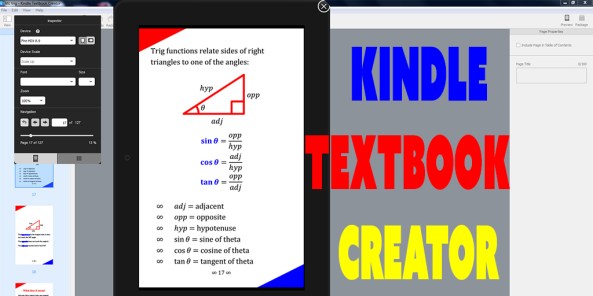
KTC Trig

KINDLE TEXTBOOK CREATOR

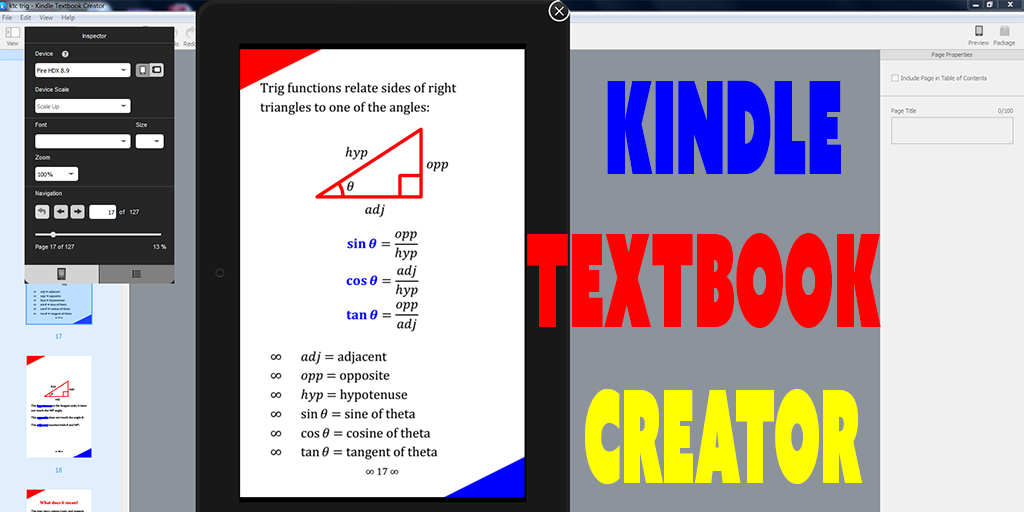
Amazon’s new free tool, the Kindle Textbook Creator, is very convenient for e-textbooks and other e-books with rich formatting and complex layouts.

(Illustrated children’s e-books work better with another free tool, the Kindle Kids’ Book Creator, and comic books work best with the free Kindle Comic Creator. However, books that primarily consist of paragraphs of text, such as novels, function best as a simple conversion following Amazon’s free guide, Building Your Book for Kindle.)

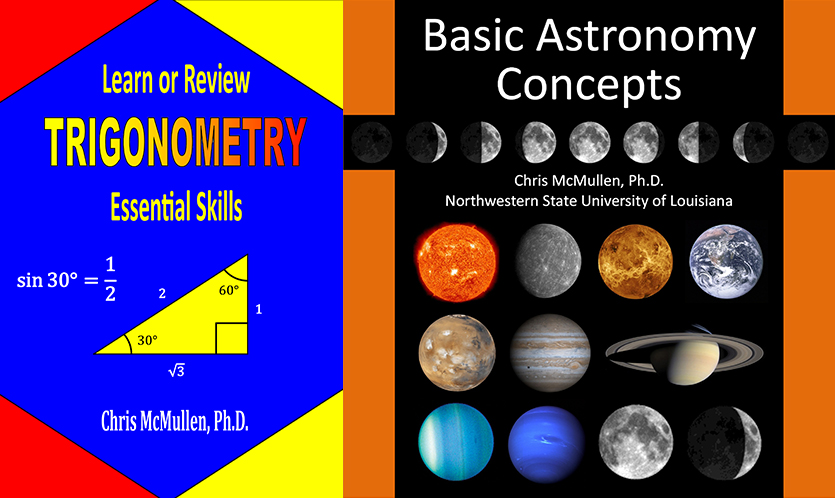
I recently published my trigonometry book, Learn or Review Trigonometry: Essential Skills, using the Kindle Textbook Creator.

I did more than simply upload my print PDF to the Kindle Textbook Creator. I spent a little time modifying my file in order to optimize it for the Kindle Textbook Creator. Later in this article, I will show you exactly how I did this.

If you would like to see an example of an e-textbook created using the Kindle Textbook Creator, feel free to check out my trigonometry e-book and see how it looks: https://amzn.com/B0106X7NL4. Note that the Look Inside shows the paperback edition. (Update: That may change soon, as KTC published books are beginning to generate automatic Look Insides.) If you want to explore the Kindle e-textbook, download the free sample to a device, or download the free sample with one of the Kindle apps (like Kindle for PC); you’ll get the best experience with a Kindle Fire HD.

But remember, your book won’t look quite the same unless you take similar steps to optimize your file before publishing.

PROS AND CONS

Here are the benefits of using the Kindle Textbook Creator to format an e-textbook:

  • The strongest benefit is convenience. You put a PDF in and very quickly get a Kindle-friendly e-book out. (Unlike conventional Kindle e-books, PDF actually converts very well in this context.) The alternative, converting a complex layout with rich formatting into a reflowable e-book, is very tedious and time-consuming. Many e-textbooks don’t sell frequently enough to warrant weeks of work on the e-book conversion (or paying a hefty fee to have the conversion done for you).
  • The output is amazingly good for starting from a PDF file (usually, PDF is the worst file to begin with to create an e-book, but this is an exception). The structure of each page is preserved, which preserves the complex design and layout of most textbooks, yet it’s much better than just converting every page to a picture. The device will recognize the text on each page, which would never happen in an image. In my experience, images can come out nice and sharp, much better than converting each page to an image (but you need good quality to begin with).
  • Students can highlight text, make notes, and use similar features that are very handy with e-textbooks. For example, if you highlight a word on the screen, the device will pull up windows for a dictionary, Wikipedia, and even translation. There is even the potential for flashcards.
  • The e-book will support pinch-and-zoom. This is a necessity when text or images wouldn’t be readable on the screen, which is possible, since the screen size may be much smaller than the page size of the printed textbook. Pinch-and-zoom is what makes the Kindle Textbook Creator viable.
  • You can add navigation to your PDF file so that Kindle devices will have a working table of contents on the device (but not a clickable table of contents in the e-textbook).
  • Audio and video clips can be added into the e-textbook using the Kindle Textbook Creator. That’s pretty cool.
  • A new feature recently added is an image pop-up. Most of your images you probably want to show on the page rather than to pop-up, but if for some reason you want to insert an image file and have the image pop-up, that is possible now.

Not everything is ideal, of course:

  • E-textbooks created using the Kindle Textbook Creator are only supported on limited devices:
    • Kindle Fire HD 8.9″
    • Kindle Fire HD
    • iPad
    • Android Tablet
    • PC/laptop using Kindle for PC
    • Mac using Kindle for Mac
    • Smartphones: maybe (Kindle for iPhone and Kindle for Android Phone are listed on my product page, but these options were removed from the Kindle Textbook Creator’s preview, so they may not be available for all e-textbooks made this way)
    • First and second generation Kindle Fire: maybe (these formats are listed on my product page, but again, they don’t show up in the preview)
    • The Kindle Textbook Creator does not support e-Ink devices, such as Kindle DX and Paperwhite
  • Audio and video features are not yet fully supported. Presently, they are only supported on third-generation Kindle Fire tablets.
  • No Look Inside is available for e-textbooks created using the Kindle Textbook Creator. Update: As of December, 2015, KTC published books are beginning to generate automatic Look Insides. I published a KTC book on December 18, and on December 19 it had its own Look Inside on Amazon’s website (FYI: there is no print edition, and it has no ISBN). The Look Inside is an important selling feature. Customers can download a free sample to supported devices, though it’s not nearly as convenient as a Look Inside. The remainder of this paragraph may now be irrelevant. [However, if you have a print edition of your textbook (you can make one using CreateSpace), you can get the print and Kindle editions linked, in which case customers will see the Look Inside of the print edition. (This may not be automatic. You might have to place a request through the Contact Us feature of KDP. It can also take weeks for this to be activated. Be very clear in your request. If they think you’re asking for a Look Inside, they will tell you that e-books made with the Kindle Textbook Creator don’t get a Look Inside. What you want is instead for the Look Inside of a linked print edition to show for your Kindle e-textbook on Amazon.)]
  • If the text is so small that customers must pinch-and-zoom to read, this can become quite tedious if customers must pinch-and-zoom to read every page of the e-textbook. Some textbooks are very expensive in print, so substantial savings with an e-textbook may help to offset possible inconvenience. However, if the text is somewhat small, it’s not too hard to enlarge the text. I’ve done this and will show you how later in this article.
  • Kindle’s page numbering may differ from your page numbering, so if your pages have numbers or if you include a table of contents with page numbers, this can be confusing. However, it’s not too hard to either remove your page numbers all together (as you don’t really need them in an e-book) or at least change your page numbering to match Kindle’s page number assignment in the navigation. I go into further detail later in this article.
  • File size is a possible issue, but it depends. I just published a 127-page trig e-textbook with about 60 images, and file size wasn’t an issue for me. My PDF file was 3 MB, the Kindle Textbook Creator made a 6 MB file, but all that really matters is that the final converted .mobi file size was back down to 3 MB. (It’s common for the final .mobi file size that you find on page 2 of the publishing process at KDP to be significantly smaller than the .kpf file that you upload to KDP. When you see the .kpf file size, don’t worry about it: Wait until you reach the pricing info page to find out what the file size really is.) If you have a very large .mobi file size, the file size will cut into your delivery cost if you choose a 70% royalty (for an extremely large file size, you might see if the 35% royalty is actually better since that involves no delivery fee); the delivery cost is 15 cents per MB (subtracted from your 70% royalty; the customer doesn’t pay a delivery fee) in the US. You can upload a file as large as 650 MB. I’ve never had a file larger than 50 MB; I suppose if you add a bunch of video clips that generous limit will come into play (and that would be a hefty delivery fee, definitely needing the 35% royalty option). It’s not just the delivery fee that matters. At some point, it takes significantly longer for customers to download and takes up more room on the customer’s device. A few MB aren’t a problem. 50 MB is rather significant. Somewhere in between, maybe around 20 MB, is where you might start to have concerns, but if your book provides good features, like awesome images or video clips, the content may make it worthwhile.

OPTIMIZING TEXT FOR THE KINDLE TEXTBOOK CREATOR

With regard to text, I changed a few things (see the list at the end of this section for more details):

  • larger font size for easier reading without having to pinch-and-zoom to read
  • removing the gutter (i.e. it looks funny to have a larger inside margin in the e-book)
  • narrower margins to maximize the use of the space on a limited screen size
  • narrower page size to more closely match the target e-reader device
  • use of color to help key terms stand out better

Many textbooks have 8.5″ x 11″ pages with a size 12 font. That’s great for the printed page, but just imagine if that page gets compressed onto a smaller screen. In that case, the text would be unreadable on many devices except when the customer uses pinch-and-zoom. If the customer must pinch-and-zoom (and then scroll around to read left to right, top to bottom) to read every page in a long e-textbook, that will quickly become tedious.

For many textbooks, it wouldn’t be too much work to reformat the file with a larger font. It depends in part on the complexity of the design and in part on how much attention you like to put into typographic features like widow and orphan control. (A nice thing about using the Kindle Textbook Creator is that you can use the same font from your print book—though you should check on the font licensing, which may be more strict for an e-book than it is for print books—and you can preserve typographic features like kerning and hyphenation. However, it wouldn’t be suitable for a book that mostly consists of text, like a novel.)

I originally published two print editions. One of the print editions has large print. The cool thing about increasing the font size and making a second version of your print file is that you can use it (A) for a large print paperback edition and (B) optimizing the text for the Kindle Textbook Creator.

However, I still made some changes to the file from my large print paperback edition to my Kindle Textbook Creator edition. I’ll get to that shortly.

My original file was a Word document (.docx). I first formatted this for a 6″ x 9″ paperback, and converted this to PDF.

Next, I saved my Word file with a new filename, increased the font size for the large print edition, went page by page through the file to improve the formatting (since the layout changed significantly after increasing the font size—I also made the large print edition 8.5″ x 11″, which is very transparency and document camera friendly on top of having larger print), and converted this to PDF for the large print paperback.

Finally, I saved my Word file with a third filename, and reformatted this for the Kindle Textbook Creator edition. Here is what I did to optimize the text:

  • I made the font size very large. I used a font size of 24-pt for the body text. This may have been overkill: Size 16 or 18 pt may work well enough, depending on the font style. Try out a test page, convert the test page to PDF, upload that to the Kindle Textbook Creator, and preview how it looks on different screens; and repeat as needed until you’re satisfied with how the size looks. If the font size is readable across most devices, customers won’t have to pinch-and-zoom on every page just to read your e-book.
  • If you used Word’s built-in styles (in 2007 and up for Windows, you find these on the top right half of the Home ribbon), changing font size is very simple. I simply changed the body text styles to 24 pt and those sections updated automatically, then I changed headings to size 36 pt, and so on. Presto, Change-o!
  • I also changed the page size from 8.5″ x 11″ to 7″ x 11. Most print textbooks are 8.5″ x 11″, but that’s much squarer than most e-readers. The result will be large gaps at the top and bottom of the screen on a Kindle device. 7″ x 11″ is close to the aspect ratio of the Kindle Fire, but may be a little too narrow: It leaves small gaps at the right and left sides on an iPad. Obviously, you can’t get the aspect ratio to match every device, since e-readers have a variety of aspect ratios. 6″ x 9″ is common among trade paperbacks and probably comes out right without any adjustment. What’s your target device? You could either make the page size match your target aspect ratio, or you can compromise and use an aspect ratio that’s somewhere in the middle of what e-readers have to offer.
    • Kindle Fire HD’s have an aspect ratio of 5:8. Starting with an 8.5″ x 11″ book, if you change your page size to 6.875″ x 11″, it will match the Kindle Fire HD.
    • iPads have an aspect ratio of 3:4. Starting with an 8.5″ x 11″ book, a page size of 8.25″ x 11″ matches the iPad. It’s probably not worth the hassle if your main target is iPad, but 8.5″ x 11″ will look very square on the skinny Kindle Fire.
    • Somewhere in between, like 7.5″ x 11″ may offer a good compromise.
    • Another option is to find a Mac, format a separate file for iBooks designed around the iPad, and publish a Kindle edition designed for the Kindle Fire HD. (Note that iPad users do buy Kindle e-books and use the Kindle for iPad app, though if you use a Mac to format an iBook, this gives you some nice formatting options for iBooks.)
  • I made the margins narrower for the e-textbook than I did for the print editions. Wider margins come in handy for making notes in a print book; that margin is pretty useless in an e-book (where you can add notes without having to use the margins). I left a small margin for aesthetic reasons.
  • Most print books have a larger inside margin than outside margin, sometimes referred to as a gutter (though Word lets you make a wider inside margin, add a gutter, or both). This looks funny in an e-book. If your print book is like this, you can adjust your inside margin to match the outside margin (with the gutter field in Word set to zero).
  • In the print edition, I used boldface to help key terms stand out. In the Kindle edition, I used color text to make them stand out even more.
  • I removed the page headers from the Kindle edition. I could have kept them: Sometimes it’s nice to look at the top of the page to see what chapter you’re reading. But it would be silly to have the name of the book on odd-numbered pages and the chapter title on even-numbered pages in the e-book. If I had opted to keep the page headers, I would have made every page header show the chapter name (which really isn’t hard to change).
  • I plan to add video clips for a separate interactive edition at some point. Presently, it looks like video is only compatible with third-generation Kindle Fire devices, so I’ve saved my interactive edition for last since that narrows the audience significantly. On the other hand, there aren’t many e-books with video, which could help yours stand out. (You might want to add clear notes in the description and near the first video clip so that customers on other devices aren’t surprised to learn about features not working for them.)
  • I also made changes for images and for navigation, as I describe in the following sections.

If you have a very complex layout, or if you are meticulous with the subtleties of typography, changing font size, page size, or margins can become very tedious. But for many books, it’s not too much work to make a better reading experience.

Toward the end of this article, you can find some images that illustrate the changes that I made to my file for the e-textbook version. And, of course, you can check out my Kindle e-book (find the link in the first section—see above, and also read the note near the link regarding the Look Inside and sample).

OPTIMIZING IMAGES FOR THE KINDLE TEXTBOOK CREATOR

Amazingly, KDP’s FAQ’s for the Kindle Textbook Creator don’t specify a recommended image size.

I’ve spoken with the Kindle Educational Team, and with a few other authors who have asked Amazon, and those recommendations were insane, like 4000 pixels, which is overkill. I suspect those recommendations are made with future-proofing in mind. Even in the reasonable future, 2000 pixels should be ample resolution, maybe even that’s too much. Many images 1000 pixels across forced to display full-screen appear fine on a screen 2000 pixels across, and right now it’s hard to find a screen measuring more than 2000 pixels across.

Most authors using the Kindle Textbook Creator already have a PDF file for their print book, and almost all print books require or recommend 300 DPI. If your image is 300 DPI, even a small book size like 5″ x 8″ will be 2400 pixels along the longest dimension if the image is full-page. You don’t really need 300 DPI.

But let me back up. Forget DPI for a moment.

Here’s what I do: I take my print-ready PDF, upload it to the Kindle Textbook Creator, save it as a .kcb file (you don’t have a choice), don’t change the file at all, check how the images look in the preview, package the book for publishing (this creates a .kpf file; you don’t have a choice), login to KDP, upload the .kpf file, preview the images there also, complete the minimum info so that I can move onto page 2 of the publishing process, and look underneath the pricing table to find the converted .mobi file size. (Don’t waste time doing anything to your file or filling out the fields carefully. All this work is just to see what the file size is, to help you determine whether or not it’s even worth fussing with the images. We’ll go back to square one and do everything right later.)

If your print PDF was 300 DPI and your converted .mobi file size that you see on page 2 of the publishing process is reasonable, leave well enough alone. 300 DPI on paperback sized pages should have ample resolution for your e-book, and if the file size is reasonable, it’s probably not worth a lot of effort redoing images to try to trim the file size. (But if you noticed problems with how your images appeared in your preview, that might be worth addressing. It could be because the device you’re viewing the preview on has limited resolution, though most monitors should measure enough pixels across for that not to be an issue, so chances are that if your images look blurry, it’s worth looking into the cause. Do they look sharp in print?)

In most cases, your print-ready PDF’s images will be fine for your e-textbook, and you won’t need to resize them.

Of course, what really matters for an e-book is the number of pixels. DPI is irrelevant for e-books. But what I’m saying is that if you already have 300 DPI images suitable for a print book, that’s probably plenty of pixels for the e-book.

Now forget the file that you just made. Go back to your source file, save it with a new filename for your e-book version, and touch it up for the e-book. At the end of the previous section, I listed a variety of features that you might change for the Kindle edition. If you also want to adjust any images, make these changes when you change the page size, margins, font size, or anything else that you elect to change.

If you want full-screen images for the e-book, first you have to realize that it’s inherently impossible for them to fill the screen on every device because different devices have different aspect ratios. The best you can do is choose on device to target, like the Kindle Fire HD 8.9″, which is 1200 x 1920. But that will look narrow on an iPad, which is 1536 x 2048. But the iPad size will look short and wide on the Fire.

For the image to be full-width or full-height on a device, it must be full-page in your PDF file, i.e. there should be no margins around it. Unlike a print book, you can actually have pages of different size. So you could take your .jpeg image file and convert it to PDF, then insert that PDF image into your .kcb file with the Kindle Textbook Creator, and that image size can be, say, 6.875″ x 11″ (with the Kindle Fire HD aspect ratio), while your other pages are 8.5″ x 11″. (It might look a little funny to suddenly see a different size page though. That’s something you can test out and get feedback on. I’m not saying you should do this; just that you can.)

In most cases, what images are good enough for print are more than good enough for e-books, so you probably don’t have much work to do with your images. Unless… unless you have a lot of square images, like for an 8″ x 8″ book, and you want to redesign them to be tall and narrow like the Kindle Fire. Square images don’t make effective use of the narrow Kindle Fire screen, so this could be worthwhile. But then you have a lot of work to do. It might not be worth all that work if you have many images. (Don’t just change the aspect ratio as that will distort your pictures: You need a redesign, or just accept the square images and leave it at that.)

Design Tip: Browse for print replica e-textbooks on Amazon and check them out. You can see the different possibilities. You’ll probably see some samples (remember, any Look Inside may be showing the print edition; if so, you need to download the sample to check the formatting out). Traditional publishers don’t use the Kindle Textbook Creator, so you may find some print replica files that were made another way, but you’ll be able to find design ideas. And you’ll probably encounter some design problems, too. Sometimes it’s good to experience those as a customer before designing your own e-book.

The absolute best measure of how your images look comes from actually seeing your e-textbook on a device. The preview helps, but nothing is better than the real thing. Once you publish your e-book, the best thing is to be your own first customer and see exactly how it looks. (In the worst-case scenario, you can quickly unpublish until you can resolve the issue.) Of course, there are many different devices, but something is better than nothing. If you don’t have a Kindle or iPad, maybe you can find a family member, friend, or even a coworker who does.

OPTIMIZING NAVIGATION FOR THE KINDLE TEXTBOOK CREATOR

Note that there is a distinction between a table of contents and navigation.

  • A table of contents is an actual page in your book. In many e-books, the table of contents has clickable hyperlinks (but not when you use the Kindle Textbook Creator).
  • Navigation refers to a different sort of table of contents. Not one appearing as a page in your book, but one that shows up on the device itself when the customer accesses the navigation feature. Customers can click on the navigation links to jump to any chapter of the book.

Note that Amazon refers to Table of Contents in the Kindle Textbook Creator when it’s really talking about device navigation.

This causes some confusion. You can’t make a clickable table of contents with the Kindle Textbook Creator. Update: The latest version of the Kindle Textbook Creator now supports hyperlinks (provided that you upload a PDF with fully functional hyperlinks), though this is still different from device navigation.

What you can do is build in navigation for the device. This is what Amazon is referring to when they mention Table of Contents in the Kindle Textbook Creator.

Adding device navigation is easy. Don’t bother trying to do this in your PDF; most likely that won’t translate to the Kindle Textbook Creator anyway.

When your PDF is ready for Kindle publishing, open it up in the Kindle Textbook Creator.

Go to the pages you’d like to bookmark for navigation, such as pages with chapter headers (like Chapter 5), and important front or back matter sections, like the Introduction. On that page, you’ll find a checkbox on the right side of the Kindle Textbook Creator, which says, “Include page in Table of Contents.” Check that box on any page you’d like to work in device navigation. In the space below the box, type the name of the chapter or section (like Chapter 4 or Introduction). Check your spelling carefully; you’d hate to have a typo in the navigation menu.

Remember, this won’t give you a physical table of contents as a page in your book, and this won’t give you a clickable table of contents. (You can still have a physical table of contents page in your e-textbook; that’s up to you. If you want one, you should put it there before you make your PDF. For the e-book, it’s not as helpful as a print book, since there is device navigation. But you can’t make the table of contents page clickable.)

Now there is a peculiarity in the way that the Kindle Textbook Creator numbers pages for the device navigation: The Kindle Textbook Creator numbers every page in order starting with 1. But many print textbooks number the front matter with Roman numerals (while some pages typically aren’t numbered at all), and then call page 1 the first page of Chapter 1. If your print book follows that convention, the page numbers shown on the pages won’t match the page numbers shown in the navigation menu.

You may not like Kindle’s page numbering, but you can’t change that (well, you can send in a suggestion to KDP). You can, however, change your book.

Here are your options:

  • Eliminate the page numbers from your file before uploading your PDF. E-books don’t really need page numbers. Unless your textbook frequently says things like, “See page 42.” Then you either need page numbers, or you need to change it to say something like, “See Chapter 2,” or, “See Sec. 4.2.1.”
  • Renumber your pages to match what the Kindle Textbook Creator does. (You don’t have to number every page. If there is a page number, change the numbering.)
  • Leave it the way it is. Many customers probably won’t even realize that there is a difference. I wouldn’t pick this option unless changing the page numbers would be a major hassle. If you have many instances of page references like, “See page 101,” it could turn into a major hassle. (I now have the habit of writing textbooks where I’m very reluctant to refer to pages by number. I generally prefer to write things like, “as shown in Chapter 8,” as it’s more Kindle-friendly.)

Here is one more thing to consider: Did you insert any pages into, or remove any pages from, your file for the Kindle edition? If so, that will add to the challenge of making actual page numbers match up with the navigation page numbers.

Personally, I prefer to use Roman numerals for front matter, but then call Chapter 1’s first page whatever that number happens to be. For example, if I have 8 pages of front matter, they would be pages i thru viii, and the first page of Chapter 1 would be page 9 (but I don’t put actual numbers on all of those pages; check some traditionally published books to see what some of the common conventions are). Then this matches up with the Kindle Textbook Creator. Many textbooks begin Chapter 1 with page 1, however, and then it’s an issue.

You can check the navigation functionality in the Kindle Textbook Creator’s built-in preview function (but don’t expect to find it in KDP’s preview after you upload your .kpf file).

ADDING SPECIAL NOTES TO CUSTOMERS

You don’t have to, but you can add a note to customers, either in the description, a page in your e-book, or both.

Not all customers know how to use their devices. Not all customers are familiar with print replica format (that’s what the resulting e-textbook created from the Kindle Textbook Creator is called).

I would avoid including a note about the format or features unless there is a specific issue in your e-book that makes this worthwhile.

Let’s say that you have images that look great when the e-textbook is held in landscape mode, but on most devices are hard to make out in portrait mode. Some customers are in the habit of holding the device only one way, and it just doesn’t occur to them to try it a different way. On the page after your first picture where this is significant, you could insert a new page with note suggesting that a better reading experience will result from holding the device in landscape. (For most books, that won’t be the case; this is just an example.) You could even add a picture showing the device held both ways as a visual illustration of this.

Or maybe you’re using the new audio or video features that are only available on limited devices. You might want to clarify both in the description and in the e-book where the first audio or video clip is reminding customers that these features only work on certain devices (to try to prevent frustration).

EXAMPLE ILLUSTRATIONS

Here are some illustrations of how I modified my print file to create a different PDF to use with the Kindle Textbook Creator.

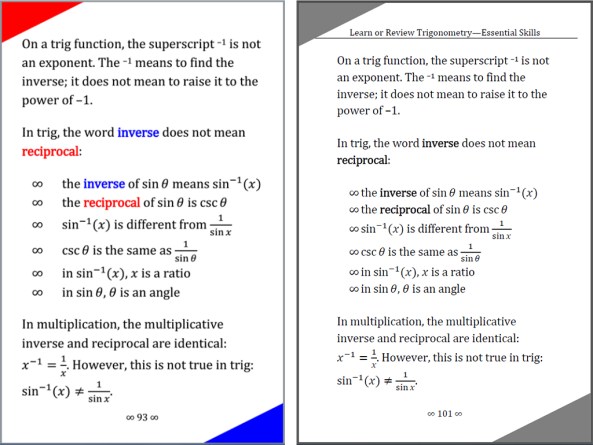
KTC Trig Q4

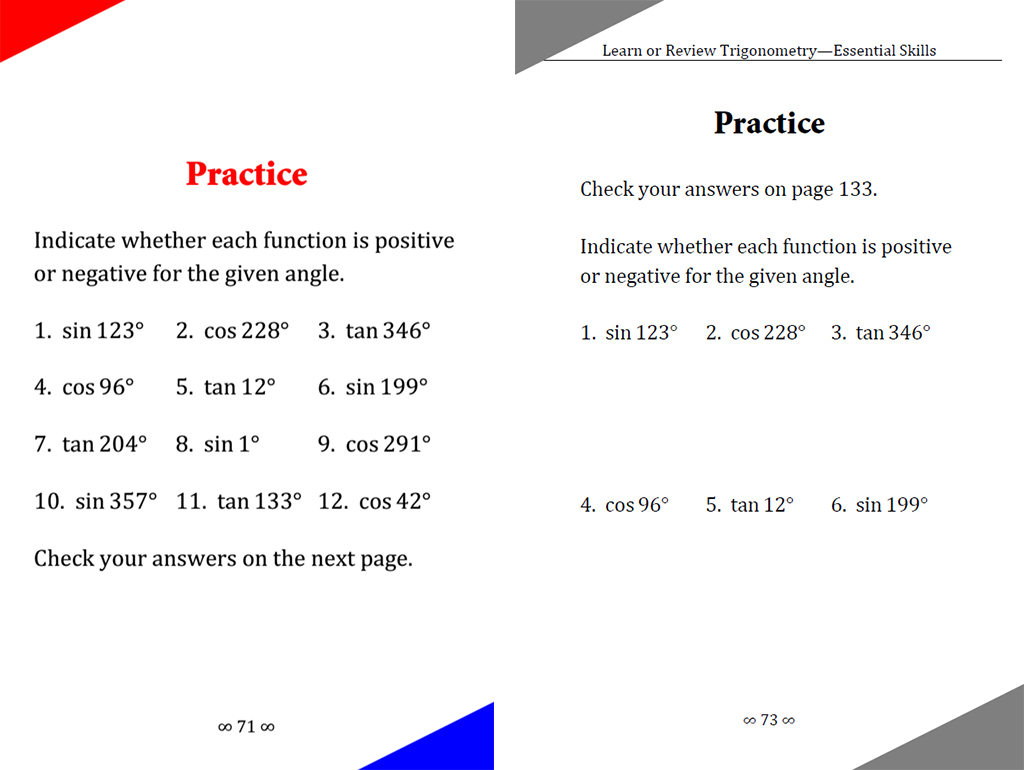
The image above shows a few differences:

  • I used grayscale for the paperback, but color for the Kindle edition.
  • The page numbering is different with my Kindle version redesign.
  • I removed the page header for the Kindle edition.
  • The image appears slightly larger on the Kindle screen.
  • (Although the text appears slightly larger in the Kindle edition, it’s actually more than it seems in this side-by-side picture.)
KTC Trig m

In the above image, you can see that the Kindle edition has narrower margins than the paperback. That’s not automatic. I specifically changed my file to have narrower margins on the Kindle edition, where those margins are less relevant, but which waste valuable space.

KTC Trig p

The print edition includes practice exercises at the end of the chapter. You can write in the paperback, so customers may want space here for their solutions. However, you can’t write solutions in an e-book, so I removed this extra space from the Kindle edition, as shown above.

Also, the answer key for the paperback is at the end of the book, which is inconvenient for the Kindle edition, so I put the answers on the page after the problems for the Kindle version. Customers just have to turn the page to find the answers in the e-book. It’s easy to bookmark the answer key for the paperback though, so I tabulated the answers in their own section for the paperback.
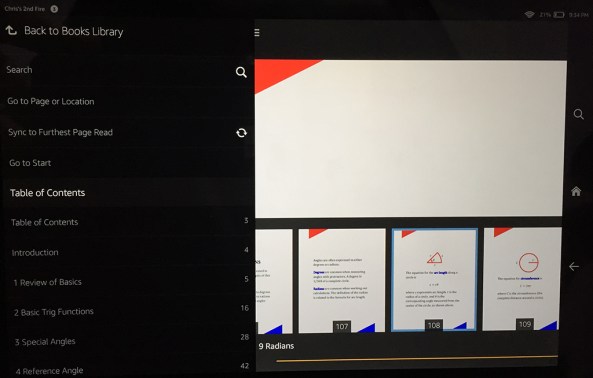
KTC Trig F

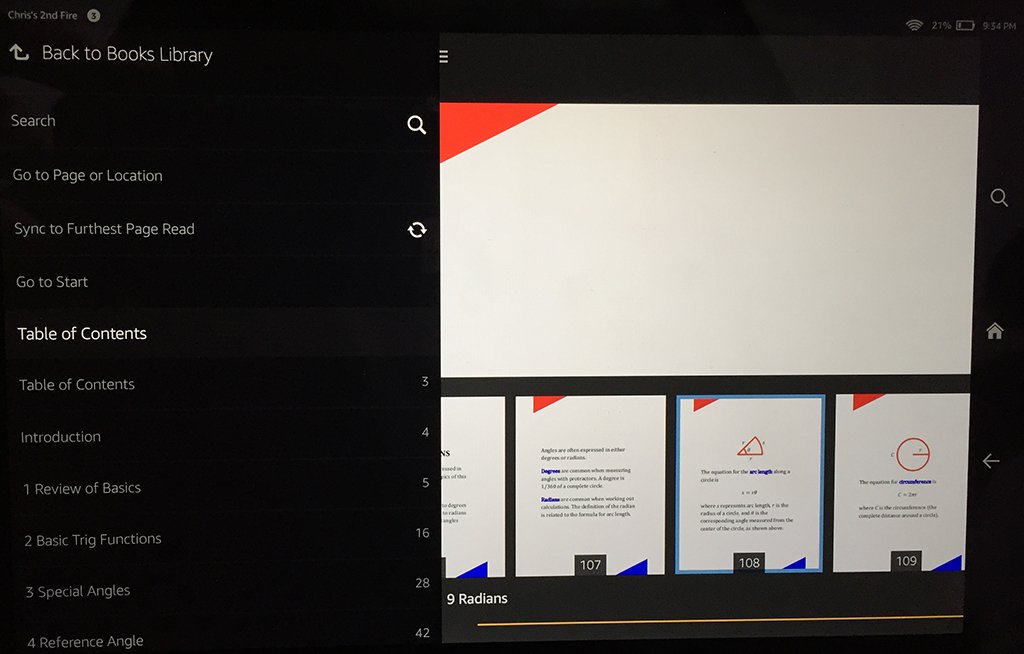
You can see what I mean about navigation built into the device in the above illustration. I took this picture with my iPhone’s camera; it shows my Kindle Fire HD 8.9″ with the navigation window open. On the bottom left, you can see the Introduction followed by the chapter names, with corresponding page numbers to the right. Note that these page numbers are automatic, and only match the actual numbers shown on your pages if you go to the trouble to make them match.

Inside Outside Margins

The above picture isn’t a Kindle Textbook Creator e-book. It’s a paperback book showing that some print books have a wider inside margin than outside margin. That might look funny if not changed for the Kindle edition of an e-textbook made using the Kindle Textbook Creator.

Write happy, be happy. 🙂

Chris McMullen

Copyright © 2015

Author of A Detailed Guide to Self-Publishing with Amazon and Other Online Booksellers

  • Volume 1 on formatting and publishing
  • Volume 2 on marketability and marketing
  • 4-in-1 Boxed set includes both volumes and more
  • Kindle Formatting Magic (now available)

Amazon Matchbook Offer for Kindle (nice surprise)

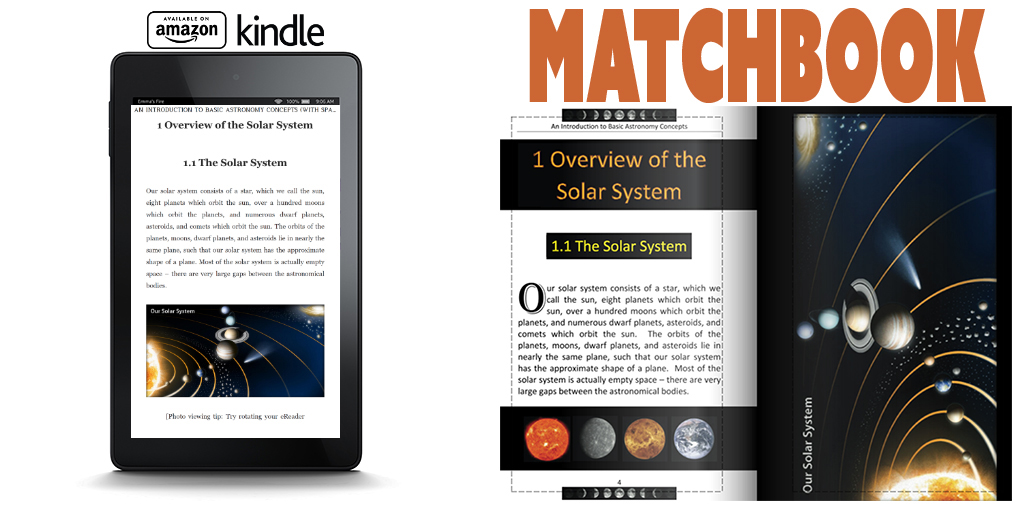
Matchbook New

Amazon, Kindle, and Fire and all related logos are trademarks of Amazon.com, Inc. or its affiliates.

MATCHBOOK OFFER

Note: As of October, 2019, the Matchbook program has been canceled.

After I purchased some print books today on Amazon, I found a nice surprise.

At the top of the next page was a large Matchbook offer, large enough to include the thumbnail of one of the books and a message.

It informed me that since I had purchased the print edition, I could add the Kindle edition for $1.99.

This way, the Matchbook offers are getting a little exposure.

They are slightly easier to spot on the product page than they once were, yet they still aren’t too visible there.

But after you buy the print book, now the Matchbook offer is highly visible.

WHAT’S MATCHBOOK?

The Amazon Kindle Matchbook program allows publishers to offer the Kindle edition at a discounted price to customers who have already purchased the print edition.

The idea is to entice customers to buy both editions, and to offer savings to customers who do so.

KDP authors can check a box on the second page of the publishing process to enroll in the Matchbook program.

You must have a print edition of the same Kindle e-book, and the two editions must be linked together on the Amazon product page for this to work.

I get some Matchbook sales every month.

But many authors don’t see many Matchbook sales.

For one, I sell many more print books than Kindle e-books. If you sell mostly Kindle e-books, you probably won’t see as many Matchbook sales.

Unless you find an effective way to take advantage of a little marketing potential.

You have to let your prospective customers know about the benefits of Matchbook.

For example:

  • Buy the print edition at Amazon and get the e-book edition at a discount.
  • Keep the Kindle edition for yourself and give the print edition as a gift. (Great holiday idea.)

Many customers don’t know about Matchbook, and those who do often don’t fully realize how it could benefit them.

The way around this problem is to help educate your customers.

But like all other marketing, it’s never easy.

Write happy, be happy. 🙂

Chris McMullen

Copyright © 2015

Chris McMullen, Author of A Detailed Guide to Self-Publishing with Amazon and Other Online Booksellers

  • Volume 1 on formatting and publishing
  • Volume 2 on marketability and marketing
  • 4-in-1 Boxed set includes both volumes and more
  • Kindle Formatting Magic (coming soon)

Follow me at WordPress, find my author page on Facebook, or connect with me through Twitter.

Comments

Click here to jump to the comments section.

Can you use an Amazon logo or frame your book in a Kindle?

Amazon, Kindle, and Fire and all related logos are trademarks of Amazon.com, Inc. or its affiliates.

Amazon, Kindle, and Fire and all related logos are trademarks of Amazon.com, Inc. or its affiliates.

AMAZON KINDLE BRAND USE

Did you know that authors can use Amazon Kindle logos and device images to advertise their book on another website provided, of course, that they first read and follow the guidelines for using them?

Amazon even provides the image files for their logos and device images for you to use.

I got this straight from the horse’s mouth, and you can easily confirm it. Visit this KDP help page. Click the Kindle Brand Use Guidelines link.

Before you use the Amazon Kindle logos or device images, read the Kindle Brand Use Tagging and Framing Guidelines.

Also, read the Amazon Brand Use Terms and Conditions, available here.

Of particular note are these rules:

  • You must include a trademark notice, such as, “Amazon, Kindle, and Fire and all related logos are trademarks of Amazon.com, Inc. or its affiliates.” Amazon tells you what language to use in their Amazon Brand Use Terms & Conditions.
  • If using the logo or image for a giveaway, you must also include the following disclaimer: “Amazon devices are given away on behalf of <company>. Amazon is not a sponsor of this <contest / promotion / event>.
  • Use an approved Amazon provided image file (see below for a link to a page with these image files).
  • Write something like, “Available on Amazon” beside the logo. Amazon also offers approved image files for these badges (see below for a link).
  • To frame your book in a Kindle device, you must use an actual photograph of a device. Amazon supplies these image files, too (see below for a link).
  • Your Kindle e-book must be available for purchase at Amazon and must work on the Kindle device.
  • If you follow the Tagging and Framing Guidelines, your use is pre-approved (so you can skip Step 1 of the Terms & Conditions, as noted in Step 3).
  • Obviously, your use must be in a way that reflects favorably upon both Amazon and the Kindle device.

AMAZON APPROVED IMAGE FILES

You can find Amazon’s approved image files here:

Click on the Download link or click on the image to open it full-screen with high resolution before you save the image (right-click and select Save Image As). (Don’t right-click on the tiny image or you get a small low-resolution image. Open it full-screen before you save it.) Then you can take an actual page from your book (such as the first page which shows your front cover) and place it on the screen (provided that the result appears exactly as it will when a customer views it on an actual device). Remember to include the words “Available on Amazon Kindle” or use one of the approved badges with similar wording.

If you also wish to link to your book’s product page at Amazon, visit your book’s detail page and look for the Share link near the pricing and purchasing area on the right-hand side of the page. The pop-up window provides a short link to your book, such as http://amzn.com/B00AA5CJ7C. This compact link can be quite handy.

Write happy, be happy. 🙂

Chris McMullen

Copyright © 2015

Chris McMullen, Author of A Detailed Guide to Self-Publishing with Amazon and Other Online Booksellers

  • Volume 1 on formatting and publishing
  • Volume 2 on marketability and marketing
  • 4-in-1 Boxed set includes both volumes and more
  • Kindle Formatting Magic (coming soon)

Follow me at WordPress, find my author page on Facebook, or connect with me through Twitter.

Comments

Click here to jump to the comments section.

Nice Exposure for Countdown Deals on Amazon

Countdown Amazon

COUNTDOWN DEALS: HOW WILL ANYONE FIND THEM?

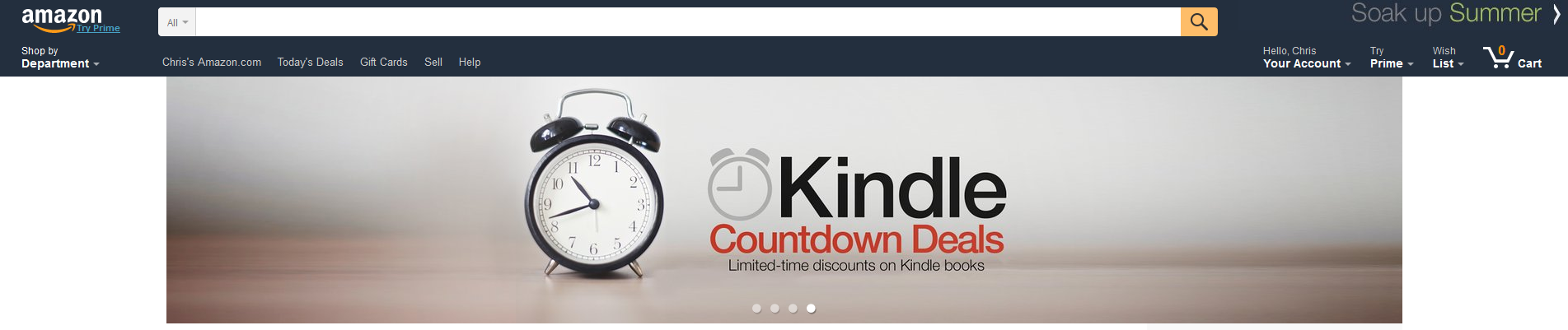
Yesterday, I saw this cool banner on the top of Amazon’s homepage, advertising Kindle Countdown Deals.

When I clicked on it, I was taken to the Countdown Deal homepage.

I thought this was pretty cool. It’s a small step (not too small—advertised on Amazon’s homepage) toward helping publicize Kindle Countdown Deals.

This is good news for authors with books in KDP Select.

I noticed that 6 of the books on the first page of the Countdown Deals had the #1 bestseller tag. Obviously, some authors are making effective use of this promotional tool.

And the top selling books that happened to have Countdown Deals running yesterday probably received a nice boost from Amazon’s ad.

It’s a nice step in the right direction. I actually sent a suggestion into Amazon about this about a week ago.

Countdown Deals need more publicity. How does anyone find them?

Well, you could find the book itself, then you see it’s on sale and maybe feel more compelled to purchase the book.

But you’d really like to attract customers who wouldn’t have otherwise discovered the book. That’s the goal.

Of course, it helps if you advertise it on BookBub, E-reader News Today, or one of several other similar services. See a list here.

Yet Amazon is where you really want your Countdown Deal advertised. KDP advertises that one of the benefits of KDP Select is that the Countdown Deals are advertised on Amazon.

They are, just not as well as they could be.

Where are they? Visit Amazon’s homepage. Hover over Shop by Department, hover over Books & Audible, and click Kindle Books.

Look under Kindle Book Deals. You’ll usually find Countdown Deals on the list.

But here’s the problem. Imagine you’re a customer who has no idea what a Countdown Deal is. Here are the options that you see:

  • Kindle Daily Deals. (Sounds good, right?)
  • Monthly Deals, $3.99 or less. (Low prices, sounds good, too.)
  • 50 Kindle Books for $2 each. (Great price, that’s enticing.)
  • Kindle Countdown Deals. (What on earth is that?)
  • 30 Kids’ Books for $1. (Great price again.)

You see the problem: Kindle Countdown Deals has the least compelling name on the list. It doesn’t mention price, % off, and it doesn’t sound like a good deal.

But many of the Countdown Deals are 99 cents or $1.99, with discounts of 50% to 90% off. The deals are a lot better than the name suggests. So what’s to attract Kindle customers to this option?

I feel like it could be merchandised better. I think Amazon wants to help KDP Select books (at least, those with better potential to engage readers), and wants to attract indie authors into KDP Select. So why not merchandise this better? There is an opportunity here.

This advertisement on their homepage is a good sign. It shows that Amazon wants to help merchandise KDP Select books and make the program more compelling for authors.

If you want to check out some Kindle Countdown Deals, click here to visit Amazon’s Countdown Deal page.

Write happy, be happy. 🙂

Chris McMullen

Copyright © 2015

Chris McMullen, Author of A Detailed Guide to Self-Publishing with Amazon and Other Online Booksellers

  • Volume 1 on formatting and publishing
  • Volume 2 on marketability and marketing
  • 4-in-1 Boxed set includes both volumes and more
  • Kindle Formatting Magic (coming soon)

Follow me at WordPress, find my author page on Facebook, or connect with me through Twitter.

Comments

Click here to jump to the comments section.

Lending & Borrowing mean different things at Amazon

Image from ShutterStock.

Image from ShutterStock.

LENDING ≠ BORROWING

Amazon has two completely unrelated Kindle programs which use similar words.

  • borrowing: readers can borrow Kindle e-books through Amazon Prime or Kindle Unlimited.
  • lending: the Kindle Book Lending program allows customers to lend one book to someone else for up to 14 days.

These two programs have absolutely nothing to do with one another.

To make matters potentially more confusing, Amazon uses the word lending in KOLL: Kindle Owners’ Lending Library. In this abbreviation, ‘lending’ does actually refer to Kindle Unlimited and Amazon Prime. But in Kindle Book Lending, the word ‘lending’ means something entirely different.

Both options—borrowing as it relates to Kindle Unlimited and lending as it relates to Kindle Book Lending—appear in different places when you publish an e-book with KDP (Kindle Direct Publishing).

  • The top of the first page of the publishing process has the option to enroll in KDP Select. This includes your book in Kindle Unlimited and Amazon Prime (which are two separate programs).
  • The bottom of the second page of the publishing process has the option to participate in Kindle Book Lending. This has nothing to do with Kindle Unlimited (or Amazon Prime).

KINDLE BOOK LENDING

This allows a customer to lend the Kindle e-book to one friend or family member for up to 14 days:

  • Each customer can only lend the e-book one time only.
  • The original customer can’t read the book until it’s returned.
  • It can only be loaned for up to 14 days.

Authors have no control over this if they choose the 70% royalty option.

If authors choose the 35% royalty option, then can choose to opt out of Kindle Book Lending.

Since each customer can only loan the e-book to a single person, any possible loss through lending is severely limited.

The Kindle Book Lending option doesn’t affect Kindle Unlimited or Amazon Prime in any way.

KINDLE UNLIMITED

Customers can subscribe to Kindle Unlimited for $9.99 per month in the US (the fee is different in the UK).

A monthly subscription to Kindle Unlimited entitles customers to borrow as many Kindle Unlimited e-books as they would like.

Not all e-books participate in Kindle Unlimited. All KDP Select books are included in Kindle Unlimited, plus about 100,000 traditionally published books.

Approximately 1,000,000 of over 3,000,000 Kindle e-books are included in Kindle Unlimited.

Customers can borrow up to 10 books at a time. After that, the customer must return one of the 10 books before borrowing another.

Kindle Unlimited is unrelated to Amazon Prime.

(While Kindle Unlimited now pays authors by the page, customers are not charged by the page. Customers pay $9.99 per month and can then read as many pages of Kindle Unlimited e-books as they would like with no additional charge.)

AMAZON PRIME

Customers pay an annual fee to join Amazon Prime.

Amazon Prime offers many benefits, such as free two-day shipping of many eligible products, instant streaming of Amazon Prime videos, and borrowing up to one Kindle e-book per month.

There are about 100,000 Kindle e-books which are available to Kindle Unlimited customers, which are not available for Amazon Prime customers.

Unlike Kindle Unlimited, Amazon Prime customers can only borrow one Kindle e-book per month.

Customers must browse for Amazon Prime e-books using a Kindle device registered to the Prime account. (Before Kindle Unlimited, Amazon Prime customers could shop for Kindle e-books from their pc, mac, or laptop, but now they must shop for Amazon Prime books using a registered Kindle device.)

(In contrast, you don’t need to own a Kindle device to use Kindle Unlimited.)

Write happy, be happy. 🙂

Chris McMullen

Copyright © 2015

Chris McMullen, Author of A Detailed Guide to Self-Publishing with Amazon and Other Online Booksellers

  • Volume 1 on formatting and publishing
  • Volume 2 on marketability and marketing
  • 4-in-1 Boxed set includes both volumes and more
  • Kindle Formatting Magic (coming soon)

Follow me at WordPress, find my author page on Facebook, or connect with me through Twitter.

Comments

Click here to jump to the comments section:

https://chrismcmullen.wordpress.com/2015/06/26/lending-borrowing-mean-different-things-at-amazon/#comments

Changes to Amazon Customer Reviews

Image from ShutterStock.

Image from ShutterStock.

AMAZON CUSTOMER REVIEW CHANGES

Amazon is implementing changes to the customer review system in the US.

News of this change was recently announced in this c/net article.

The new customer review system uses a machine learning platform.

What does a machine learning customer review platform mean?

  • The system will gauge which customer reviews are most helpful.
  • The customer review system will be dynamic.
  • The average star rating will be weighted by helpfulness.
  • Verified reviews will have an edge toward helpfulness.
  • Newer reviews will also count more toward helpfulness.
  • Customer voting still impacts helpfulness.

So, exactly, how is this different?

  • Average star rating may change, since it will be weighted by helpfulness. The most helpful reviews will carry more influence.
  • Customer voting isn’t the only factor that affects helpfulness. Newer reviews and Verified reviews will carry more weight. There are probably other factors entailed in the “machine-learning.”
  • Reviews deemed most helpful will have greater visibility on Amazon.
  • The placement of reviews and average star ratings may change more frequently with the new system.

It will probably take time for the new Amazon customer review system to fully roll out and for the machine-learning to make an impact.

Amazon hopes to make the customer review system more useful through these changes.

The emphasis on newer reviews is to keep the information up-to-date. For example, if a product is improved to reflect criticism, newer reviews may reflect those changes, and thus should be more visible.

The emphasis on Verified reviews is in-line with Amazon’s recent lawsuit against alleged fake review websites. Amazon is striving to sustain customer trust in the review system.

KINDLE REVIEWS ARE SPECIAL

Machine-learning may have far-reaching consequences with regard to Kindle book reviews.

That’s because Amazon has more data to analyze:

  • How many pages did the customer read?
  • How much time did the customer spend reading the book?
  • How does the customer’s behavior with this book compare to the customer’s behavior with other books?
  • How many customers return this book?

Changes to customer reviews and to sales rank may both be related to recent changes announced for Kindle Unlimited.

Kindle Unlimited will now pay royalties based on how many pages customers read, effective July 1, 2015.

Royalty reports for Kindle Unlimited will show the number of pages read instead of the number of borrows.

Kindle sales rank may soon be impacted by the number of pages that customers read.

Similarly, machine-learning may look at the number of pages read and related data to help judge which reviews are more helpful.

If so, this would affect all Kindle e-books (not just those in Kindle Unlimited).

Write happy, be happy. 🙂

Chris McMullen

Copyright © 2015

Chris McMullen, Author of A Detailed Guide to Self-Publishing with Amazon and Other Online Booksellers

  • Volume 1 on formatting and publishing
  • Volume 2 on marketability and marketing
  • 4-in-1 Boxed set includes both volumes and more
  • Kindle Formatting Magic (coming soon)

Follow me at WordPress, find my author page on Facebook, or connect with me through Twitter.

Improved Amazon Subcategory Rank

Rank Subcategories

AMAZON SUBCATEGORY RANK

Subcategory ranks at Amazon now extend beyond the top 100 bestsellers in the subcategory.

This is a nice improvement, I think.

Customers see a Kindle sales rank of 500,000 at Amazon and wonder why it’s not selling much.

But how many of the better selling books are completely unrelated to the type of book that the customer is shopping for?

Maybe the book is in a special niche.

A book that ranks 500,000 overall might rank 150 in its subcategory.

When a customer sees 500,000 overall, it can deter sales a bit.

When a customer sees 1,000,000 overall, it can deter sales a lot. In fact, a book can sell once a week or so on average, but as soon as it reaches 1,000,000, often its sales diminish significantly, unless and until it gets a much-needed sale to return to the low 100,000’s. It’s the same book, same cover, same Look Inside, same description, same reviews… but that different sales rank changes some customers’ perceptions.

Not all. Some customers ignore sales rank. Some don’t know what it means. But some do understand sales rank.

But if the customer sees that the book ranks 150 in its subcategory, that has appeal.

So this is a nice change.

It’s one of many improvements that Amazon has made to product pages recently. Amazon has even improved Kindle Unlimited recently.

Amazon could take this a step further:

  • Don’t even show the overall rank unless it’s more likely to drive sales than deter sales.
  • Only show subcategory rank (and possibly category rank) unless overall sales rank will help with sales.

Authors can see overall sales rank from Author Central, so this really isn’t needed on the product pages.

Suppose a book is ranked 500,000 overall and 150 in its subcategory.

Until recently, it only looked like this on the product page:

Amazon Best Sellers Rank: #500,000 Paid in the Kindle Store

Now it looks like this:

Amazon Best Sellers Rank: #500,000 Paid in the Kindle Store

#150 in Books > Category > Subcategory

I propose that it should look like this instead:

Amazon Best Sellers Rank: #150 in Books > Category > Subcategory

In my opinion, this is more likely to drive sales.

Amazon has kind of shot itself in the foot with sales rank.

It used to be that a book selling once a day on average had a sales rank around 50,000.

This number is going up. It could have a sales rank around 200,000 now. Pretty soon, 500,000 might be selling once a day.

But people remember how it used to be. They remember that 500,000 used to be bad. It was bad when there were 1,000,000 Kindle books. But it’s pretty good now that there are 3,000,000 Kindle books.

Amazon doesn’t just want to sell the top 50,000 books. Amazon could improve its sales of books ranked 50,0001 to 3,000,000 by not showing its overall sales rank at all.

Just show the subcategory rank only, unless the overall rank is good enough to help sales. Don’t show customers ranks that are more likely to deter sales.

Yes, if they adopt my idea (doubtful, unless perhaps several others—maybe you—take the time to contact Amazon with the suggestion), customers would learn that if there is no overall rank, that book isn’t one of the top sellers. But they will see the subcategory rank and realize that it’s selling fairly well in its subcategory. They won’t know if the overall rank is 50,001 or 3,000,000 (but the subcategory rank will make it seem more like 50,001 than 3,000,000).

Anyway, it’s just a thought.

I’m a fan of the new subcategory ranks.

Amazon used to show subcategory rank only if the book was in the top 100 in its subcategory. Now subcategory extends way past 100.

I think this is a cool change.

You can probably expect to see continued changes to the product pages as Amazon further tests out ideas that may improve sales.

Write happy, be happy. 🙂

Chris McMullen

Copyright © 2015

Chris McMullen, Author of A Detailed Guide to Self-Publishing with Amazon and Other Online Booksellers

  • Volume 1 on formatting and publishing
  • Volume 2 on marketability and marketing
  • 4-in-1 Boxed set includes both volumes and more
  • Kindle Formatting Magic (coming soon)

Follow me at WordPress, find my author page on Facebook, or connect with me through Twitter.