Which Edition Is It?

After publishing, it’s almost inevitable that at some point you’ll want to make changes:

  • You might discover a typo yourself, or have some pointed out to you.
  • The formatting of the Look Inside often doesn’t come out quite as expected (even if the book looks great on Kindle).
  • After writing another book, you may want to include a short sample of the first chapter at the end of your previous book.
  • You might want to add your website, email, or other author information to your books.
  • As you learn more about publishing, you may find good ideas or inspiration that you’d like to incorporate into your existing books.

Revising your book is fairly painless: You simply revise your files and resubmit them. (If you were wise enough to keep track of which version of the file was your latest file and where you saved it, that will be quite handy. The last thing you want to do is introduce mistakes by accidentally using the wrong file.)

Beware that a tiny change can create a domino effect, messing up the formatting on dozens of pages that follow. Take the time to inspect the formatting throughout the book, no matter how small the change is.

Where the fun begins is after your revise the book. You check out the product page, wondering if the changes have been made. If they occur in the beginning, you might be able to see them on the Look Inside. You might be wondering if you should buy your own book just to see if it has been corrected, but then you’ll be really disappointed if you invest in this just to discover that it hasn’t been.

Suppose a customer brings a paperback copy of your book to you. It might be handy for you to know which edition of the book that customer has read – i.e. did the customer buy it before or after you made the changes?

Fortunately, there is a simple solution: When you revise your interior file, simply place something that will show up in the Look Inside that will distinguish one version from another.

If the copyright page shows up in the Look Inside (it should, unless you move it to the back matter, which some authors and publishers do with eBooks in order to maximize the free sample), you could simply write Edition 4, for example. Then when you check out the Look Inside on Amazon, if you see Edition 3 instead, you know that the old Look Inside is still showing.

If you added new material and made corrections, you could write Revised and Expanded Edition instead of the edition number. You can even write a brief note like Revised to Include…

It’s not necessary to make it appear like a new edition has been made. If you only made a few small corrections, for example, you might not want to advertise that it has been updated. If you don’t want to advertise the update, but want to be able to tell yourself that it has been updated, then you just need to make some subtle change to the Look Inside that will help you tell which edition you’re seeing when you see your book.

Chris McMullen, self-published author of A Detailed Guide to Self-Publishing with Amazon

How Would You Improve Amazon?

Imagine you suddenly have the job of Jeff Bezos, CEO of Amazon. Well, even then, you couldn’t do anything you wanted.

So let’s go a step further and grab a magic wand. That’s better. Now you can do anything. Wave your wand a couple of times to test it out.

If you could do it, what would you change at Amazon in order to improve it?

Don’t be selfish here. Don’t just think about bad reviews that you’d like to make vanish or advertisements for your book if you’re an author, or how to make products free for you as a consumer.

I’m not asking how you would make Amazon better for you alone. I’m asking how you would make Amazon better for everyone.

Not just customers. Giving everything away for free would greatly benefit the customers. For a few days, until the company went bankrupt. If you want Amazon to benefit customers in the long run, you must balance what’s best for both the consumers and the business.

Okay. Spend a few moments in fantasy land. Do absolutely anything to Amazon that you want with your magic wand. Then when you return to reality, think about changes that may be beneficial to all.

What would you like to change?

(1) The Amazon Customer Review System

Almost everyone who is familiar with customer reviews on Amazon can write down a few things that they don’t like about them.

Not everyone is in agreement on what should be changed, though. Authors, readers, product owners, editors, publishers. There are some conflicting perspectives here. Even just among customers.

If there is one feature of reviews that we can all agree on, perhaps it’s spitefulness. Some reviews are downright nasty. There are reviews that slander the author, but don’t even mention the book.

You’d think that Amazon would remove such spiteful reviews, right? It even says right there in the terms and conditions that spite is not allowed. But when spiteful reviews are reported – by the author or even a customer – much of the time Amazon simply responds to say that they understand your concern, but this review doesn’t violate the terms and conditions.

Huh?

Evidently, a reviewer must be blatantly spiteful in order to warrant removal of the review.

How is this in Amazon’s best interest? That spitefulness is very negative. Wouldn’t Amazon create a more positive ambiance by removing that spite? By not removing it, they’re actually encouraging such behavior.

Would customers prefer to see the spite remain or be removed? Does such spitefulness help to brand Amazon’s image with a negative shopping environment? How does this help buyers determine which product to buy? How does it help Amazon sell products?

Maybe you can think of some reason to keep it.

I’ll suggest a couple of possibilities. For one, the spiteful reviews are mostly one and two star reviews. If you wave your magic wand and delete all of the spiteful reviews, millions of one and two star reviews will suddenly vanish. Some products, which only have a few reviews, will suddenly seem better liked than they actually are. The customer who loathed a product so much that he was very spiteful when he wrote the review did cast a vote when he gave it one star. Maybe Amazon wants to retain those votes of one or two stars associated with the spiteful reviews (perhaps there is a reason for this).

If Amazon would like to preserve the one star vote, it could be done while still removing the spite. Just edit out (or delete) the spiteful comments instead of the entire review.

Now we run into another possibility. Manpower. Amazon doesn’t have one of those magic wands to wave and quickly zap away all of the spite.

Remember, we’re not thinking of how to improve Amazon just for customers. We want to find changes that will improve Amazon for everyone. That means not going out of business.

How much would it cost Amazon to monitor the customer review system more closely than they already do? That’s what it would take to deal with spitefulness. Let alone other issues with reviews.

With the advent of self-publishing, there are presently hundreds of thousands of authors who feel that they have a bad review that should be removed for one reason or another. Some have multiple books and numerous reviews that they feel strongly about. Add to this number the legitimate reviews that clearly aren’t violations that some authors would also request to be removed.

Amazon already receives a staggering number of requests from authors for reviews to be removed. This occurs with the current policy in place. That is, it’s well-known that Amazon very rarely removes customer reviews, even when they’re fairly spiteful. Yet, they still receive a ton of requests every day.

Imagine how many, many, many, many, let’s add a few more many’s just for effect (but it may be realistic) more requests Amazon would receive if instead it were well-known that Amazon would remove a review if it were just mildly spiteful. Even if the requests didn’t crash the server, the manpower it would take to attend to these requests would be incredible.

Every day, there are numerous posts online on blogs, community forums, and elsewhere describing unfair customer reviews at Amazon. Bear in mind that the majority of authors don’t write posts about bad reviews because doing so would hurt their own author image and would help brand the image of self-publishing as unprofessional.

Have you ever seen an author get in a long debate with a reviewer using the comment system? It’s very unprofessional, but that’s not the point. My point is that, unfortunately, some authors tend to get highly emotional about reviews and find it difficult to stop arguing about them.

So just imagine those authors communicating with Amazon. They request to have a bad review removed. Amazon says no. They respond to Amazon in a long email. This would go back and forth for an eternity, just like they do in the comments, right?

Nope. Amazon learned not to waste resources on possibly endless communications. Amazon tells the author on their second response that they won’t be able to investigate the matter any further. That is, if the author sends a subsequent request, it will be ignored.

Consider that Amazon has this action in place. It suggests that manpower is already an issue. So is it worth the possible investment to deal with spite? Maybe this is one reason that it hasn’t already been done.

Maybe you can think of a way to deal with spite affordably. Perhaps there is a way.

(Amazon already responds to the request to say that they’ve looked at the review, and understand your concerns, but can’t remove the review. How much more work would it be to remove it? A lot. Because word would spread and the requests would pile up immensely.)

What about other changes to the customer review system?

We could eliminate shill reviews and sock puppets. That is, generating fake reviews to make a product seem better than it actually is. Actually, Amazon has already made this change to some extent. Amazon automatically blocks a very large number of reviews and has removed thousands – perhaps millions – of such reviews. This change was affordable, as a computer program could check for correlations between IP addresses and other information in their database between accounts. It may have removed some legitimate reviews, too, but overall the customer experience has been tremendously improved.

But there is still some review abuse, especially negative reviews that arise from jealousy of some sort (rival authors, ex-boyfriends). Can you think of a way to eliminate this?

A common suggestion is to require all reviews to be Amazon Verified Purchases. Why isn’t this done already? There may be reasons for it.

First of all, there are already millions of reviews that are unverified. Would you like to remove all of those? Perhaps those could be left there, and just impose this on new ones. There are still other issues.

Publishers send out a large number of advance review copies. Publishers provide big business for Amazon. It’s probably not good business for Amazon to prevent the recipients of advance review copies from reviewing books on Amazon, as they would all show as unverified purchases.

What about customers who buy the product elsewhere? A bestselling book might sell many more copies in bookstores than on Amazon. Bestselling authors – and Amazon, too – want all of those customers to be eligible to review the books on Amazon.

What about eBooks? Well, customers don’t have to use Kindle to read eBooks, but Amazon still allows them to post reviews. They can be gifted and lent, too.

But maybe there is one aspect of this that most of us would agree on. Amazon has made it clear that customers can review products even if they’ve never seen or used them.

What?

Does this seem crazy to you? Imagine that you invented a machine and one of the first customers left a review saying, “I didn’t buy this, but just looking at it I can tell it wouldn’t work.” Okay, nobody who reads the review is going to take it seriously, but it does affect the average star value.

When a customer clearly states in the review that he or she hasn’t read the book or used the product, maybe those reviews could be removed. Wouldn’t this be a small improvement?

Amazon’s customer review system isn’t perfect, but it is pretty effective at soliciting opinions, and it does provide shoppers with diverse information that they can consider. Most of us may agree that it’s better than no reviews at all.

There may be other ways to improve the system. Remember, cost is a factor. You might want to hire external companies to leave neutral reviews instead of customer reviews, but with tens of millions of products, is that feasible?

I have a few suggestions. I’ve heard a few others express similar ideas. Maybe you have some other ideas that haven’t been addressed.

When you finish reading an eBook on Kindle, why can’t you type your review right then and there? Wouldn’t that be convenient? Why can’t you click on the book on the device and find a quick and easy place to post the review? I have the Kindle in front of me. I’m in the mood to review the book. It’s on my mind. But I must be inconvenienced to login to Amazon, which I would rather do on my pc. How many customers were ready to leave a review, but decided against it out of inconvenience?

I’ve typed reviews and stopped when I saw the preview, thinking I was done. I wonder how many other customers haven’t finished the review process, not realizing that they had to check the preview and approve it? Oops! Or maybe they rated it when they reached the end of a Kindle eBook, thinking that was a review? There may be a little room for improvement here.

How about separating the rating from the reviews? That is, let customers rate the book without reviewing it, like they can do at Goodreads. Some customers can put a number on a book, but feel uncomfortable describing it in words (including reaching the minimum word count).

If you want to drastically increase the frequency of customer reviews, offer a penny for every review. Or make it a nickel, dime, or a percent if you really want to see tons of reviews on Amazon. I bet many authors wouldn’t mind this being subtracted from their royalties to help encourage more reviews. But the discount (off a future purchase, perhaps) might inspire more sales.

(2) Self-Publishing Quality Control

First, let me say that I put this here because it’s a popular issue, not because I personally am in favor of this. I’ll try to show the pros and cons, and you can decide for yourself. Or maybe you will think of better ideas that I’ve left out.

If you could wave a magic wand to remove every book that doesn’t meet a minimum degree of editing, formatting, and writing, would you do it? As long as it’s a magic wand, rather than removing these books, maybe you could just make them magically look more professional.

But we can’t fix them with magic. It would take an insane amount of manpower to format and edit them. It would take an insane amount of manpower just to screen them. So just hiring a very large editing team isn’t feasible.

Amazon could charge a publishing fee to cover the cost. Some people would be in favor of this. But many people would also be against it. Currently, Amazon is free. Amazon has done an amazing thing, opening the doors of publishing to everybody. Amazon has an abundance of support from the self-publishing community for this. These authors – and their family, friends, and acquaintances – don’t just write books, most of them read books, too. Imposing an inhibitive fee may not be good for business in the grand scheme of things.

Even an optional fee has an issue. By being free, Amazon is differentiated from vanity presses.

Free publishing gives Amazon an unbelievable selection.

There are some books with formatting, editing, writing, and even storyline issues. These books are a problem for customers and also adversely affect the image of Kindle, Amazon, and self-publishing.

But how bad is the problem? I don’t mean this as a percentage of books. I mean that most customers check out the description, reviews, and Look Inside and generally are able to avoid such books. Those who don’t are apt to learn to do this through experience. These books tend to have lousy sales ranks. So are they selling enough to be so concerned about? Perhaps a few years ago when Kindle and self-publishing were newer, more customers were coming across such books. Perhaps it was a bigger problem before Amazon’s program started removing and blocking most of the shill reviews and sock puppets. Perhaps it’s not such a problem now. Especially, in terms of cost-benefit analysis. Or maybe you have a better suggestion.

Self-published authors have a strong incentive to improve their books as much as possible, as this will greatly improve their chances of success.

Also, customers can report formatting issues. This helps Amazon catch some of the more serious problems. They actually suspend sales of eBooks until the issues are resolved.

(3) Order of Search Results and Categories

This might be something to consider. Most book categories have thousands of books even in the final subcategory, yet only a dozen books show on the page. If you type a search, you sometimes receive interesting results. Obviously, Amazon wants to order the search results based on what consumers are most likely to buy as well as what is likely to please the customer. But it seems like there could be a better way to sort through tens of millions of products to find what you’re looking for. And there may be ways for people to abuse the system (i.e. to get their products to show higher in the search without merit). Fortunately, Amazon doesn’t publish their algorithm, and may revise it, which makes it harder to abuse.

Amazon is probably considering this on an ongoing basis. Categories have changed over the years, and they have probably revised the program which determines the order of search results. They have also added filters, like “most reviews,” so you can see which books have been reviewed most (whereas searching by the highest customer review would put a book with a single five star review ahead of a book that has hundreds of reviews that are mostly five stars); that’s a small improvement. Can you think of other ways to improve this?

(4) Other Changes

I selected a few popular topics to discuss. Maybe you can think of other areas where Amazon could be improved.

Some of the changes I’ve mentioned I have suggested to Amazon (not all at once). Feel free to send your own suggestions to Amazon. The more times Amazon receives the same suggestion, the more likely they are to realize that there is a demand for it. They claim to welcome feedback, and that customer feedback is invaluable. So apparently this is encouraged.

Chris McMullen, Author of A Detailed Guide to Self-Publishing with Amazon and Other Online Booksellers

How to Save Memory on Repeated Pictures in a Kindle eBook

Border Thin JPEG

Border Thin JPEG

Border Thin JPEG

There are a few advantages of minimizing the file size of an eBook:

  • The minimum Kindle price depends on the converted .mobi file size (available on the second page of publishing with Kindle Direct Publishing). The list price can only be 99 cents to $1.98 if the file size is under 3 MB and between $1.99 and $2.98 if the file size is between 3 MB and 10 MB. Authors intending to price their books under $2.99 (for which the royalty will be 35%) need to be aware of these limits.
  • Each eBook publisher has a maximum file size. For example, Amazon’s Kindle is 50 MB, Sony’s Reader is 5 MB. If a file is a little above these limits, reducing the file size allows it to be published as a single volume.
  • The eBook takes up room on the customer’s device. Some customers may be reluctant to buy eBooks with larger file sizes. Large files also take longer to download, especially on older devices. Depending upon the formatting, they might also be more susceptible to file problems.

Books with images tend to have larger file sizes. Compressing the images is the simplest way to reduce file size.

https://chrismcmullen.wordpress.com/2013/04/08/fighting-words-picture-compression/

For Kindle, gray lines tend to show on one or more edges of the pictures when using Microsoft Word unless the file is saved as web page, filtered. After doing this, find the file in the saved folder, right-click the file, choose Send To, and select Compressed (Zipped) Folder. Then find the folder of picture files with the same filename and copy/paste it into the zipped folder. Upload this zipped folder to KDP. This should remove those gray lines.

(When using Word, insert the picture using Insert > Picture and select the file. Then right-click the picture, choose Size, and change Width to 100%. If the picture doesn’t fit on the screen, don’t worry – it will fit on the device, which you can check in the preview. Place each picture on its own line and wrapped In Line With Text.)

If pictures are repeated in a Microsoft Word file, this wastes memory. Suppose, for example, a book features a decorative page border. A one-a-day book (of quotations, for example) might stand out by featuring a visually appealing wide, short border. But even if the picture size is small, with 365 such images, the overall file size may be significant. As another example, consider a book of shuffled flashcards, where there are several copies of each picture.

There is a simple way to avoid adding to the overall file size when pictures are repeated:

  • First, don’t copy/paste the image in Word. Just insert each different picture once. Where you want to insert a copy of a picture, put a short note, like PIC14. Then later on you can use find and replace.
  • Next, open the filtered webpage (described in a previous paragraph) before making the compressed (zipped) folder in Notepad. Don’t edit this file in Word because Word will probably mess up the HTML.
  • Don’t worry, you don’t need to know any HTML or programming.
  • Find the actual pictures in the HTML file. The code will look something like this:

<h1><img border=0 width=1116 height=153 src=”filename_files/image005.jpg”></h1>

  • The actual code may look different. It may have <p> tags instead of <h1> tags and it may have other statements not shown here.
  • If there is a statement like id=”Picture 19″, remove it. This is superfluous. But if you copy/paste the picture code with the id number, then the same id number will be used twice. Avoid this problem by removing it.
  • Copy the code for your picture, from <h1> to </h1> (or <p> to </p>).
  • Use find and replace to change things like PIC14 (which you should have placed on its own line) to the code for the actual picture. You should have something like <h1>PIC14</h1> (or with <p>’s).
  • Repeat this process for any other pictures that are repeated.
  • Preview your eBook carefully before you publish. If you make any mistakes, this is your opportunity to catch them before your customers do. 🙂

Chris McMullen, self-published author of A Detailed Guide to Self-Publishing with Amazon and Other Online Booksellers

Is Amazon Our Friend?

A couple of weeks ago, I was asked this question by an author on the KDP community forum.

Many people are quick to criticize Amazon, and there may be some room for improvement, but I wholeheartedly believe that Amazon is highly beneficial to shoppers, writers, and small businesses.

I’ve been a customer at Amazon from the very beginning. I appreciate the convenience, selection, savings, and free shipping on qualified orders. I also have Amazon Prime.

You can even find out what other customers have to say. The customer review system isn’t perfect, but some input beats no input.

I’ve written and published several books. If not for CreateSpace and KDP, writing would just be a hobby for me.

Amazon opened the door for any and all authors to make their writing available for millions of potential customers around the world. Anyone can publish a book and share with others this way. Amazon similarly opened the door for small businesses to sell online at a very popular website.

Amazon represents freedom and opportunity. Amazon gives the small guy a fighting chance. Amazon regularly features success stories on their homepage of indie authors and small business owners. Self-published books and small business products are available beside traditionally published books and bestselling products by big businesses.

Where would we, the small guys, be without Amazon?

Let’s take a look at some of the criticism:

The book is not visible in search results.

  • There are 20 million books on Amazon. They can’t all be first in search results. Does it benefit customers to have new books by new authors show up before books that have established successful sales?
  • Amazon provides the opportunity. Diligent, motivated authors can take advantage of this through effective premarketing and packaging (relevant and attractive cover design, blurb, and Look Inside), and quality books that earn good reviews and word-of-mouth sales.
  • Amazon’s system tends to reward authors who scrupulously help themselves. Authors who work hard to generate sales through marketing can gain exposure through a better sales rank, early reviews, Customers Also Bought lists, and top 100 lists.
  • It’s not easy to produce a great book cover to cover. The books that best attract and fit an established target audience are more likely to be successful. Only the top couple hundred thousand books, out of millions, sell one or more copies per day on average.

Amazon removes 4- and 5-star reviews, but not 1- and 2-star reviews.

  • Unfortunately, a significant number of authors and small publishers had been taking advantage of customer reviews by leaving 4- and 5-star reviews written by the author, publisher, editor, family members, paid reviewers, and other parties who had a financial interest in the book’s success. There were several books with dozens to hundreds of fake reviews, sometimes for lousy books. Customer complaints and high profile articles led Amazon to block and remove 4- and 5-star reviews that they suspect of being fake.
  • There are some 1- and 2-star reviews from competing authors and publishers, people who loathe or are jealous of the author, and people who are otherwise upset. Some of these reviews are very spiteful, some spoil the ending, and some outright lie. But the fact is that most of the 1- and 2-star reviews out there are legitimate reviews from customers who simply didn’t like the book. No book can please everyone. There are many such reviews on bestselling books by popular authors, so it’s unreasonable not to expect this on all books by all authors.
  • Fake 4- and 5-star reviews had been more numerous and posed a much greater problem for Amazon than fake 1- and 2-star reviews. It’s also easier for Amazon to block and remove potential fake 4- and 5-star reviews than it is to catch fake 1- and 2-star reviews. The Amazon bot can cross-reference information in the 4- and 5-star case, but it’s really difficult to distinguish between disgruntled customers and fake 1- and 2-star reviews. As much as authors and product owners don’t like them, the 1- and 2-star reviews do help to provide balance. Customers are often suspicious of books or products that only have good reviews.

Do KDP and CreateSpace cheat authors on their royalties?

  • Amazon is a huge business. Almost everything is automated at Amazon – even grabbing products in the warehouse. It’s only logical for the sales and royalty reports to be automated, too. There is the possibility of an occasional glitch, but it’s highly improbable.
  • There are many authors and publishers who sell thousands (or more) books everyday. They check their sales reports, Nielsen Bookscan data, and royalty reports carefully, closely corroborating the results. Amazon has millions of dollars at stake. They can’t afford to cheat authors, publishers, and businesses. All large businesses, like Amazon, also have audits.
  • The royalty doesn’t show instantly, and this is probably what creates concern among self-published authors who only sell a few books. The royalty often appears within a few days, but sometimes it can be delayed for a couple of months. Paperback returns may be resold, and in this case the royalty doesn’t show at all on the CreateSpace report because it was already paid once before. Amazon may have books preprinted to stock in their warehouse, in which case they pay the royalty in advance, not when the book sells. Occasionally, Amazon sources a sale through a third party seller, and CreateSpace then reports it correctly as a full royalty, but not for a couple of months, when expanded distribution royalties show up. Because of this, an author may be aware of an occasional sale, but not see the royalty show up.
  • CreateSpace customer service is willing to track data regarding royalty questions. Authors can report the sales information to CreateSpace, and they will track the sale to help the author understand why the royalty didn’t show up immediately. It’s obviously in Amazon’s best interest to correctly report sales and royalty information to authors.
  • An occasional complaint about royalty payments shows up on the CreateSpace or KDP community forum. Most authors monitor their sales rank and royalties closely. If there were significant issues with this, complaints would be much louder and more numerous.
  • There are also complaints about royalty payments from traditional publishers. Small publishers are more likely to have manual rather than automated systems, they have less to lose than Amazon by cheating authors, and some of the stories involve much greater discrepancies than any complaints about Amazon’s royalty payments. Unless you own your own publishing company and print your own books, you simply have to trust someone. I haven’t observed any discrepancies in my reports, and over the years I’ve come to trust Amazon both as a customer and as a writer.

It’s easy to demand more and better. Amazon gives us an opportunity, and the opportunity is free. What we get for free is pretty awesome. We can’t expect Amazon to do all of the work for us (with 20 million books to manage, it’s not reasonable to expect Amazon to do much work for free). Preparing an excellent product, packaging it for the right audience, and marketing it are all up to us. The harder we work and the better job we do, the better Amazon helps us.

Chris McMullen, self-published author of A Detailed Guide to Self-Publishing with Amazon and Other Online Booksellers

Bookstores Versus the Internet

First contestant: brick & mortar bookstores

Do you remember the joy of standing in a bookstore aisle, staring at hundreds of books, trying to find some good books to read?

  • Most of the books were turned sideways such that all you could see was the spine. You weren’t choosing the prettiest covers.
  • There wasn’t a number attached to the book to tell you how well or poorly it had been selling.
  • The only reviews of the book were great quotes about how awesome the book was on the back cover, dust jacket, or first pages. You didn’t see an average star rating right beside the title. There wasn’t anything bad written about any book in the store.
  • If you wanted to find a possibly neutral book review, you had to read a newspaper or magazine article. Not just anybody could express a written opinion about the book in a highly visible place.
  • Books definitely didn’t come with any reviews that spoiled the endings.
  • When you picked a book up, it didn’t come with a list of books that other customers had bought. When you brought a book to the front counter, the cashier didn’t set several other books next to it and say, “Other customers who read that also purchased these.”
  • After you read the book, the bookstore didn’t contact you and ask you to review the book. The bookstore also didn’t contact you to let you know when those authors released new books.
  • There weren’t customers standing around in the aisle trying to sell you their used books for less (or even more!) than the list price (plus shipping!).
  • Most of the books were presented side-by-side without any special treatment. We didn’t see the books stacked in some order determined by the bookstore. We didn’t need to scroll through several pages to find the least popular books.
  • We never bought books with dog-ears, cover wrinkles, ripped pages, or any other visible imperfections without realizing it prior to the purchase.
  • There weren’t twenty million books to choose from. There weren’t nearly as many books in any particular genre.
  • The chance of the bookstore freezing or crashing was fairly remote, and if you picked up a virus, it usually went away after a few days and a little medicine. Even if the system was down, you could still pay cash.
  • When the book was in stock, you didn’t have to wait several days for it to arrive in the mail.
  • Every book in the store met some minimum standards. There was a limit to poor writing, the number of typos, poor formatting, storyline issues, etc.
  • The free sample was 100%, not 10%. Just imagine if all of the books on the shelves only had 10% of the pages, and you only got the rest after you checked out.
  • When you approached the register, you found an assortment of fashionable bookmarks. Sure, you can still buy bookmarks if you search for them, but you don’t see them when you check out. You also don’t need one for your e-reader.
  • If you had a question, or when you checked out, you interacted face-to-face with a person.
  • You probably didn’t have family members, friends, and acquaintances begging you to read and review their books.
  • There was a slim chance of meeting a cute someone in the bookstore (a plus if you preferred to date people who actually read books).
  • Many bookstores allowed you to take a break and drink coffee. The next time you order a book online, see if they will deliver some coffee to you while you’re browsing.

(Why was this written in the past tense? Brick and mortar bookstores haven’t completely died out yet…)

Second contestant: online booksellers

Let us not forget the wonders of technology:

  • In the old days, you wouldn’t buy a book wearing just your underwear or pajamas (or less). If you did, maybe reading would have been much more popular…
  • You don’t need to go to the bookstore on your lunch break. Traffic won’t cause you to get there after the store closes. You can buy books at two o’clock in the morning, if you please.
  • You can have the book delivered right to your doorstep. There is no need to leave the house.
  • If you have an e-reader, you can even purchase an e-book at two o’clock in the morning in your underwear without leaving the house and start reading the e-book right then and there.
  • People who are addicted to cell phones or who love using laptops and PC’s can browse for books on their favorite devices, and even read them that way as e-books.
  • You don’t have to find a dictionary if you read an e-book. It’s right there on the device. (Of course, that doesn’t mean that everyone will take a moment to find out what the word means…)
  • Millions of books are in stock or will be available in just a few days. There are now print-on-demand books that are always available.
  • With twenty million books on the market, there is a much improved chance that the book you’re really looking for actually exists. If it doesn’t exist, nothing at all prevents you from becoming the author to write and publish it.
  • Through self-publishing, authors have much more freedom in what to write and how to write it, which provides greater selection to the reader.
  • You may be able to buy the book for less used. Some books sell for just a penny plus shipping and handling.
  • You can resell your used book after you read it to recover some of the cost.
  • All e-books mark themselves; you don’t need a bookmark. The e-readers will even let you highlight text.
  • It’s very easy to find the top-selling books, and to see how well or poorly a book has been selling, in case you wish to judge how popular a book is.
  • Read customer reviews to see what other customers had to say about the book. Some opinions may contradict one another, some may be helpful and others not, some might not even be pleasant, and it might be entertaining. You can even vote on how helpful the review is (or you can ignore the wording and just vote on whether or not you like what was said).
  • It’s very easy to ship a book anywhere in the world; e-books can be gifted.
  • You don’t need to find your receipt to return the book.
  • Adults books can be read with greater discretion as e-books.

Chris McMullen, self-published author of A Detailed Guide to Self-Publishing with Amazon and Other Online Booksellers (Volumes 1 and 2)

A Picture’s Worth Ten or a Hundred Thousand Words

According to the age-old adage, “A picture’s worth a thousand words.” That may be true in terms of how much writing it would take to describe what is shown in a picture.

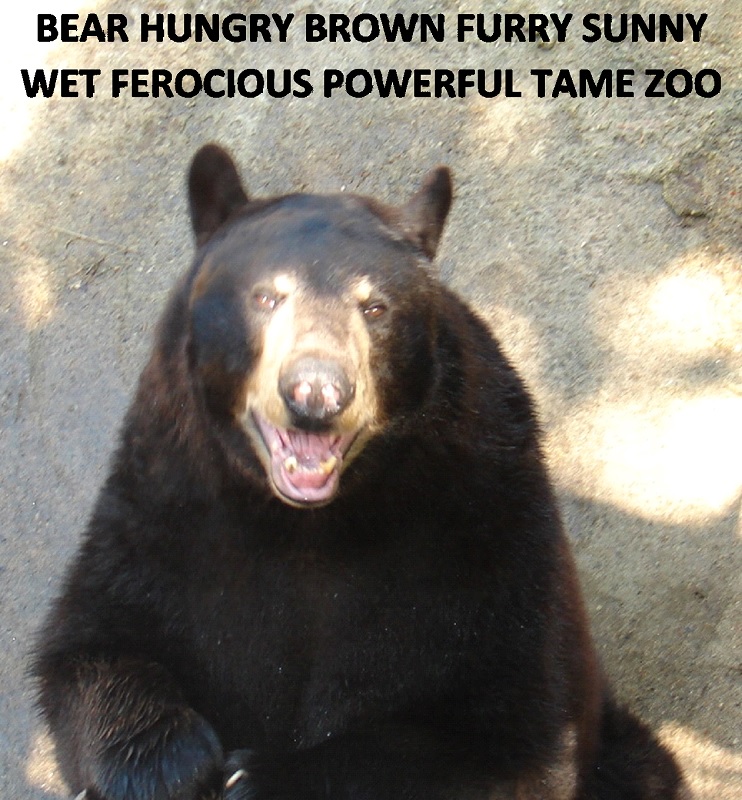
Bear Words

However, when it comes to file size, this equation doesn’t hold true. Instead, a single picture may equate to tens or hundreds of thousands of words.

Each letter in a word uses one byte of memory. A small, simple JPEG picture that measures about 200 pixels by 200 pixels might have a file size of about 10 to 20 kb, where each kilobyte (kb) is 1000 bytes. A simple JPEG picture that measures 1200 x 1600 pixels might have a file size of hundreds of kb. Higher resolution images or rich formatting may easily drive the file size into megabytes, where each megabyte (Mb) equals 1000 kb or 1,000,000 bytes. (Note: k = kilo = thousand, M = mega = million. You wouldn’t mind earning a M$ from your royalties, for example.)

If a word is about 5 letters long, on average, this means that a simple 200 x 200 JPEG picture takes as much memory as about a few thousand words, a 1200 x 1600 JPEG picture equates to about a hundred thousand words, and higher-resolution or richly formatted pictures are worth nearly a million words.

Why does this matter? This affects both publishers (including self-published authors) and readers of eBooks. First, there is a maximum size on the content file of an eBook – for Kindle, it is 50 Mb, and for Nook, it is 20 Mb. An eBook that features many large, high-resolution, richly formatted pictures is in danger of exceeding this limit.

Secondly, the content file size may affect the list price and royalty. For example, with Amazon’s Kindle, an eBook can only have a list price of 99 cents if the content file size is below 3 Mb and a list price of $1.99 if the content file size is below 10 Mb; otherwise, the minimum list price is $2.99. If you want to sell a Kindle eBook for less than $2.99, you must keep the file size below these thresholds.

Also, Amazon deducts 15 cents per Mb from the list price before applying the royalty percentage for Kindle eBooks on the 70% royalty option. For example, suppose that you have a 10 Mb eBook that you want to sell for $4.99 on the Kindle. The file size deduction is $0.15 x 10 = $1.50, which means that the royalty is ($4.99 – $1.50) x 0.70 = $3.49 x 0.70 = $2.44. If the file size could be reduced to 5 Mb, the royalty would be increased to $2.97. In this example, saving 5 Mb of file size adds 50 cents to the royalty. For every 1000 books sold, this amounts to $500.

The effect of pictures on file size affects both customers and publishers. Customers appreciate pictures, especially if they have a color eReader like the Kindle Fire or Nook Color. They also like the pictures to have high enough resolution to see the image clearly on any device (from a tiny iPhone to an iPad) and to be formatted well. However, including more pictures also affects the price of the eBook, and – another important consideration – the delivery time of the download (the delay is even longer for older eReaders).

There is a trade-off between the benefits of including many high-resolution pictures and the disadvantages this has in terms of list price eligibility, royalty, and delivery time. The publisher is faced with a difficult challenge to balance this properly.

However, there are a few ways to decrease the size of the content file for the eBook. Keep in mind that you don’t want to sacrifice image quality in the content file for a paperback book, so you need to have two separate content files for your book – one for the eBook and another for the paperback.

In Microsoft Word, right-click on any picture in your content file, choose the Format tab at the bottom of the page, select Format Pictures, uncheck the Apply Only To This Picture box, and select a Target Output (if you have an older edition of Word, like 2003, the instructions are a bit different). E-mail resolution (96 ppi – pixels per inch) will give you the minimum possible file size, and is generally suitable for eReaders. I suggest saving your file with different names before and after trying this so that you still have the original.

Paperback books have the opposite problem. If you submit content and cover files to CreateSpace, for example, a common error is that a picture has a DPI (dots per inch) of less than 200. You want high resolution images on your paperback book, where there is a generous maximum content file size of 400 Mb.

Note the distinction between resolution and DPI. The resolution of a picture is based on how many pixels it measures across and high (like 600 x 800, which is common for full-screen images on eReaders), whereas DPI measures how many dots there are per inch on the printed page. The size of the picture in addition to the resolution affect how many pixels will span one inch.

Coincidentally, there are about 930 words in this blog article. So this blog is equivalent to a single picture – or about a tenth or hundredth of one in modern terms. Picture that!

Chris McMullen, self-published author of A Detailed Guide to Self-Publishing with Amazon and Other Online Booksellers (Volume 2 coming in mid-April)

Kindle Pitfalls

Anyone can publish an eBook on Amazon using Kindle Direct Publishing (KDP), but there are many pitfalls to navigate in order to produce a professional-looking product. The main problem is that the eBook layout works like a web page, whereas most writers are experienced with word processing.

So what are the pitfalls, and how do you avoid them? Hold onto that thought (or just skip ahead).

To make matters worse, Amazon’s free resources – the KDP help pages (https://kdp.amazon.com/self-publishing/help), Building Your Book for Kindle (http://www.amazon.com/dp/B007URVZJ6), and Publish on Amazon Kindle with Kindle Direct Publishing (http://www.amazon.com/dp/B004LX069M) – are largely geared toward the basic use of Word to prepare an eBook, while not revealing the subtleties entailed in achieving a professional design.

Word is designed for creating pages with writing and drawings, whereas eBooks format like a reflowable web page. When a Word document is uploaded to KDP, what Kindle is interested in are HTML instructions. Unfortunately, the HTML that Word generates does not translate as well as could be desired into eBook format. Even if you convert the document to HTML before submitting the file to KDP, unless you clean it and tweak it, there can still be undesirable and sometimes even unpredictable behavior in the converted eBook.

KDP provides a previewer to help catch the mistakes. Actually, there are two previewers, and both are available in Step 6 of the publishing process. The online previewer is tempting because it’s so convenient and also much more aesthetic – it mimics each device visually. But the downloadable previewer is more reliable – you can catch errors with it that you might not find on the online previewer. Once you install it, find it after it’s installed, and figure out how to download and view your book with it, you must inspect it carefully to find mistakes on all of the devices (like the different eInks, the different Fires, and the iPad and iPhone). Not uncommonly, an eBook sometimes looks perfect on all but one device, which makes it important to check each device.

Nonetheless, the indie author who researches the basics of Kindle formatting with Word and invests the time to properly check the formatting across all devices is likely to encounter unforeseen, yet very important, problems: the confounding Look Inside. Many customers will judge the professionalism of the eBook based on this Look Inside. Unfortunately, KDP’s previewers don’t offer a preview of the Look Inside feature. The Look Inside adopts the strictest interpretation of the HTML, and often formats Word-originated HTML instructions differently than indie authors intend. For example, it’s very common to see the first paragraph of the chapter indented on the Look Inside even when First Line is set to 0.01” in Word. What do you get when you cross the challenge of properly formatting the Look Inside with the lack of a Look Inside preview and indie authors who have spent months or years writing, editing, and formatting their work? F.r.u.s.t.r.a.t.i.o.n.

Amazon does get into some of the subtleties in a publication that’s not nearly as easy to find as the resources mentioned above. They have a technical guide designed for professional publishers – and that’s how it’s written, too. When you visit the KDP help pages (first link above), click “Announcements” on the left, select “Introducing Kindle Format 8,” and look for the “click here” link toward the end of the article. This 79-page PDF reveals technical details about text and image guidelines and which HTML code is supported.

But most writers want to be able to publish a high-quality Kindle eBook without having to learn HTML. The self-published author who has a gift for storytelling and has spent years perfecting his or her craft has a disadvantage compared to a webmaster experienced in HTML. The webmaster can easily create a very professional-looking eBook, and even use HTML to make the description pop out with headings and figures. The poor writer who has mastered Word, but who doesn’t want to learn HTML, will suffer a few flaws in the finished product.

Here’s the thing: You don’t actually have to learn any HTML in order to perfect the appearance and functionality of the eBook, and you can even make a fancy description without knowing any HTML (see my other blog post called “Eye-popping Blurbs”).

That’s right! It’s a thousand times easier than it seems. You don’t need to be able to read and understand the HTML. You don’t need to be able to write HTML. You just need to know which lines to look for and how to change them. You just need a concise, handy resource that says to look for A, B, and C in the HTML, and change them to X, Y, and Z. It is as simple as it sounds.

Why don’t we do it? Because we didn’t see a convenient table of what-to-look-for-and-what-to-change-in-the-HTML guide when we visited KDP’s help pages and read KDP’s free formatting guides.

The first step is to format the Word document in such a way as to produce HTML with as few issues as possible. To this end, many basic Kindle formatting guides – and even Amazon’s free guides, to some extent – emphasize steps such as these (this list is not intended to be comprehensive, but does provide a healthy sample):

  • Not using page numbers, setting page margins, inserting headers or footers, making bulleted lists, and many other features that we like to use in printed books.
  • Using the Styles to format normal, first paragraph, heading, and title text.
  • Going into the Paragraph dialog box to set First Line to 0.5” (or 0.3” may work better, in general, but not as well as tweaking the HTML) for the normal Style and 0.01” for non-indented, justified styles (as you can’t make the eBook left-aligned by pressing the Align Text Left button) in order to avoid automatic indents.
  • Eliminating all use of the tab key (use the normal Style instead to create indented paragraphs).
  • Removing most special symbols.
  • Replacing some special symbols with other symbols. For example, Word’s AutoFormat tool can make en (–) and em (—) dashes by replacing consecutive hyphens (like –) as you type, but they may not be supported by every device (especially, the older Kindles). If instead you manually hold down Alt while typing 0150 and 0151, you can create these dashes as supported symbols.
  • Using a single space after a period and before the next sentence instead of two spaces (otherwise, when a sentence happens to end at the margin edge, the extra space causes one of the lines to appear mis-aligned). (I have another blog article about this, which is called “A Silly Little Space.”)
  • Formatting pictures centered on their own line and wrapped In Line With Text, with the size set to 100% (by right-clicking the picture, selecting Size and Position, and setting Width and Height in the Size tab) – even if the picture looks bigger than the page shown on the screen (just worry about how it looks in the downloadable previewer).
  • Creating a table of contents using bookmark hyperlinks.
  • Changing font size through Styles instead of using the Font tool on the Home tab.
  • Holding down Shift while pressing Enter instead of just using the Enter key at the end of a paragraph where a blank linespace is desired between paragraphs (in order to produce more reliable results); just ignore the strange spacing that it creates because the eReaders will ignore it, too.

We then save the Word document as a filtered webpage (not a single file webpage). If there are pictures, we right-click the file, choose Send To, and pick Compressed (Zipped) Folder. Then we find the newly created folder with the images and copy/paste it into the compressed zipped folder. This step is needed, for example, to avoid black lines from appearing on one or more edges of the pictures.

All of this work, all by itself, still doesn’t result in a perfectly formatted eBook. First, it is desirable to clean the HTML – i.e. to remove bloated instructions in order to help make the HTML more reliable and less ambiguous. Fortunately, there are some programs that can help do much of this automatically (you can find a list, for example, in the Kindle Tutorial that I recommend in the next-to-last paragraph – but not in Volume 1 of the book listed on the signature line; I’m trying my best to avoid possible confusion). It takes very clean HTML code to make the Look Inside appear professional.

Next, you need to open the HTML in Notepad and learn what to look for and how to change it. Here are a few things worth looking for (sometimes there may be more than one way to do it, and exactly how to change it depends on how the HTML looks on your device):

  • Change the indents from 0.5” (or 0.3” or whatever you used for First Line in the normal Style) in terms of the em (like 2 ems) – or set it as a percentage of the paragraph width (like 8% across). In the former case, the size of the indent is based on the size of the text (this is the technical specification that publishers use in print, and often in eBooks, too); in the latter case, the size of the indent is based on the width of the paragraph (visually, this may be appealing so that the indent is the same percentage on an iPhone or a PC). You want your normal paragraph styles to look like <p style=”text-indent: 8%;”> (or a value like 2em instead of 8%) at the beginning of the paragraph followed by <p> at the end of the paragraph. You can do this with the Find and Replace option. Examine the body text in the HTML in Notepad to see what the begin paragraph code looks like, copy it into the Find field, and type the Replace text carefully. Be sure to only edit the normal paragraph styles this way.
  • Manually change the paragraph style to 0% instead of 8% (or whatever you set for the indented paragraphs) to create any non-indented paragraphs (or stand-alone, non-centered lines) – like the first paragraph of the chapter (which you would have set as a first paragraph style in Word). In Word, you had to set First Line to 0.01”, which is slightly noticeable, because (none) doesn’t work; yet this doesn’t always show up in the Look Inside if the HTML isn’t tweaked. But as long as you’re tweaking the HTML, you may as well set it exactly to 0%. And if your HTML is super clean, you’ll have zero indents to begin each chapter in the Look Inside, and on paragraphs of the copyright page and table of contents, and any other non-centered paragraphs that you don’t want indented (provided that your HTML is very clean and you simply apply this code to each such paragraph).
  • Remove spacing between paragraphs. Modify the above suggestion with <p style=”text-indent: 8%; margin-top: 0; margin-bottom: 0″> at the beginning of the paragraph.
  • Use special symbols not normally supported. Kindle supports Unicode symbols 32 thru 255 (first link below), whereas a larger set of Unicode symbols is available using HTML (second link below). You just have to look up the HTML name of the symbol and write it after the ampersand (&) symbol. For example, &hearts makes the heart symbol (♥) when converted to Kindle’s mobi format. In your original Word document, you could write “insertheart” where you would like to include the symbol, use the Find tool to find it in the HTML with Notepad, and then change it to &hearts to make this symbol, and you can do something similar for other supported HTML symbols.

https://images-na.ssl-images-amazon.com/images/G/01/digital/otp/help/Latin1.gif

http://en.wikipedia.org/wiki/List_of_XML_and_HTML_character_entity_references

  • Prevent two words or a number and units (for example) from breaking onto separate lines. For example, if you would like 6 ft. to stay together (i.e. remove the possibility having the 6 at the right end of one line and ft. at the left end of the next line), replace the space with &nbsp; (as in 6&nbsp;ft.).
  • Improve the formatting of pictures. For example, if you already have a Word-generated HTML file with pictures set to absolute values (i.e. specified the number of pixels in the width or height), you can use Replace to change the width to =”100%” instead of the absolute measure and to delete the height specifications (just leave the Replace field blank).

After you publish your eBook on Kindle, you should view the Look Inside to see how it looks on the PC. Then go to the product page and download the free sample to your computer. This way, you can use the downloadable previewer to see what the Look Inside looks like on each device. If you have a Kindle (or maybe you can borrow one), you can view the Look Inside that way, too. (You should also view the entire book that way, just to see for yourself.)

I recommend a book called Formatting of Kindle Books: A Brief Tutorial by Charles Spender (to which I have no affiliation whatsoever; I simply found this book very useful for my own endeavors), which explains many of the details for how to properly format a Kindle eBook using Word, with a separate chapter on how to clean and edit the HTML. (My own publishing guide, listed below, covers both paperbacks and eBooks, but doesn’t get into the professional eBook details – like those discussed in this blog article – until Volume 2. Volume 1 is available now, while Volume 2 will be released sometime in the spring of 2013. Charles Spender’s tutorial is focused on the Kindle, and is very detailed regarding Word and HTML formatting, while explaining HTML so that those of us who don’t like HTML can figure out how to properly tweak it.)

Let me admit that I’m currently in the process of improving my own eBooks. For the past few years, I’ve been personally investigating the limitations of Word and seeing firsthand how well Word can yield a Kindle eBook, along with what does or doesn’t work, and have just begun the process of tweaking my own HTML. I still haven’t quite implemented all of my own suggestions in all of my own eBooks yet (some still even feature those dreaded double spaces; and I also need to update the formatting of some of my earlier paperback books), but I’m getting there. May you instead embrace the HTML tweaking from the beginning and perfect it the first time. 🙂

Chris McMullen, self-published author of A Detailed Guide to Self-Publishing with Amazon and Other Online Booksellers

The Short Link to Amazon Books (Why Doesn’t Everyone Know This?)

First, here is the wrong way to link to an Amazon book. Search for the book on Amazon, click to open the book’s detail page on Amazon, copy the webpage url, and paste it.

What’s wrong with this? It makes the url much longer than it needs to be.

See this with an example. I’ll go to Amazon’s homepage and type “self publishing chris mcmullen” in the search field, and click on my own book. (I would happily have used your book as an example instead, but you didn’t ask. :-)) Now I’ll copy the webpage url:

http://www.amazon.com/Detailed-Self-Publishing-Amazon-Booksellers–Demand/dp/1480250201/ref=sr_1_1?ie=UTF8&qid=1361505178&sr=8-1&keywords=self+publishing+chris+mcmullen

(Yes, of course I could have given the link a short title. When you insert a link, you can make the text for the link different from the url itself. But that’s not the point. The point is that the url itself can be much, much shorter.)

So what’s the short way to do this? First, find your book’s ISBN (the 10-digit number will work) or ASIN (if you have an ebook that doesn’t have an ISBN, use this). You can find this number on your book’s detail page at Amazon.

The short link has the form http://amazon.com/dp/ISBN (or use ASIN in place of ISBN). Obviously, you have to put the ISBN number in place of the letters I-S-B-N at the end. 🙂

For example, the short variation of the above link is:

http://amazon.com/dp/1480250201

That’s much shorter (and I didn’t even have to use text in place of the url to make it short).

Actually, you can make it even shorter than this. Use amzn instead of amazon and remove the /dp:

http://amzn.com/1480250201

But it’s not much shorter, is it? When you use amazon, people can see they’re being directed to a site that they (hopefully) trust, but when you use amzn instead, it might arouse suspicion (well, it shouldn’t, but it probably will).

Every day, I come across many links that authors have posted to their books, which use the long form instead of the short form. You may have noticed this, too. The easiest way to spread the word is to use the short link yourself whenever you post a link to your books. Somebody may notice and try this out with their own book.

Just think about how much we’re inconveniencing those poor little electrons when we make the link longer that it needs to be. J/K. 🙂

Publishing Resources

I started this blog to provide free help with writing, publishing, and marketing. You can find many free articles on publishing and marketing by clicking one of the following links:

Chris McMullen, Author of A Detailed Guide to Self-Publishing with Amazon and Other Online Booksellers
Follow me at WordPress, find my author page on Facebook, or connect with me through Twitter.

Those Silly Short Lines

A hyphen or a dash. Short dash, long dash. Those silly short lines.

We all know that the hyphen (-) is used to hy-phen-ate, and we all know that the short line is used to do this, so it should be easy to remember that the short line is a hyphen and the long line is a dash. Yet we sometimes forget. (It really doesn’t help that there are two types of dashes, each different from a hyphen.)

The keyboard just has a hyphen. No dash. You can easily make a dash in Microsoft Word. With Word’s AutoFormat as you type feature turned on, type two hyphens consecutively mid-sentence, like this – and they turn into a dash.

The better way to make the dash is to hold down the Alt button while typing 0150. Why does it matter? If you publish an e-book that you typed in Word, it might make a difference.

The downloadable Kindle previewer (said to be more reliable than the online previewer) with Device set to e-Ink device and Kindle Selected, for example, might show a box in place of a dash made from Word’s AutoFormat feature. Use the Alt method to produce the symbol without AutoFormat. (That’s for those of us who cling to the convenience of Word. The safer way is to learn how to properly modify the HTML.)

The en dash (–) is just one of two common dashes. The other is the em dash (—). Hold down Alt and type 0151 to make the em dash. It’s said to be good form to choose one dash or the other and be consistent.

Well, be as consistent as English allows. Use the en dash for a sequence, as in 42–81 (this time without the space). Give credit to the source of a quote with the em dash, as in the following (this time with the space).

Better to write for yourself and have no public, than to write for the public and have no self. — Cyril Connolly

Here, the em dash indicates a quote (in lieu of quotation marks) and also indicates the author to whom the quote is attributed. (If you want to use a horizontal bar instead of the em dash, you know too much for your own good. Or, at least, for my own good.)

We know that the letter ‘n’ is shorter than the letter ‘m,’ so this should help to remind us that the en dash is shorter than the em dash. We still sometimes forget.

The en dash is used with spaces – like so. The em dash is used without spaces—like this.

When reading e-books, we sometimes see the hyphen used in place of the dash. Was it a mistake? Or was the author playing it safe, worried that an e-reader might not recognize the dash? Or did the author see a box in place of the dash when carefully checking the previewer?

En–ie em—ie miney moe,

Pick a dash by its toe!

If it hyphen-ates,

Let it go!

This blog was brought to you by the following punctuation marks:

Hy-phen

en–dash

em—dash

Chris McMullen, self-published author of A Detailed Guide to Self-Publishing with Amazon and Other Online Booksellers (and Formatting Pages for Publishing on Amazon with CreateSpace – coming soon)

E-readers: A Love/Hate Relationship

She unties the ribbon, peels the wrapping paper off, and opens the box.  What is it?  A Kindle Fire!  That’s awesome!

She turns it around to find the power button.  It doesn’t come on.  Hmm.  Oh yeah, it needs to be charged.  She finds the charger and plugs it in.

A while later, the Kindle is charged and turns on.  Service?  What?  It doesn’t come with free service?  It needs wireless service!  Let’s see.  There is free wireless at the coffee shop, but a router must be installed in order to access the internet from home.

After a trip to the electronics store, she has a router.  It should be easy to install, right?  Where is the modem?  She crawls under her desk, bending her body so that she can connect cables to the back of her CPU, modem, and telephone.  So dirty!  Electronic devices are dust magnets!

It’s time to try it out.  Not yet.  Need to wash those hands first.  What?  Still no service!  Of course.  The hardware is connected, but the software hasn’t been installed.

Where are those instructions?  Setup.  Three easy steps.  She follows the directions to install the software.  She tries using the Kindle again.  It still doesn’t show up.  So frustrating!  Ah, finally!  There it is.  Enter the password.  Ta-da!

Receiving a present sure can be a burden!  But well worth it.  Now it’s working.  Just look at the graphics.  What is that design?  Gears?  It looks incredible!

She wonders what to do first.  Let’s get a book!  Click ‘books.’  That was easy.  Sort by ‘title.’  Wait a minute!  There aren’t any books here.  Where are the books?  Okay, there aren’t any books on the ‘device.’  Better click ‘store.’

Best sellers, popular categories, daily deals.  So many choices.  It’s almost time to start preparing dinner.  How about a cookbook?  That might not be a popular category.  Where are the other categories?  Let’s hit ‘browse.’  Didn’t work.  What?  That’s not a button.  Maybe cookbooks will be a popular category.  She clicks ‘popular categories’ to find out.  Way down at the bottom, there is ‘all books.’

Wow!  This is really cool.  It’s like having a bookstore in the living room, on a bus, or in an airplane.

Huh?  All of the books are in order on a single list.  Where are the categories?  Oh, there is a ‘refine’ option.  Is it an ‘eBook’ or a ‘single’?  What is the difference?  Try ‘eBook.’  Finally!  There is a ‘cooking, food, & wine’ category; subcategory ‘meals.’  Where is dinner?  Ugh!

She puts her Kindle down and logs onto her desktop computer.  She visits Amazon, finds Kindle, and clicks on ‘Kindle eBooks.’  Oh, this is so much easier!  That’s the book.  Kindle for PC?  No, not for PC; for a real Kindle.  Hmm.   There is a ‘deliver to’ option.  What is a ‘cloud’?  This word ‘cloud’ was on the Kindle.  Let’s see…

All right!  There is finally a cookbook on her Kindle Fire.  Need to turn a page.  Oh, it works like a cell phone.  Small picture.  Is there a zoom button?  Where are all the buttons?  That’s power…  When she presses the screen, some touchscreen options come up at the bottom.  She increases the font size, but the pictures are still small.  These other buttons don’t zoom either.  She finds more touchscreen buttons at the top.  Still no zoom, but there is a ‘more’ button.  Must be under ‘display.’  Nope.  Where is the instruction booklet?  She checks the packaging for the instructions.  No instructions!  Which evil genius designed this infuriating gadget?

She touches the picture.  Nothing happens.  She touches it twice quickly.  The picture opens on its own page, larger than before.  What was that?  Double-click to zoom?  It’s not like there is a mouse…

After finding a suitable recipe, she begins following directions to prepare lasagna for dinner.  Why is the Kindle off?  It must have timed out…  She turns it back on and retypes the password.  Incorrect password!  Must have touched the wrong letter.  Try it again.  She continues cooking.

She returns to the Kindle to read the next step.  What is that on the screen?  A smear!  Already?  It’s brand new!  Need to get a screen protector… and a case.

What is that message on the screen?  Fifteen minutes of battery left.  No way!  Dinner won’t be ready for another thirty minutes.  Better find the charger…

During dinner, she reflects on her first experience with her new Kindle Fire.  There was a slight learning curve, but it wasn’t too bad.  She is getting the hang of it.  It’s really convenient.  The graphics are awesome.  It functions like a great big cell phone.  Not only can she buy any book and read it anywhere on a fairly big screen, she can even browse the internet anywhere that she has wireless access.  Very cool!

Later that night, with her Kindle fully charged, she begins reading a science fiction book that she found.  Which is more convenient ─ portrait or layout?  She settles on portrait mode.  Trying to scroll onto the next page, she accidentally turns back a page.  No biggie.  Another time, she holds her finger on the spot a little too long, and the word is highlighted.  A window pops up, showing the pronunciation key and definition.  A built-in dictionary.  That’s amazing!  She also sees ‘note’ and ‘highlight’ options.  Impressed, she tries to do this again with another word.  A display comes up instead.  No, not that.  She tries again, holding her finger in place longer.  Aha!  That’s it.

As she continues reading, she notices that some of the indents are longer than others.  That’s strange.  Why isn’t there a standard size for the tabs?  A while later, she finds a little square in the middle of a sentence.  What is that little box doing there?  How funny.  Several pages further, she discovers a hyphen-ated word in the middle of a line.  Aren’t hyphens used at the end of a line?  In the next chapter, she spots a misspelled word.  Really?  This is the age of technology.  The book is digital.  The author must have used a computer to type it.  Neither the author nor the editor used spellcheck?  How is this possible?

Attempting to scroll onto the next page, suddenly an internet browser opens.  What is going on?  She is reading a book, not going online.  When she closes the internet browser, she spots a hyperlink in the middle of the page.  Oh.  Must have clicked that by mistake.  This book is like a minefield.

The next day, a friend inquires, “So what do you think about your new Kindle Fire?”

She replies, “Oh, I absolutely love it!”

Chris McMullen, self-published author of A Detailed Guide to Self-Publishing with Amazon and Other Online Booksellers