The Beauty of Marketing

Beauty

Book Marketing

There isn’t just one way to do it. The fact that there are many different book marketing strategies is your opportunity. Find a way to look at marketing in a way that you can enjoy it.

You want to be successful, right?

  • It’s not about embracing someone else’s idea of marketing and carrying it out with due diligence.
  • It’s about finding an effective marketing method that you can embrace with a passion and make it your own.

Most indie writers are artists at heart, not businesspeople. Yet self-publishing success, both on and off Amazon, depends on effective book marketing.

  • That doesn’t mean that you have to switch from artist to salesman to sell books. That’s like hammering a square peg through a round hole.
  • It means you have to view marketing as an art or craft to master, and pursue it with passion. That will fuel your self-motivation.

Look at this article. It’s about book marketing. I didn’t use $ signs for the picture. I left my artistic hat on and turned marketing into a rose.

You, too, can wear your artistic hat successfully both as a writer and an artist. Successful indie authorship is a combination of writing and marketing, both of which are driven by passion and feature creativity.

The business side of marketing books can seem dull and boring to writers. Many indie authors think of the following features when they first encounter marketing:

  • Advertising.
  • Self-promotion.
  • Screaming loudest.
  • Generating hype.
  • Judging a book by its cover instead of its content.
  • Salesmanship.

Actually, most of the things on the above list aren’t effective when it comes to book marketing.

If you approach marketing as something that’s dull or boring, you’re definitely not going to succeed at it.

  • Again, this doesn’t mean you have to get excited about something that you naturally feel is boring. That has inherent limitations.
  • Rather, it means that you have to find a way to look at marketing that makes you inherently passionate about doing it.

Fortunately, marketing does have highly artistic and creative elements that can appeal to writing artists:

  • Marketing is about sharing your passion with others.
  • It’s a chance to interact with others and let them discover your excitement about your book. (Let them ask you what you’ve done lately, rather than advertise what you’ve done. This distinction makes a huge difference.)
  • It’s an opportunity to put readers in a positive mindset before they open your book. People you interact with in person and who enjoy the interaction are more likely to look forward to your book with a good frame of mind.
  • You can wear your artistic and creative caps when you get involved in the cover design (a big part of marketing—it’s part of the packaging). Even if you hire a cover artist, you’re still involved in the design of your cover.
  • Blogging is a great match for marketing books. You love to write, right? Not only that, you get to interact with people who read your blog. You get to be creative coming up with ideas for posts and finding images to use.
  • Creativity is a great tool for catching the attention of your target audience and engaging interest in your book. When you talk to people, you have the chance to show your creativity in the conversation.
  • Imagination can also be a helpful marketing tool. Come up with a creative marketing idea and you’ll enjoy carrying it out; others may enjoy your creativity and check out your book.
  • Even your curiosity can be a benefit here, such as your curiosity for how to think of marketing in a way that doesn’t sound like salesmanship. Use your creativity to find other ways to think about marketing.
  • Branding is an art form. Pursue it as an art. Brand an image for yourself.
  • You can even approach marketing as a scientist. Come up with different hypotheses about marketing strategies and test them out.
  • Embrace book marketing as an art form and strive to master the craft.

If beauty truly lies in the eye of the beholder, then you have the power to see how beautiful marketing can be.

Chris McMullen

Want free information about book marketing? Find all my marketing posts by clicking here.

Copyright © 2014 Chris McMullen, Author of A Detailed Guide to Self-Publishing with Amazon and Other Online Booksellers

  • Volume 1 on formatting and publishing
  • Volume 2 on marketability and marketing

Follow me at WordPress, find my author page on Facebook, or connect with me through Twitter.

Comments

Click here to jump to the comments section:

https://chrismcmullen.wordpress.com/2014/07/08/the-beauty-of-marketing/#comments

One-Word Reviews at Amazon Now?

Reviews 1 Word

I saw a one-word review at Amazon today. So I’m guessing the 20-word minimum has been removed.

You might recall a couple of months ago that Amazon was testing out both ratings and reviews on print books. Those ratings disappeared after a few weeks, so perhaps the compromise was to remove the minimum word count.

The review forms have changed (but there is a tiny ‘here’ link below them that you can click if you prefer the old way).

My guess is that Amazon is trying to encourage more genuine customers to leave reviews. So now there is no ‘imposing’ 20-word minimum.

(In reality, what had been preventing a customer from writing the same word 20 times consecutively?)

We’re short on time now, so give me a one-word summary of the last book you read. 😉

Nerdy & Popular—What’s Wrong with That?

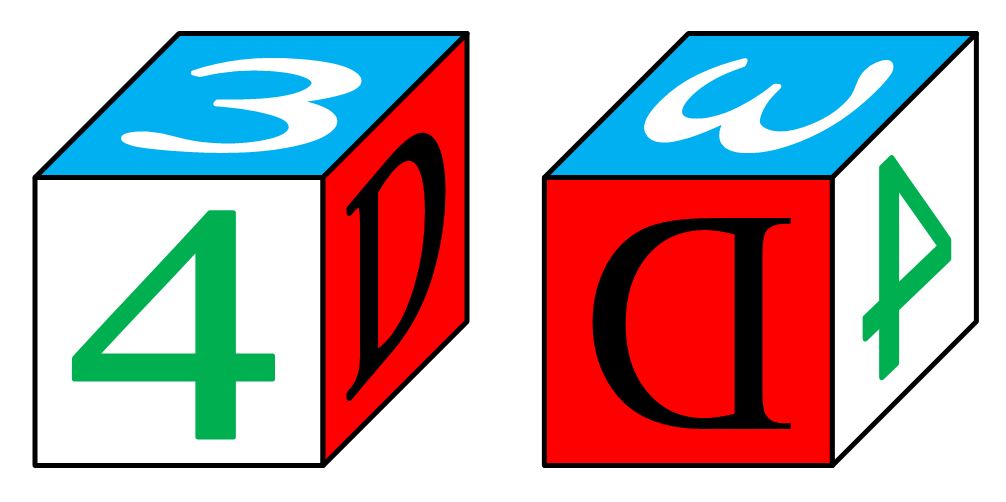
4D Reflection 2

For example, I enjoy the beat of popular music, but some of the lyrics…

Well, let’s face it, the lyrics could repeat, “Poopin’ on da pot-tee,” over and over, and if the beat is good, many people will dance to rhythm and enjoy the song. Slight exaggeration, you think? Come on, you can visualize this as YouTube sensation, can’t you? Ah, now you’re thinking about producing this video yourself, aren’t you?

To be fair, there are popular songs with meaningful or deep lyrics, even on the stations that play the same 40 songs all day long. I’m not saying it isn’t done.

I’m also not saying which songs do or don’t have good lyrics. I bet you can think of some where you would really question the source of the lyrics. We might not all agree on the list, but we might agree that there is room to improve the lyrics of some songs. That’s the spirit with which I wrote this article.

(We could just as well question t.v. shows, movies, books, blogs, etc. Doesn’t matter. I just picked lyrics to have some specific example in mind.)

I know there are other people out there who would enjoy listening to music with a hip beat and nerdy lyrics. Why should you have to sacrifice one or the other?

I have a vision for a popular music station with hip beats, but lyrics of this sort:

  • Talk nerdy to me
  • You think we’re on opposite sides of a plane, but I know we’re really on a Möbius strip
  • Faster than the speed of light, tomorrow turns into yesterday
  • I’m nerdy and I know it
  • mc² in da house!

If a nerdy t.v. show can make a Big Bang, why not nerdy lyrics, too? I’m sure it’s been done. But not at the same level.

How about, “I love big books and I cannot lie”? I’ve heard that one before. But it was a parody. It doesn’t have to be a parody to be popular, does it?

And you can probably think of a few popular examples.

Maybe such things will catch on. (Both pairs of fore- and index fingers crossed.)

There is an audience for it, is there not?

Improvements in technology are making it easier to target niche audiences, providing a more specialized experience for the audience and allowing the artists themselves to do more of what they want, and not feeling as compelled to cater to the needs of a mass audience.

Which brings me to self-publishing books. This is a great thing that the self-publishing revolution is doing for both readers and authors. It’s why self-publishing is booming.

Readers appreciate the specialization. Authors embrace it, too.

Which brings me to an important point.

When you start writing, you tend to write what you’re passionate about and you tend to write with your own unique style.

Then you start to learn things like show more and tell less, research what has been done because that’s what readers expect, justify full not ragged right, that looks amateurish, use an imprint to look professional, et cetera, et cetera.

You start to question your style.

If you make all those changes, you may become a small-time copy of traditionally published work. Is that what you want? Is that what readers want?

If they want traditionally published books, they’ll buy traditionally published books. (Duh! Yet we often overlook the obvious.)

If you’re self-published, you’re hoping to provide something they can’t get elsewhere. One advantage is to fill a need that’s not presently met.

Provide something new and wonderful, create a demand for it, and they won’t mind that it really is self-published, since they are getting something special in return for it. Plus, there is a tremendous level of support for self-publishing when you consider the number of authors plus their friends, family, and coworkers.

There are many tough decisions to make. You have to find your own style, yet you also need to find an audience. If you just do everything your own way, you might not have any audience at all.

You can get feedback. This can help you gauge whether or not you’re meeting a need. But you have to be careful. One loud complainer might not be typical of your audience.

If your current style is working, changing it carries some risk.

Chris McMullen

Copyright © 2014 Chris McMullen, Author of A Detailed Guide to Self-Publishing with Amazon and Other Online Booksellers

Follow me at WordPress, find my author page on Facebook, or connect with me through Twitter.

Comments

Click here to jump to the comments section:

https://chrismcmullen.wordpress.com/2014/07/06/nerdy-popular-whats-wrong-with-that/#comments

Master Page Numbers in Microsoft Word 2010

Page Numbers


Introduction

There are several problems that one must solve when numbering pages in Word, and this can be the source of much frustration:

  • You change the page number on one page, and it changes the style or numbering on one or more other pages.
  • You insert a page number on a page, but the formatting doesn’t match that of the other pages.
  • You try to make the front matter have Roman numerals, but all the page numbers switch from Arabic to Roman.
  • You discover that the same page number appears twice in a row.
  • You add page numbers and the file freezes on you. Worse, it won’t open back up.

WHY doesn’t it work? WHY can’t it just be easy?

Calm down. Take a deep breath.

It is possible to number the pages exactly how you want them. The problem is that the way to do it isn’t intuitive. You have to use section breaks, and you have to implement the page numbering a certain way.

If you follow the procedure that Word is looking for, you can master pagination in Microsoft Word.


Before We Begin

Microsoft Word is somewhat more prone to file freezing or corruption when making changes to page numbering.

What does this mean to you?

It means you should back up your file before you edit Word’s pagination.

Save your file with a new filename (like Book v2.docx) and save it in two different places (like jump drive and email). If you’ve already spent months typing hundreds of thousands of words for a book, the worst that can happen is that you have to start over… unless you wisely back up your file in multiple places.


Procedures

Follow these steps in Microsoft Word. This outline is specifically for the 2010 version, but 2007 and 2013 are nearly identical and 2003 follows the same ideas (but the toolbars are different).

A picture is worth a thousand words, right? At the end of the procedures you can find some screenshots of the key steps.

  1. Insert a section break anywhere you want the style of page numbering to change. For example, if you want to number your first page on the fifth page of your manuscript, you need a Next Page section break at the end of the fourth page. If you’d like to switch from Roman numerals (v, vi, vii, viii, ix, x) to Arabic numbers (11, 12, 13) on the eleventh page, insert a Next Page section break at the end of the tenth page. Remove the ordinary page break (if that’s what you have presently) and instead go to Page Layout > Breaks > Next Page to insert a section break instead of an ordinary page break. This section break tells Microsoft Word that you wish to change the header or footer style (your page numbers are either part of the header or footer, depending on where you place them).
  2. Press the Show/Hide button (it looks like ) on the Home toolbar. This will help you identify page breaks, section breaks, and blank lines, for example. (If your page numbers aren’t lining up between different sections, this will help you see if you accidentally pressed the Enter key while formatting the page numbers in one of the sections, for example.)
  3. Start at the very beginning of your Word document and work your way forward one section at a time. Very often, sections link to previous sections (though you can choose to unlink them), so if you make changes to one section, it often affects every section that follows (sometimes it also affects previous sections). Problems are best minimized by starting at the beginning and working forward one section at a time. After you make any change, immediately review all the previous sections to double-check that none of the previous page numbers have changed. You can save a great deal of frustration by nipping problems in the bud. It’s worth checking. It might seem like it’s a lot of extra work, but in the long run it might be much less work.
  4. If you don’t already have page numbers, go to the page where you’d like to add them and find Page Numbers on the Insert toolbar. Choose one of the options (it’s possible to customize it after inserting them); the simpler options are less likely to result in freezing or file corruption, but nothing is foolproof. Return to the same place and click Format Page Numbers. This gives you the option to change the starting number, continue from the previous section, or change the style from Roman numerals to Arabic numbers, for example. You can highlight the page number and change the font size or style. You can also place your cursor just before or after the page number and type characters (such as ~ to make your page numbers look like ~17~).
  5. You can remove page numbers the same way as you add them. Just go to Insert > Page Numbers > Remove Page Numbers.
  6. Remember to check the previous sections each time you add, remove, otherwise make changes to page numbers. You don’t want previous sections to change. It’s okay if following sections get changed; you’ll be able to correct that once you get to those later sections. If previous sections do change, hit the Undo button at the top of the screen (what a handy button!). Then you need to unlink the current section from the previous section before trying to make these changes. See the next step.
  7. The magic button is called Link to Previous. It’s actually a checkbox. Simply place your cursor in the page number area to open the Design toolbar for page numbers. Uncheck the box to remove the Same As Previous flag and that will allow you to modify the current page numbers without affecting previous page numbers. (Changes you make might affect page numbers in following sections, but that’s okay—you’ll be able to fix those when you get there. It’s the previous sections that you need to check on repeatedly. You don’t want previous sections to change.) Sometimes you do want the current section to follow the same style and numbering as the previous section. In these cases, you want the Link to Previous checkbox to be checked.
  8. When you want a new section to have different page number formatting from the previous section, remember to uncheck the Link to Previous box and verify that the Same As Previous flag disappears before making the changes. Otherwise, previous sections will change, too. It’s easy to forget. Remember also to go back and check all the previous sections anytime you make changes. Once in a while, a previous section (sometimes, it’s way back) changes even though the Link to Previous box is unchecked. So it pays to check. Also, remember to insert a Next Page section break (see Step 1) instead of an ordinary page break anywhere you’d like to make changes to the page numbering style. Not sure if you have a section break where you need it? See Step 2.
  9. Place your cursor in the page number area on a given page to open the Design toolbar. Two of these options can be quite useful. One is the option to have different page number styles on odd and even pages. For example, this helps you place page numbers near the outside edges, which would be the right side for odd-numbered pages and the left side for even-numbered pages. Another option is to have a different style on the first page of each chapter. Many books don’t number the first page of the chapter, so this option allows you to remove the page number from the first page of each section without disturbing the other pages. Well, if you suddenly remove the page number from the first page of the chapter, you may need to go in and reinsert the page numbering on subsequent pages of the same chapter (in addition to just checking the box for a different first page).
  10. Note that the two-page view in Word does NOT show you an actual book view. In a real book, such as one you self-publish at Amazon using CreateSpace, odd-numbered pages appear on the right-hand side and even-numbered pages show up on the left-hand side. Word shows it backwards. Just ignore the way that Word shows it; don’t try to adjust your page numbering based on Word’s incorrect two-page view. If you would like to see how your book will really look, save your file as a PDF file and open it with Adobe Acrobat Reader (you can get the Reader for free from Adobe’s website). Then go to View > Page Display > Show Cover Page in Two Page View, then View > Page Display > Two Page View.
  11. If you’re having trouble getting two different sections to display page numbers the same way, try clicking the Show/Hide Codes button (see Step 2) and comparing the formatting marks in both sections. Also check the settings in the Page Setup Dialog Box (click the funny-looking, arrow-like icon in the bottom right of the Page Setup group on the Page Layout toolbar to open this dialog box); check all three tabs there—Margins, Paper, and Layout. Especially, check the From Edge values in the Layout tab (which should be the same for every section if it’s applied to the Whole Document).
  12. You can change the position of page numbers relative to the body text using the From Edge values (see Step 11). The right combination of margins and From Edge values should allow you to get the body text and page numbers to look exactly how you want them to appear.
  13. Note that headers and footers are set differently. For example, if you unlink one section’s header from the previous section, the footer may still be linked to the previous section. So, for example, if you have both page headers at the top and page numbers in the footer below, unlinking the page numbers won’t unlink the page headers. This is important to keep in mind when you’re trying to format both headers and footers in the same document.
  14. If at first you don’t succeed, vent some of your frustration, get some rest and relaxation, and try again. See the suggestion in Step 15.
  15. Unfortunately, once in a while Word seems to go haywire. That is, you’re sure did everything right, but it doesn’t seem to be working. Sometimes, it helps to undo the last change, remove the section break, reinsert the section break, and then try again. It’s also possible for a Word file to become corrupt, in which case it’s best to start over with your back-up file. Didn’t back it up like I recommended? Ouch!
  16. If you just can’t hammer the square peg through the round hole, there is an alternate solution, which can really come in handy for self-published authors formatting books for print-on-demand services like Amazon’s CreateSpace. You can break your file up into smaller files. Before you do this, see if you can find a Word to PDF converter that allows you to join multiple PDF files together (e.g. Adobe Acrobat XI Pro offers a free trial period, and also offers a monthly subscription; Nuance PDF Converter Professional offers this feature; and there are also many free converters available on the internet). When you publish with CreateSpace or Ingram Spark, it’s best to submit a PDF anyway. If you’re able to join PDF files together, then you can break all the separate sections of your Word document into separate files. The trick is to ensure that all the page sizes, layout, and formatting is consistent across all of your files. Then you just need to get the page numbering right in each individual file, which is easier than getting it right in several different sections of a large file.
  17. If you’re also self-publishing an e-book, remember to remove page numbers (and all headers and footers) from the e-book version of your file.


Breaks

20140703_222956

Link to Previous

Show Codes Arrow

Page Setup Location

Page Setup

Page Headers, too

Headers and footers in general work the same way as pagination.

For example, if you would like to have even-page headers show chapter names and odd-page headers show the book title, you can do this by formatting the page headers the same way as page numbers are formatted. It’s also common to exclude the page header from some pages, such as some of the front matter and the first page of each chapter. It would be wise to see what header and page numbering styles are common for the type of book you’re publishing before you decide on the formatting.

Chris McMullen

Copyright © Chris McMullen, Author of A Detailed Guide to Self-Publishing with Amazon and Other Online Booksellers

  • Volume 1 on formatting and publishing
  • Volume 2 on marketability and marketing