Kindle MatchBook: What Do You Think?

As you may have heard, Kindle Direct Publishing (KDP) has launched a new Kindle MatchBook at Amazon. You can read more about it at the following link:

https://kdp.amazon.com/self-publishing/help?topicId=AVJCUBZXDNUM4

Note: As of October, 2019, the Matchbook program has been canceled.

This program is for books that are available directly from Amazon both in hard copy (paperback or hardcover, for example) and as a Kindle e-book. (This is completely independent of KDP Select, so you can enroll in Kindle MatchBook without enrolling in KDP Select. Exception: If you have KDP Select and make your book free, then that will override the MatchBook promotional price while the book is free with Select. Otherwise, the two programs are unrelated.)

The idea is that some customers may want to purchase both a physical copy of your book and a digital copy. In fact, many customers have already done this for several books in the past. What’s new is that Kindle MatchBook provides an incentive for customers who do this.

Here’s what Kindle MatchBook does: It allows the publisher to sell the Kindle e-book edition at a reduced price to a customer who wants to purchase both digital and print editions of the same book.

The promotional price can be free, 99 cents, $1.99, $2.99, or $3.99, but must be at least a 50% discount off the regular digital list price set at Amazon.

Some good news: If you ordinarily earn a 70% royalty rate for the e-book, you apparently receive 70% on the promotional price through Kindle MatchBook, even if this price is 99 cents or $1.99. When you proceed to sign up for Kindle MatchBook, you’ll be able to check your potential royalty right then, so you don’t have to guess or do math.

A promotional price of free could be a selling point. You’re basically saying, “If you buy my book in print, I’ll throw in the e-book for free.” For any readers who may appreciate this, it adds value to the print book.

Let me put a little marketing spin on this: The customer can buy the paperback book, sell the paperback book used (or give or loan it to someone) when he or she finishes reading it, and still keep a digital copy of the book on Kindle. This allows a clever customer to reuse the book, yet still keep it. If you give the customer this idea, Kindle MatchBook helps you add value to your book. (Can a customer buy the paperback, return it, and still keep the e-book at the promotional price? Good question! Publishers hope not!)

It seems like a program that could help publishers to some extent (any help is better than none), but probably won’t hurt. If hardly any customers take advantage of Kindle MatchBook, or if you almost never sell books in print, it probably won’t hurt your sales. But maybe it will help significantly: The only way to know for sure is to try it. Even in the worst case, you can simply opt out of the program whenever you feel like.

Keep in mind that whatever a customer might do with the e-book, the customer can already do that if you’re book is available as an e-book, so this shouldn’t affect whether or not you choose to use MatchBook. The customer has to buy the book in print as well as pay for the promotion price of the e-book. It’s not like the customer is getting something for nothing (which can happen with KDP Select). With MatchBook, the customer is buying the print book in addition to getting the e-book at a reduced price.

Perhaps one concern is if you ordinarily receive a much higher royalty for e-book sales than paperback sales. If the paperback royalty plus the MatchBook royalty amount to less than your current e-book royalty, then you might prefer to either raise your paperback list price, or not opt into the program.

So what do you think about MatchBook? Do you think it will catch Fire?

Chris McMullen, author of A Detailed Guide to Self-Publishing with Amazon and Other Online Booksellers, Vol. 1 (formatting/publishing) and Vol. 2 (packaging/marketing)

How Would You Improve Amazon?

Imagine you suddenly have the job of Jeff Bezos, CEO of Amazon. Well, even then, you couldn’t do anything you wanted.

So let’s go a step further and grab a magic wand. That’s better. Now you can do anything. Wave your wand a couple of times to test it out.

If you could do it, what would you change at Amazon in order to improve it?

Don’t be selfish here. Don’t just think about bad reviews that you’d like to make vanish or advertisements for your book if you’re an author, or how to make products free for you as a consumer.

I’m not asking how you would make Amazon better for you alone. I’m asking how you would make Amazon better for everyone.

Not just customers. Giving everything away for free would greatly benefit the customers. For a few days, until the company went bankrupt. If you want Amazon to benefit customers in the long run, you must balance what’s best for both the consumers and the business.

Okay. Spend a few moments in fantasy land. Do absolutely anything to Amazon that you want with your magic wand. Then when you return to reality, think about changes that may be beneficial to all.

What would you like to change?

(1) The Amazon Customer Review System

Almost everyone who is familiar with customer reviews on Amazon can write down a few things that they don’t like about them.

Not everyone is in agreement on what should be changed, though. Authors, readers, product owners, editors, publishers. There are some conflicting perspectives here. Even just among customers.

If there is one feature of reviews that we can all agree on, perhaps it’s spitefulness. Some reviews are downright nasty. There are reviews that slander the author, but don’t even mention the book.

You’d think that Amazon would remove such spiteful reviews, right? It even says right there in the terms and conditions that spite is not allowed. But when spiteful reviews are reported – by the author or even a customer – much of the time Amazon simply responds to say that they understand your concern, but this review doesn’t violate the terms and conditions.

Huh?

Evidently, a reviewer must be blatantly spiteful in order to warrant removal of the review.

How is this in Amazon’s best interest? That spitefulness is very negative. Wouldn’t Amazon create a more positive ambiance by removing that spite? By not removing it, they’re actually encouraging such behavior.

Would customers prefer to see the spite remain or be removed? Does such spitefulness help to brand Amazon’s image with a negative shopping environment? How does this help buyers determine which product to buy? How does it help Amazon sell products?

Maybe you can think of some reason to keep it.

I’ll suggest a couple of possibilities. For one, the spiteful reviews are mostly one and two star reviews. If you wave your magic wand and delete all of the spiteful reviews, millions of one and two star reviews will suddenly vanish. Some products, which only have a few reviews, will suddenly seem better liked than they actually are. The customer who loathed a product so much that he was very spiteful when he wrote the review did cast a vote when he gave it one star. Maybe Amazon wants to retain those votes of one or two stars associated with the spiteful reviews (perhaps there is a reason for this).

If Amazon would like to preserve the one star vote, it could be done while still removing the spite. Just edit out (or delete) the spiteful comments instead of the entire review.

Now we run into another possibility. Manpower. Amazon doesn’t have one of those magic wands to wave and quickly zap away all of the spite.

Remember, we’re not thinking of how to improve Amazon just for customers. We want to find changes that will improve Amazon for everyone. That means not going out of business.

How much would it cost Amazon to monitor the customer review system more closely than they already do? That’s what it would take to deal with spitefulness. Let alone other issues with reviews.

With the advent of self-publishing, there are presently hundreds of thousands of authors who feel that they have a bad review that should be removed for one reason or another. Some have multiple books and numerous reviews that they feel strongly about. Add to this number the legitimate reviews that clearly aren’t violations that some authors would also request to be removed.

Amazon already receives a staggering number of requests from authors for reviews to be removed. This occurs with the current policy in place. That is, it’s well-known that Amazon very rarely removes customer reviews, even when they’re fairly spiteful. Yet, they still receive a ton of requests every day.

Imagine how many, many, many, many, let’s add a few more many’s just for effect (but it may be realistic) more requests Amazon would receive if instead it were well-known that Amazon would remove a review if it were just mildly spiteful. Even if the requests didn’t crash the server, the manpower it would take to attend to these requests would be incredible.

Every day, there are numerous posts online on blogs, community forums, and elsewhere describing unfair customer reviews at Amazon. Bear in mind that the majority of authors don’t write posts about bad reviews because doing so would hurt their own author image and would help brand the image of self-publishing as unprofessional.

Have you ever seen an author get in a long debate with a reviewer using the comment system? It’s very unprofessional, but that’s not the point. My point is that, unfortunately, some authors tend to get highly emotional about reviews and find it difficult to stop arguing about them.

So just imagine those authors communicating with Amazon. They request to have a bad review removed. Amazon says no. They respond to Amazon in a long email. This would go back and forth for an eternity, just like they do in the comments, right?

Nope. Amazon learned not to waste resources on possibly endless communications. Amazon tells the author on their second response that they won’t be able to investigate the matter any further. That is, if the author sends a subsequent request, it will be ignored.

Consider that Amazon has this action in place. It suggests that manpower is already an issue. So is it worth the possible investment to deal with spite? Maybe this is one reason that it hasn’t already been done.

Maybe you can think of a way to deal with spite affordably. Perhaps there is a way.

(Amazon already responds to the request to say that they’ve looked at the review, and understand your concerns, but can’t remove the review. How much more work would it be to remove it? A lot. Because word would spread and the requests would pile up immensely.)

What about other changes to the customer review system?

We could eliminate shill reviews and sock puppets. That is, generating fake reviews to make a product seem better than it actually is. Actually, Amazon has already made this change to some extent. Amazon automatically blocks a very large number of reviews and has removed thousands – perhaps millions – of such reviews. This change was affordable, as a computer program could check for correlations between IP addresses and other information in their database between accounts. It may have removed some legitimate reviews, too, but overall the customer experience has been tremendously improved.

But there is still some review abuse, especially negative reviews that arise from jealousy of some sort (rival authors, ex-boyfriends). Can you think of a way to eliminate this?

A common suggestion is to require all reviews to be Amazon Verified Purchases. Why isn’t this done already? There may be reasons for it.

First of all, there are already millions of reviews that are unverified. Would you like to remove all of those? Perhaps those could be left there, and just impose this on new ones. There are still other issues.

Publishers send out a large number of advance review copies. Publishers provide big business for Amazon. It’s probably not good business for Amazon to prevent the recipients of advance review copies from reviewing books on Amazon, as they would all show as unverified purchases.

What about customers who buy the product elsewhere? A bestselling book might sell many more copies in bookstores than on Amazon. Bestselling authors – and Amazon, too – want all of those customers to be eligible to review the books on Amazon.

What about eBooks? Well, customers don’t have to use Kindle to read eBooks, but Amazon still allows them to post reviews. They can be gifted and lent, too.

But maybe there is one aspect of this that most of us would agree on. Amazon has made it clear that customers can review products even if they’ve never seen or used them.

What?

Does this seem crazy to you? Imagine that you invented a machine and one of the first customers left a review saying, “I didn’t buy this, but just looking at it I can tell it wouldn’t work.” Okay, nobody who reads the review is going to take it seriously, but it does affect the average star value.

When a customer clearly states in the review that he or she hasn’t read the book or used the product, maybe those reviews could be removed. Wouldn’t this be a small improvement?

Amazon’s customer review system isn’t perfect, but it is pretty effective at soliciting opinions, and it does provide shoppers with diverse information that they can consider. Most of us may agree that it’s better than no reviews at all.

There may be other ways to improve the system. Remember, cost is a factor. You might want to hire external companies to leave neutral reviews instead of customer reviews, but with tens of millions of products, is that feasible?

I have a few suggestions. I’ve heard a few others express similar ideas. Maybe you have some other ideas that haven’t been addressed.

When you finish reading an eBook on Kindle, why can’t you type your review right then and there? Wouldn’t that be convenient? Why can’t you click on the book on the device and find a quick and easy place to post the review? I have the Kindle in front of me. I’m in the mood to review the book. It’s on my mind. But I must be inconvenienced to login to Amazon, which I would rather do on my pc. How many customers were ready to leave a review, but decided against it out of inconvenience?

I’ve typed reviews and stopped when I saw the preview, thinking I was done. I wonder how many other customers haven’t finished the review process, not realizing that they had to check the preview and approve it? Oops! Or maybe they rated it when they reached the end of a Kindle eBook, thinking that was a review? There may be a little room for improvement here.

How about separating the rating from the reviews? That is, let customers rate the book without reviewing it, like they can do at Goodreads. Some customers can put a number on a book, but feel uncomfortable describing it in words (including reaching the minimum word count).

If you want to drastically increase the frequency of customer reviews, offer a penny for every review. Or make it a nickel, dime, or a percent if you really want to see tons of reviews on Amazon. I bet many authors wouldn’t mind this being subtracted from their royalties to help encourage more reviews. But the discount (off a future purchase, perhaps) might inspire more sales.

(2) Self-Publishing Quality Control

First, let me say that I put this here because it’s a popular issue, not because I personally am in favor of this. I’ll try to show the pros and cons, and you can decide for yourself. Or maybe you will think of better ideas that I’ve left out.

If you could wave a magic wand to remove every book that doesn’t meet a minimum degree of editing, formatting, and writing, would you do it? As long as it’s a magic wand, rather than removing these books, maybe you could just make them magically look more professional.

But we can’t fix them with magic. It would take an insane amount of manpower to format and edit them. It would take an insane amount of manpower just to screen them. So just hiring a very large editing team isn’t feasible.

Amazon could charge a publishing fee to cover the cost. Some people would be in favor of this. But many people would also be against it. Currently, Amazon is free. Amazon has done an amazing thing, opening the doors of publishing to everybody. Amazon has an abundance of support from the self-publishing community for this. These authors – and their family, friends, and acquaintances – don’t just write books, most of them read books, too. Imposing an inhibitive fee may not be good for business in the grand scheme of things.

Even an optional fee has an issue. By being free, Amazon is differentiated from vanity presses.

Free publishing gives Amazon an unbelievable selection.

There are some books with formatting, editing, writing, and even storyline issues. These books are a problem for customers and also adversely affect the image of Kindle, Amazon, and self-publishing.

But how bad is the problem? I don’t mean this as a percentage of books. I mean that most customers check out the description, reviews, and Look Inside and generally are able to avoid such books. Those who don’t are apt to learn to do this through experience. These books tend to have lousy sales ranks. So are they selling enough to be so concerned about? Perhaps a few years ago when Kindle and self-publishing were newer, more customers were coming across such books. Perhaps it was a bigger problem before Amazon’s program started removing and blocking most of the shill reviews and sock puppets. Perhaps it’s not such a problem now. Especially, in terms of cost-benefit analysis. Or maybe you have a better suggestion.

Self-published authors have a strong incentive to improve their books as much as possible, as this will greatly improve their chances of success.

Also, customers can report formatting issues. This helps Amazon catch some of the more serious problems. They actually suspend sales of eBooks until the issues are resolved.

(3) Order of Search Results and Categories

This might be something to consider. Most book categories have thousands of books even in the final subcategory, yet only a dozen books show on the page. If you type a search, you sometimes receive interesting results. Obviously, Amazon wants to order the search results based on what consumers are most likely to buy as well as what is likely to please the customer. But it seems like there could be a better way to sort through tens of millions of products to find what you’re looking for. And there may be ways for people to abuse the system (i.e. to get their products to show higher in the search without merit). Fortunately, Amazon doesn’t publish their algorithm, and may revise it, which makes it harder to abuse.

Amazon is probably considering this on an ongoing basis. Categories have changed over the years, and they have probably revised the program which determines the order of search results. They have also added filters, like “most reviews,” so you can see which books have been reviewed most (whereas searching by the highest customer review would put a book with a single five star review ahead of a book that has hundreds of reviews that are mostly five stars); that’s a small improvement. Can you think of other ways to improve this?

(4) Other Changes

I selected a few popular topics to discuss. Maybe you can think of other areas where Amazon could be improved.

Some of the changes I’ve mentioned I have suggested to Amazon (not all at once). Feel free to send your own suggestions to Amazon. The more times Amazon receives the same suggestion, the more likely they are to realize that there is a demand for it. They claim to welcome feedback, and that customer feedback is invaluable. So apparently this is encouraged.

Chris McMullen, Author of A Detailed Guide to Self-Publishing with Amazon and Other Online Booksellers

How to Save Memory on Repeated Pictures in a Kindle eBook

Border Thin JPEG

Border Thin JPEG

Border Thin JPEG

There are a few advantages of minimizing the file size of an eBook:

  • The minimum Kindle price depends on the converted .mobi file size (available on the second page of publishing with Kindle Direct Publishing). The list price can only be 99 cents to $1.98 if the file size is under 3 MB and between $1.99 and $2.98 if the file size is between 3 MB and 10 MB. Authors intending to price their books under $2.99 (for which the royalty will be 35%) need to be aware of these limits.
  • Each eBook publisher has a maximum file size. For example, Amazon’s Kindle is 50 MB, Sony’s Reader is 5 MB. If a file is a little above these limits, reducing the file size allows it to be published as a single volume.
  • The eBook takes up room on the customer’s device. Some customers may be reluctant to buy eBooks with larger file sizes. Large files also take longer to download, especially on older devices. Depending upon the formatting, they might also be more susceptible to file problems.

Books with images tend to have larger file sizes. Compressing the images is the simplest way to reduce file size.

https://chrismcmullen.wordpress.com/2013/04/08/fighting-words-picture-compression/

For Kindle, gray lines tend to show on one or more edges of the pictures when using Microsoft Word unless the file is saved as web page, filtered. After doing this, find the file in the saved folder, right-click the file, choose Send To, and select Compressed (Zipped) Folder. Then find the folder of picture files with the same filename and copy/paste it into the zipped folder. Upload this zipped folder to KDP. This should remove those gray lines.

(When using Word, insert the picture using Insert > Picture and select the file. Then right-click the picture, choose Size, and change Width to 100%. If the picture doesn’t fit on the screen, don’t worry – it will fit on the device, which you can check in the preview. Place each picture on its own line and wrapped In Line With Text.)

If pictures are repeated in a Microsoft Word file, this wastes memory. Suppose, for example, a book features a decorative page border. A one-a-day book (of quotations, for example) might stand out by featuring a visually appealing wide, short border. But even if the picture size is small, with 365 such images, the overall file size may be significant. As another example, consider a book of shuffled flashcards, where there are several copies of each picture.

There is a simple way to avoid adding to the overall file size when pictures are repeated:

  • First, don’t copy/paste the image in Word. Just insert each different picture once. Where you want to insert a copy of a picture, put a short note, like PIC14. Then later on you can use find and replace.
  • Next, open the filtered webpage (described in a previous paragraph) before making the compressed (zipped) folder in Notepad. Don’t edit this file in Word because Word will probably mess up the HTML.
  • Don’t worry, you don’t need to know any HTML or programming.
  • Find the actual pictures in the HTML file. The code will look something like this:

<h1><img border=0 width=1116 height=153 src=”filename_files/image005.jpg”></h1>

  • The actual code may look different. It may have <p> tags instead of <h1> tags and it may have other statements not shown here.
  • If there is a statement like id=”Picture 19″, remove it. This is superfluous. But if you copy/paste the picture code with the id number, then the same id number will be used twice. Avoid this problem by removing it.
  • Copy the code for your picture, from <h1> to </h1> (or <p> to </p>).
  • Use find and replace to change things like PIC14 (which you should have placed on its own line) to the code for the actual picture. You should have something like <h1>PIC14</h1> (or with <p>’s).
  • Repeat this process for any other pictures that are repeated.
  • Preview your eBook carefully before you publish. If you make any mistakes, this is your opportunity to catch them before your customers do. 🙂

Chris McMullen, self-published author of A Detailed Guide to Self-Publishing with Amazon and Other Online Booksellers

Does Your Book Wear Boxers or Briefs?

Boxers Briefs Pic

Answer these questions to define your reading profile. Don’t worry: There isn’t any answer key, so you won’t really be “profiled.” It’s just for your own self-assessment and entertainment.

You must select one or the other, even when you like both. Find a way to break the tie.

(1) Do you prefer softcover or hardcover?

(2) Do you read fiction or nonfiction?

(3) Do you like printed pages or digital books?

(4) Would you rather read fantasy or science fiction?

(5) Would you prefer romance or erotica?

(6) Would you rather read a single book or a series?

(7) Are you in favor of traditional publishing or self-publishing?

(8) Have you ever met a popular author after reading one of their books?

(9) Do you discuss books with others or keep it all to yourself?

(10) Do you prefer to see one space or two spaces after a period and before the next sentence?

(11) Do you review books frequently or just once in a while?

(12) Do you write books or just read them?

(13) Do you thoroughly enjoy the read or do you criticize the story as you read it?

(14) While reading, do you take the time to look up words that aren’t in your vocabulary?

(15) Do you read in silence or do you prefer to listen to (or make) sounds while you read?

Grading: If you answered all of the questions, you passed the test. Congratulations! (No cheating!)

If you thought of other similar questions, please feel free to share them in a comment. Thank you. 🙂

A Picture’s Worth Ten or a Hundred Thousand Words

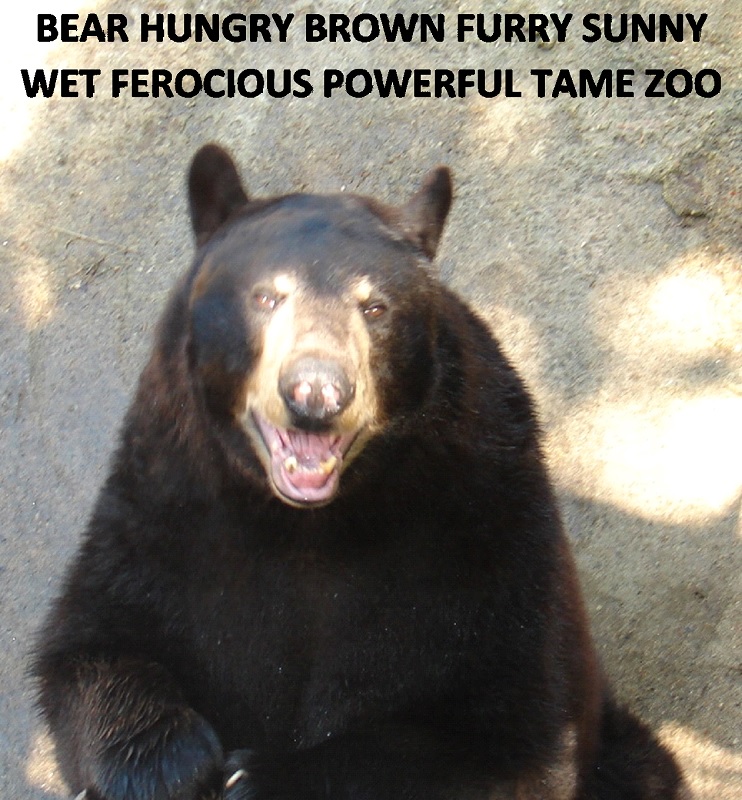
According to the age-old adage, “A picture’s worth a thousand words.” That may be true in terms of how much writing it would take to describe what is shown in a picture.

Bear Words

However, when it comes to file size, this equation doesn’t hold true. Instead, a single picture may equate to tens or hundreds of thousands of words.

Each letter in a word uses one byte of memory. A small, simple JPEG picture that measures about 200 pixels by 200 pixels might have a file size of about 10 to 20 kb, where each kilobyte (kb) is 1000 bytes. A simple JPEG picture that measures 1200 x 1600 pixels might have a file size of hundreds of kb. Higher resolution images or rich formatting may easily drive the file size into megabytes, where each megabyte (Mb) equals 1000 kb or 1,000,000 bytes. (Note: k = kilo = thousand, M = mega = million. You wouldn’t mind earning a M$ from your royalties, for example.)

If a word is about 5 letters long, on average, this means that a simple 200 x 200 JPEG picture takes as much memory as about a few thousand words, a 1200 x 1600 JPEG picture equates to about a hundred thousand words, and higher-resolution or richly formatted pictures are worth nearly a million words.

Why does this matter? This affects both publishers (including self-published authors) and readers of eBooks. First, there is a maximum size on the content file of an eBook – for Kindle, it is 50 Mb, and for Nook, it is 20 Mb. An eBook that features many large, high-resolution, richly formatted pictures is in danger of exceeding this limit.

Secondly, the content file size may affect the list price and royalty. For example, with Amazon’s Kindle, an eBook can only have a list price of 99 cents if the content file size is below 3 Mb and a list price of $1.99 if the content file size is below 10 Mb; otherwise, the minimum list price is $2.99. If you want to sell a Kindle eBook for less than $2.99, you must keep the file size below these thresholds.

Also, Amazon deducts 15 cents per Mb from the list price before applying the royalty percentage for Kindle eBooks on the 70% royalty option. For example, suppose that you have a 10 Mb eBook that you want to sell for $4.99 on the Kindle. The file size deduction is $0.15 x 10 = $1.50, which means that the royalty is ($4.99 – $1.50) x 0.70 = $3.49 x 0.70 = $2.44. If the file size could be reduced to 5 Mb, the royalty would be increased to $2.97. In this example, saving 5 Mb of file size adds 50 cents to the royalty. For every 1000 books sold, this amounts to $500.

The effect of pictures on file size affects both customers and publishers. Customers appreciate pictures, especially if they have a color eReader like the Kindle Fire or Nook Color. They also like the pictures to have high enough resolution to see the image clearly on any device (from a tiny iPhone to an iPad) and to be formatted well. However, including more pictures also affects the price of the eBook, and – another important consideration – the delivery time of the download (the delay is even longer for older eReaders).

There is a trade-off between the benefits of including many high-resolution pictures and the disadvantages this has in terms of list price eligibility, royalty, and delivery time. The publisher is faced with a difficult challenge to balance this properly.

However, there are a few ways to decrease the size of the content file for the eBook. Keep in mind that you don’t want to sacrifice image quality in the content file for a paperback book, so you need to have two separate content files for your book – one for the eBook and another for the paperback.

In Microsoft Word, right-click on any picture in your content file, choose the Format tab at the bottom of the page, select Format Pictures, uncheck the Apply Only To This Picture box, and select a Target Output (if you have an older edition of Word, like 2003, the instructions are a bit different). E-mail resolution (96 ppi – pixels per inch) will give you the minimum possible file size, and is generally suitable for eReaders. I suggest saving your file with different names before and after trying this so that you still have the original.

Paperback books have the opposite problem. If you submit content and cover files to CreateSpace, for example, a common error is that a picture has a DPI (dots per inch) of less than 200. You want high resolution images on your paperback book, where there is a generous maximum content file size of 400 Mb.

Note the distinction between resolution and DPI. The resolution of a picture is based on how many pixels it measures across and high (like 600 x 800, which is common for full-screen images on eReaders), whereas DPI measures how many dots there are per inch on the printed page. The size of the picture in addition to the resolution affect how many pixels will span one inch.

Coincidentally, there are about 930 words in this blog article. So this blog is equivalent to a single picture – or about a tenth or hundredth of one in modern terms. Picture that!

Chris McMullen, self-published author of A Detailed Guide to Self-Publishing with Amazon and Other Online Booksellers (Volume 2 coming in mid-April)

Indie Cover Mistakes

The book cover is the only part of an indie author’s marketing campaign that every potential buyer has to see before purchasing the book. No wonder cover design is critical toward having a highly successful book.

“Hey there!” Just like that, the cover aims to grab attention, but in a positive way. Once it claims attention, it must be appealing, look professional, be clear, reveal the book’s content, and ultimately persuade the potential buyer to “pick me.”

There are many ingredients to a great cover, and just one flaw can turn a potentially great cover into a lousy one. Here are some common mistakes that indie authors make:

  • Text is hard to read. It seems intuitive to look for a fancy font, but the purpose of the text is to send a clear message. Rather than struggle to make out what the title or other text says, the prospective reader is more likely to look for a different cover that makes this task easy. Some text, like Comic Sans, even tends to evoke negative reactions from readers. Research which fonts are appropriate for cover design and for your genre. Wikipedia even provides statistics for how readers react to various fonts.
  • Poor image quality. Blurry, jagged, and pixelated images are quite common. So are tiny stray marks around text and images. Find sharp, focused images and clean up any quality issues to make the best impression. Photos should be touched up (e.g. no red-eye), well-lit, and precisely cropped. Use images with sufficient resolution (300 DPI for printed covers). Don’t distort the aspect ratio by changing the shape of an image (models with stretched out faces, for example, don’t sell books). If the cover image or text is poor, people will wonder if the content also has quality issues. Customers looking for professional content prefer professional-looking covers.
  • Emphasizing the wrong words in a title. It should seem logical to emphasize – through larger text or some text effects – a few key words in the title, which relate to the text. Yet it’s a common mistake to make short, meaningless words (like “the”) larger and long, meaningful words smaller – simply because the longer words had to be smaller in order to fit on the cover. But the most important words need to be the largest. The title must be larger than the subtitle. The author should be smaller than the title or subtitle – it’s just a minor ingredient to the cover (except for celebrities and popular authors). If there are several words in the title (bestsellers often have three or fewer), emphasize a few key words over the other words in the title.
  • The cover is too busy. It’s intuitive for indie authors and illustrators alike to feel the need to fill every void on a piece of paper. Especially, artists who have a gift for artistic detail want to show this talent off. But a great cover isn’t about the art itself. It’s about grabbing attention and conveying an idea – this book is about that. One image and a few words can convey this image effectively. Extra images distract the reader from the central concept, and require the customer to invest more time and effort to determine what your book is about. Look, there are thousands of books to choose from and customers are browsing through hundreds – they are likely to pass on those that don’t send a clear, quick signal.
  • Poor color choices. A great cover often utilizes three main colors. A primary color (60%) will create good contrast with a secondary color (30%), and include an accent color (10%) which complements either the primary or secondary. The two main colors shouldn’t clash; all three colors should coordinate well together. The text color and main image should stand out very well against the background.
  • Something looks unnatural or out of place. It’s a common mistake to place an extra image in a cover that just doesn’t seem to belong there. The indie author is trying to add an additional image that relates to the content, without realizing that the distraction isn’t worth this. An image in the foreground that ruins an otherwise nice cover is said to be photobombing the cover. Look out for potential photobombs. Use of a transparent foreground image can also result in a distracting background object. For example, if a small image in the background happens to be inside the head of a model in the foreground, this will ruin the cover.
  • Text arranged in a way that is difficult to read. It’s not easy to read text that is arranged vertically – either one word above another or, even worse, one letter above another. At the very least, don’t create special effects like this for every word in the title. When customers are browsing through hundreds of covers, they tend to skip the ones that don’t send quick, clear messages.
  • Hand drawings that aren’t expertly done. Crayon and colored pencils create a poor impression. Even handmade art that is fairly well done has a tough time competing against the amazing possibilities of graphic arts. It’s a much greater challenge to make a cover appear professional when images are made by hand. Let the customers see any slight fault in the cover and you’ve given them a reason to pass on the book.
  • Title and cover don’t relate to the content or genre. If the cover attracts the wrong audience, nobody will purchase the book. The cover and title both need to signify the precise audience (e.g. adult romance should not be confused with erotica or young adult romance), and should relate to the content of the book. Research the covers of top-selling books in your genre to see what those readers are accustomed to seeing. Which cover designs, color schemes, and font styles tend to work well in this genre?

I’m a self-published author myself and I enjoy designing my own covers. But I didn’t write this article with my own design skills in mind. Rather, I’m also an avid reader, and I know which covers tend to attract my attention, what mistakes I have seen when browsing through books, and what aspects of cover design tend to work for me or turn me off when I’m shopping for a book. I’ve also done some research to learn more about cover design. I’ve come across some very professional indie covers out there, and seen some amazing designs from graphic artists. I do enjoy designing my own covers, and have experienced many of these challenges firsthand (and also experienced a few of these mistakes, such as making a cover that’s too busy). If you’re an indie author, may you learn from and avoid some mistakes that others have made. 🙂

Chris McMullen, self-published author of A Detailed Guide to Self-Publishing with Amazon and Other Online Booksellers

Kindle Pitfalls

Anyone can publish an eBook on Amazon using Kindle Direct Publishing (KDP), but there are many pitfalls to navigate in order to produce a professional-looking product. The main problem is that the eBook layout works like a web page, whereas most writers are experienced with word processing.

So what are the pitfalls, and how do you avoid them? Hold onto that thought (or just skip ahead).

To make matters worse, Amazon’s free resources – the KDP help pages (https://kdp.amazon.com/self-publishing/help), Building Your Book for Kindle (http://www.amazon.com/dp/B007URVZJ6), and Publish on Amazon Kindle with Kindle Direct Publishing (http://www.amazon.com/dp/B004LX069M) – are largely geared toward the basic use of Word to prepare an eBook, while not revealing the subtleties entailed in achieving a professional design.

Word is designed for creating pages with writing and drawings, whereas eBooks format like a reflowable web page. When a Word document is uploaded to KDP, what Kindle is interested in are HTML instructions. Unfortunately, the HTML that Word generates does not translate as well as could be desired into eBook format. Even if you convert the document to HTML before submitting the file to KDP, unless you clean it and tweak it, there can still be undesirable and sometimes even unpredictable behavior in the converted eBook.

KDP provides a previewer to help catch the mistakes. Actually, there are two previewers, and both are available in Step 6 of the publishing process. The online previewer is tempting because it’s so convenient and also much more aesthetic – it mimics each device visually. But the downloadable previewer is more reliable – you can catch errors with it that you might not find on the online previewer. Once you install it, find it after it’s installed, and figure out how to download and view your book with it, you must inspect it carefully to find mistakes on all of the devices (like the different eInks, the different Fires, and the iPad and iPhone). Not uncommonly, an eBook sometimes looks perfect on all but one device, which makes it important to check each device.

Nonetheless, the indie author who researches the basics of Kindle formatting with Word and invests the time to properly check the formatting across all devices is likely to encounter unforeseen, yet very important, problems: the confounding Look Inside. Many customers will judge the professionalism of the eBook based on this Look Inside. Unfortunately, KDP’s previewers don’t offer a preview of the Look Inside feature. The Look Inside adopts the strictest interpretation of the HTML, and often formats Word-originated HTML instructions differently than indie authors intend. For example, it’s very common to see the first paragraph of the chapter indented on the Look Inside even when First Line is set to 0.01” in Word. What do you get when you cross the challenge of properly formatting the Look Inside with the lack of a Look Inside preview and indie authors who have spent months or years writing, editing, and formatting their work? F.r.u.s.t.r.a.t.i.o.n.

Amazon does get into some of the subtleties in a publication that’s not nearly as easy to find as the resources mentioned above. They have a technical guide designed for professional publishers – and that’s how it’s written, too. When you visit the KDP help pages (first link above), click “Announcements” on the left, select “Introducing Kindle Format 8,” and look for the “click here” link toward the end of the article. This 79-page PDF reveals technical details about text and image guidelines and which HTML code is supported.

But most writers want to be able to publish a high-quality Kindle eBook without having to learn HTML. The self-published author who has a gift for storytelling and has spent years perfecting his or her craft has a disadvantage compared to a webmaster experienced in HTML. The webmaster can easily create a very professional-looking eBook, and even use HTML to make the description pop out with headings and figures. The poor writer who has mastered Word, but who doesn’t want to learn HTML, will suffer a few flaws in the finished product.

Here’s the thing: You don’t actually have to learn any HTML in order to perfect the appearance and functionality of the eBook, and you can even make a fancy description without knowing any HTML (see my other blog post called “Eye-popping Blurbs”).

That’s right! It’s a thousand times easier than it seems. You don’t need to be able to read and understand the HTML. You don’t need to be able to write HTML. You just need to know which lines to look for and how to change them. You just need a concise, handy resource that says to look for A, B, and C in the HTML, and change them to X, Y, and Z. It is as simple as it sounds.

Why don’t we do it? Because we didn’t see a convenient table of what-to-look-for-and-what-to-change-in-the-HTML guide when we visited KDP’s help pages and read KDP’s free formatting guides.

The first step is to format the Word document in such a way as to produce HTML with as few issues as possible. To this end, many basic Kindle formatting guides – and even Amazon’s free guides, to some extent – emphasize steps such as these (this list is not intended to be comprehensive, but does provide a healthy sample):

  • Not using page numbers, setting page margins, inserting headers or footers, making bulleted lists, and many other features that we like to use in printed books.
  • Using the Styles to format normal, first paragraph, heading, and title text.
  • Going into the Paragraph dialog box to set First Line to 0.5” (or 0.3” may work better, in general, but not as well as tweaking the HTML) for the normal Style and 0.01” for non-indented, justified styles (as you can’t make the eBook left-aligned by pressing the Align Text Left button) in order to avoid automatic indents.
  • Eliminating all use of the tab key (use the normal Style instead to create indented paragraphs).
  • Removing most special symbols.
  • Replacing some special symbols with other symbols. For example, Word’s AutoFormat tool can make en (–) and em (—) dashes by replacing consecutive hyphens (like –) as you type, but they may not be supported by every device (especially, the older Kindles). If instead you manually hold down Alt while typing 0150 and 0151, you can create these dashes as supported symbols.
  • Using a single space after a period and before the next sentence instead of two spaces (otherwise, when a sentence happens to end at the margin edge, the extra space causes one of the lines to appear mis-aligned). (I have another blog article about this, which is called “A Silly Little Space.”)
  • Formatting pictures centered on their own line and wrapped In Line With Text, with the size set to 100% (by right-clicking the picture, selecting Size and Position, and setting Width and Height in the Size tab) – even if the picture looks bigger than the page shown on the screen (just worry about how it looks in the downloadable previewer).
  • Creating a table of contents using bookmark hyperlinks.
  • Changing font size through Styles instead of using the Font tool on the Home tab.
  • Holding down Shift while pressing Enter instead of just using the Enter key at the end of a paragraph where a blank linespace is desired between paragraphs (in order to produce more reliable results); just ignore the strange spacing that it creates because the eReaders will ignore it, too.

We then save the Word document as a filtered webpage (not a single file webpage). If there are pictures, we right-click the file, choose Send To, and pick Compressed (Zipped) Folder. Then we find the newly created folder with the images and copy/paste it into the compressed zipped folder. This step is needed, for example, to avoid black lines from appearing on one or more edges of the pictures.

All of this work, all by itself, still doesn’t result in a perfectly formatted eBook. First, it is desirable to clean the HTML – i.e. to remove bloated instructions in order to help make the HTML more reliable and less ambiguous. Fortunately, there are some programs that can help do much of this automatically (you can find a list, for example, in the Kindle Tutorial that I recommend in the next-to-last paragraph – but not in Volume 1 of the book listed on the signature line; I’m trying my best to avoid possible confusion). It takes very clean HTML code to make the Look Inside appear professional.

Next, you need to open the HTML in Notepad and learn what to look for and how to change it. Here are a few things worth looking for (sometimes there may be more than one way to do it, and exactly how to change it depends on how the HTML looks on your device):

  • Change the indents from 0.5” (or 0.3” or whatever you used for First Line in the normal Style) in terms of the em (like 2 ems) – or set it as a percentage of the paragraph width (like 8% across). In the former case, the size of the indent is based on the size of the text (this is the technical specification that publishers use in print, and often in eBooks, too); in the latter case, the size of the indent is based on the width of the paragraph (visually, this may be appealing so that the indent is the same percentage on an iPhone or a PC). You want your normal paragraph styles to look like <p style=”text-indent: 8%;”> (or a value like 2em instead of 8%) at the beginning of the paragraph followed by <p> at the end of the paragraph. You can do this with the Find and Replace option. Examine the body text in the HTML in Notepad to see what the begin paragraph code looks like, copy it into the Find field, and type the Replace text carefully. Be sure to only edit the normal paragraph styles this way.
  • Manually change the paragraph style to 0% instead of 8% (or whatever you set for the indented paragraphs) to create any non-indented paragraphs (or stand-alone, non-centered lines) – like the first paragraph of the chapter (which you would have set as a first paragraph style in Word). In Word, you had to set First Line to 0.01”, which is slightly noticeable, because (none) doesn’t work; yet this doesn’t always show up in the Look Inside if the HTML isn’t tweaked. But as long as you’re tweaking the HTML, you may as well set it exactly to 0%. And if your HTML is super clean, you’ll have zero indents to begin each chapter in the Look Inside, and on paragraphs of the copyright page and table of contents, and any other non-centered paragraphs that you don’t want indented (provided that your HTML is very clean and you simply apply this code to each such paragraph).
  • Remove spacing between paragraphs. Modify the above suggestion with <p style=”text-indent: 8%; margin-top: 0; margin-bottom: 0″> at the beginning of the paragraph.
  • Use special symbols not normally supported. Kindle supports Unicode symbols 32 thru 255 (first link below), whereas a larger set of Unicode symbols is available using HTML (second link below). You just have to look up the HTML name of the symbol and write it after the ampersand (&) symbol. For example, &hearts makes the heart symbol (♥) when converted to Kindle’s mobi format. In your original Word document, you could write “insertheart” where you would like to include the symbol, use the Find tool to find it in the HTML with Notepad, and then change it to &hearts to make this symbol, and you can do something similar for other supported HTML symbols.

https://images-na.ssl-images-amazon.com/images/G/01/digital/otp/help/Latin1.gif

http://en.wikipedia.org/wiki/List_of_XML_and_HTML_character_entity_references

  • Prevent two words or a number and units (for example) from breaking onto separate lines. For example, if you would like 6 ft. to stay together (i.e. remove the possibility having the 6 at the right end of one line and ft. at the left end of the next line), replace the space with &nbsp; (as in 6&nbsp;ft.).
  • Improve the formatting of pictures. For example, if you already have a Word-generated HTML file with pictures set to absolute values (i.e. specified the number of pixels in the width or height), you can use Replace to change the width to =”100%” instead of the absolute measure and to delete the height specifications (just leave the Replace field blank).

After you publish your eBook on Kindle, you should view the Look Inside to see how it looks on the PC. Then go to the product page and download the free sample to your computer. This way, you can use the downloadable previewer to see what the Look Inside looks like on each device. If you have a Kindle (or maybe you can borrow one), you can view the Look Inside that way, too. (You should also view the entire book that way, just to see for yourself.)

I recommend a book called Formatting of Kindle Books: A Brief Tutorial by Charles Spender (to which I have no affiliation whatsoever; I simply found this book very useful for my own endeavors), which explains many of the details for how to properly format a Kindle eBook using Word, with a separate chapter on how to clean and edit the HTML. (My own publishing guide, listed below, covers both paperbacks and eBooks, but doesn’t get into the professional eBook details – like those discussed in this blog article – until Volume 2. Volume 1 is available now, while Volume 2 will be released sometime in the spring of 2013. Charles Spender’s tutorial is focused on the Kindle, and is very detailed regarding Word and HTML formatting, while explaining HTML so that those of us who don’t like HTML can figure out how to properly tweak it.)

Let me admit that I’m currently in the process of improving my own eBooks. For the past few years, I’ve been personally investigating the limitations of Word and seeing firsthand how well Word can yield a Kindle eBook, along with what does or doesn’t work, and have just begun the process of tweaking my own HTML. I still haven’t quite implemented all of my own suggestions in all of my own eBooks yet (some still even feature those dreaded double spaces; and I also need to update the formatting of some of my earlier paperback books), but I’m getting there. May you instead embrace the HTML tweaking from the beginning and perfect it the first time. 🙂

Chris McMullen, self-published author of A Detailed Guide to Self-Publishing with Amazon and Other Online Booksellers

The Short Link to Amazon Books (Why Doesn’t Everyone Know This?)

First, here is the wrong way to link to an Amazon book. Search for the book on Amazon, click to open the book’s detail page on Amazon, copy the webpage url, and paste it.

What’s wrong with this? It makes the url much longer than it needs to be.

See this with an example. I’ll go to Amazon’s homepage and type “self publishing chris mcmullen” in the search field, and click on my own book. (I would happily have used your book as an example instead, but you didn’t ask. :-)) Now I’ll copy the webpage url:

http://www.amazon.com/Detailed-Self-Publishing-Amazon-Booksellers–Demand/dp/1480250201/ref=sr_1_1?ie=UTF8&qid=1361505178&sr=8-1&keywords=self+publishing+chris+mcmullen

(Yes, of course I could have given the link a short title. When you insert a link, you can make the text for the link different from the url itself. But that’s not the point. The point is that the url itself can be much, much shorter.)

So what’s the short way to do this? First, find your book’s ISBN (the 10-digit number will work) or ASIN (if you have an ebook that doesn’t have an ISBN, use this). You can find this number on your book’s detail page at Amazon.

The short link has the form http://amazon.com/dp/ISBN (or use ASIN in place of ISBN). Obviously, you have to put the ISBN number in place of the letters I-S-B-N at the end. 🙂

For example, the short variation of the above link is:

http://amazon.com/dp/1480250201

That’s much shorter (and I didn’t even have to use text in place of the url to make it short).

Actually, you can make it even shorter than this. Use amzn instead of amazon and remove the /dp:

http://amzn.com/1480250201

But it’s not much shorter, is it? When you use amazon, people can see they’re being directed to a site that they (hopefully) trust, but when you use amzn instead, it might arouse suspicion (well, it shouldn’t, but it probably will).

Every day, I come across many links that authors have posted to their books, which use the long form instead of the short form. You may have noticed this, too. The easiest way to spread the word is to use the short link yourself whenever you post a link to your books. Somebody may notice and try this out with their own book.

Just think about how much we’re inconveniencing those poor little electrons when we make the link longer that it needs to be. J/K. 🙂

Publishing Resources

I started this blog to provide free help with writing, publishing, and marketing. You can find many free articles on publishing and marketing by clicking one of the following links:

Chris McMullen, Author of A Detailed Guide to Self-Publishing with Amazon and Other Online Booksellers

Follow me at WordPress, find my author page on Facebook, or connect with me through Twitter.

Indie Author ‘Uh-Oh!’ Moments

(1) Spelling or grammar mistake in the title (whoops!)

(2) Used image placeholder (had no cover)

(3) Published an ebook without checking the preview (surprise!)

(4) Sued over copyright infringement for internet photos (they’re not free?)

(5) Got in a lengthy argument with a reviewer (sure showed the world)

(6) Used Google’s automatic translator (won’t understand the bad reviews)

(7) Didn’t read any formatting guides (it looked perfect on the monitor)

(8) Blurry paperback cover (used free 96 DPI picture from Google)

(9) Used Comic Sans (look out for the font police)

(10) Sued for using lyrics in book (they’re just 20 words out of 60,000)

(11) Didn’t report royalties to IRS (wasn’t much to report)

(12) Reviewed his/her own book ten times (multiple personalities?)

(13) Used the same author page for young adult and erotica (umm)

(14) Ragged right, strange line and paragraph spacing (used Word’s defaults)

(15) Crazy search results (used “harry,potter,twilight,lady,gaga” for keywords)

(16) Drew cover illustration with crayons (nice book to hang on fridge)

(17) ENTIRE BOOK WRITTEN IN CAPS (loud and clear)

(18) Misspelled author’s name (identity crisis)

(19) Forgot to change page headers for second book (head-smack)

(20) Tried to sell to local bookstore, but forgot to bring books (uh-oh)

Fortunately, most indie authors don’t make such outrageous mistakes. But a few do. We often focus on the few who make the worst mistakes, rather than the majority who only make minor mistakes. Of course, the bigger the mistake, the greater the entertainment.

Let’s remember what challenges face the self-published author. Writing a few hundred pages is an accomplishment in itself, but it’s only the beginning. There is proofreading, which is different from editing and formatting. Then there is the art of writing itself. Add to this the challenge of designing a cover, making illustrations, writing a blurb, publishing, marketing, and public relations.

While it may be fun to laugh at the sillier mistakes, perhaps we should also silently acknowledge the many indie authors who have managed to publish their work with only minor mistakes. Congratulations to all of you! 🙂

Chris McMullen, self-published author of A Detailed Guide to Self-Publishing with Amazon and Other Online Booksellers
Those Silly Short Lines

A hyphen or a dash. Short dash, long dash. Those silly short lines.

We all know that the hyphen (-) is used to hy-phen-ate, and we all know that the short line is used to do this, so it should be easy to remember that the short line is a hyphen and the long line is a dash. Yet we sometimes forget. (It really doesn’t help that there are two types of dashes, each different from a hyphen.)

The keyboard just has a hyphen. No dash. You can easily make a dash in Microsoft Word. With Word’s AutoFormat as you type feature turned on, type two hyphens consecutively mid-sentence, like this – and they turn into a dash.

The better way to make the dash is to hold down the Alt button while typing 0150. Why does it matter? If you publish an e-book that you typed in Word, it might make a difference.

The downloadable Kindle previewer (said to be more reliable than the online previewer) with Device set to e-Ink device and Kindle Selected, for example, might show a box in place of a dash made from Word’s AutoFormat feature. Use the Alt method to produce the symbol without AutoFormat. (That’s for those of us who cling to the convenience of Word. The safer way is to learn how to properly modify the HTML.)

The en dash (–) is just one of two common dashes. The other is the em dash (—). Hold down Alt and type 0151 to make the em dash. It’s said to be good form to choose one dash or the other and be consistent.

Well, be as consistent as English allows. Use the en dash for a sequence, as in 42–81 (this time without the space). Give credit to the source of a quote with the em dash, as in the following (this time with the space).

Better to write for yourself and have no public, than to write for the public and have no self. — Cyril Connolly

Here, the em dash indicates a quote (in lieu of quotation marks) and also indicates the author to whom the quote is attributed. (If you want to use a horizontal bar instead of the em dash, you know too much for your own good. Or, at least, for my own good.)

We know that the letter ‘n’ is shorter than the letter ‘m,’ so this should help to remind us that the en dash is shorter than the em dash. We still sometimes forget.

The en dash is used with spaces – like so. The em dash is used without spaces—like this.

When reading e-books, we sometimes see the hyphen used in place of the dash. Was it a mistake? Or was the author playing it safe, worried that an e-reader might not recognize the dash? Or did the author see a box in place of the dash when carefully checking the previewer?

En–ie em—ie miney moe,

Pick a dash by its toe!

If it hyphen-ates,

Let it go!

This blog was brought to you by the following punctuation marks:

Hy-phen

en–dash

em—dash

Chris McMullen, self-published author of A Detailed Guide to Self-Publishing with Amazon and Other Online Booksellers (and Formatting Pages for Publishing on Amazon with CreateSpace – coming soon)