* Kindle Unlimited is on FIRE *

Images from ShutterStock.

Images from ShutterStock.

KINDLE UNLIMITED IMPROVEMENTS

Kindle Unlimited has me excited:

  • Amazon is implementing major improvements (depending on your perspective) to how the program works for authors.
  • The KDP Select Global Fund continues to grow. The current amount and Amazon’s projections for the next two months are looking nice.
  • Amazon released some favorable news about how Kindle Unlimited is doing so far in 2015.

CHANGES TO HOW KINDLE UNLIMITED PAYS AUTHORS

Amazon is changing how authors are paid for Kindle Unlimited borrows.

The new policy goes into effect July 1, 2015. June, which is already underway, won’t be affected by these changes.

How is Kindle Unlimited policy changing?

  • Authors will now be paid based on the total number of pages read through Kindle Unlimited (evidently, Amazon Prime, too).
  • Authors will not be paid based on the total number of borrows.
  • The magic 10% mark will become irrelevant.
  • Beginning July 1, every book will have a Kindle Edition Normalized Page Count (KENPC), which may differ from the estimated page count that you see on your Amazon product page.
  • The KENPC will be used to count how many pages a Kindle Unlimited customer reads. It will count from the start reading location when the customer opens the book.
  • The KDP Select Global Fund for the month will be divided by the total number pages read through the Kindle Unlimited program.
  • Every book enrolled in Kindle Unlimited will be paid based on this ratio.
  • You can see an example here, worked out by Amazon. (The numbers are probably not quite realistic.)
  • All-Star books and KDP Select authors will be awarded based on the total number of pages read through Kindle Unlimited.

Of course, this has no bearing on ordinary sales, only books borrows through Kindle Unlimited and Amazon Prime.

What does this mean?

  • If one customer reads a 10-page short story and another customer reads a 500-page novel completely, they no longer pay equal royalties through Kindle Unlimited. In my example, the 500-page novel will receive 50 times as much royalty as the 10-page story.
  • If a customer only reads 5 pages of your book, you get paid based on 5 pages, not based on the total length of your book.
  • You no longer have to worry about customers reaching the magic 10% mark. Well, you do have to worry about how many pages they read.
  • List price doesn’t factor into it. It doesn’t matter whether your list price is 99 cents or $9.99; it only matters how much the customer reads when borrowing through Kindle Unlimited.
  • Short books no longer have an advantage by getting customers to reach the 10% mark sooner (since the 10% mark no longer matters).
  • Authors of short books are likely to see a huge drop in their Kindle Unlimited royalties.
  • Authors of very long books for which customers tend to read most of the book are likely to see a huge improvement in their Kindle Unlimited royalties.
  • A page is a page is a page. Quality only factors into it insofar as it entices the customer to keep reading more pages. All pages (as determined through KENPC) pay the same in Kindle Unlimited.

THE KDP SELECT GLOBAL FUND

KOLL borrows paid $1.35 for May, 2015, which is right on target for how KOLL has paid in 2015.

However, moving forward, this really doesn’t matter. Starting in July 2015, KOLL will pay by the number of pages read through Kindle Unlimited, and so the payout will change dramatically.

But there is good news!

  • While the KOLL borrow didn’t change much, the KDP Select Global Fund continues to grow.
  • Amazon added a whopping $7.8 million to the $3 KDP Select Global Fund, bringing the payout to $10.8 million for May, 2015.
  • Amazon projects a KDP Select Global Fund in excess of $11 million for both July and August (when the new program terms take effect).
  • That huge $11,000,000 payout for July and August will be divided up based on page count, not the number of books borrowed.

MORE GOOD NEWS ABOUT KINDLE UNLIMITED

And that’s not all!

  • Guess how much KDP Select authors are making just from their Kindle Unlimited borrows for the first half of 2015? $60,000,000! That’s huge. KDP Select is a very significant share of the e-book market. (If you read any reports of how e-book sales are down, look closely to see if they are ignoring Kindle Unlimited. They shouldn’t be, but some companies like to do just that.)
  • Total royalties of KDP Select authors are approximately double compared to last year. Kindle Unlimited continues to grow.
  • Each month, at least 95% of the KDP Select books enrolled in Kindle Unlimited renew their enrollment. (I can confirm this independently, as I’ve checked on it myself.)

Kindle Unlimited isn’t for every book, and it requires giving up exclusivity, but it’s looking better and better. All of my books are enrolled in Kindle Unlimited. I’m a Kindle Unlimited subscriber myself and read several full-length novels per month.

Write happy, be happy. 🙂

Chris McMullen

Copyright © 2015

Chris McMullen, Author of A Detailed Guide to Self-Publishing with Amazon and Other Online Booksellers

  • Volume 1 on formatting and publishing
  • Volume 2 on marketability and marketing
  • 4-in-1 Boxed set includes both volumes and more
  • Kindle Formatting Magic (coming soon)

Follow me at WordPress, find my author page on Facebook, or connect with me through Twitter.

Amazon Bundles of Kindle Series: Noticed This?

Bundle

KINDLE SERIES BUNDLES

Amazon appears to be bundling some Kindle series now.

Please thank sword and sorcery fantasy author Charles E. Yallowitz for mentioning this, and for letting me use the image for this post.

If you want to check out how this looks at Amazon, you can see it in action with Charles E. Yallowitz’s Legends of Windemere series:

Legends of Windemere

(By the way, I’m a big fan of the storytelling and characterization of this series.)

Here is how it works:

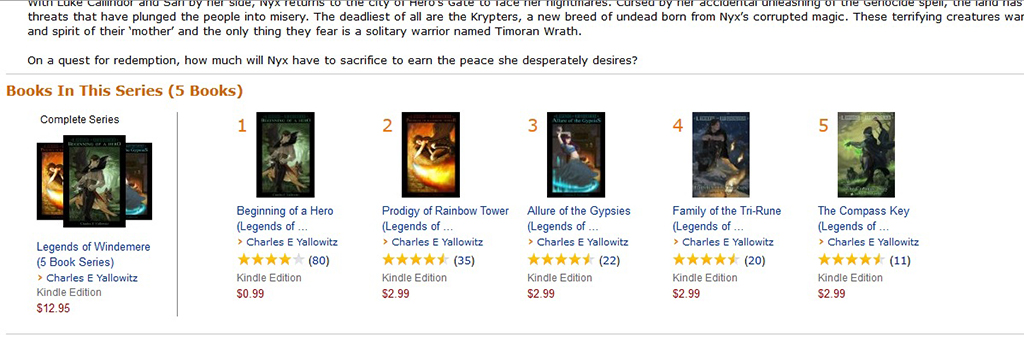
  • On books 1-5, below the Amazon description, there is a heading called Books In This Series (5 Books), with thumbnails below the heading.
  • The left thumbnail shows 3 of the books. It’s called the Complete Series.
  • To its right, each volume is shown separately, numbered clearly 1 thru 5.
  • The price of the complete series appears to be exactly the same as buying each volume individually.
  • It’s automatic, if you complete the series info at KDP. However, not every series is showing like this. It may depend on how many volumes you have in the series or other factors.

It’s not perfect yet.

Here are a few issues that I see:

  • Where are the savings? Customers don’t appear to save 1 penny by buying the whole series.
  • Missing volumes. Charles actually has 7 volumes in this series, but only the first 5 are showing.

But there are benefits:

  • Finally, it’s easy to find the volumes of a series. As a customer who reads sci-fi and fantasy series, I have firsthand experience struggling to find all the volumes of a series and read them in order.
  • It looks cool.

This is new. So maybe it isn’t perfected yet.

Maybe Amazon will offer KDP authors the opportunity to offer the series bundle with incentive pricing.

That would be nice:

  • We wouldn’t need to create a separate omnibus edition.
  • If purchasing the bundle impacts the sales ranks of each volume individual (to be determined), this would be an improvement over the omnibus.

Have you seen this bundle yet?

What do you think about it?

Write happy, be happy. 🙂

Chris McMullen

Copyright © 2015

Chris McMullen, Author of A Detailed Guide to Self-Publishing with Amazon and Other Online Booksellers

  • Volume 1 on formatting and publishing
  • Volume 2 on marketability and marketing
  • 4-in-1 Boxed set includes both volumes and more
  • Kindle Formatting Magic (coming soon)

Follow me at WordPress, find my author page on Facebook, or connect with me through Twitter.

Notifying Kindle Customers of Updates (Has Changed)

Image from ShutterStock

Image from ShutterStock

NOTIFYING KINDLE CUSTOMERS OF UPDATES

It happens. After you publish a book, you think of a way to improve it. Or you find a typo. Or you view it on a friend’s device and discover a formatting problem. Or a customer notifies you of an issue. Or a customer suggests something in a review that never occurred to you. Or the content of a nonfiction book becomes out-of-date.

For some reason or another, you need to update your Kindle e-book.

That’s the easy part: Simply visit your bookshelf at KDP (Kindle Direct Publishing), upload a new content file, preview your book carefully on each device, and publish the revision.

Your old book remains available for sale until the new one goes live, usually within 12 to 24 hours in the US. (If you don’t want the original to remain available in the interim period, simply unpublish the book from your KDP bookshelf.)

Naturally, you want all of your customers to receive your updated edition. You’d also like to notify your customers that a new edition is available.

That’s the hard part.

It’s never been ‘easy,’ but KDP’s policy on notifying Kindle customers of updates has actually changed.

Their policy is clearly customer-oriented, and that’s a good thing.

But it’s not customer-oriented in a way that’s intuitive to most authors. Authors are focused on how their Kindle e-book has improved, and so they tend to focus on how customers would appreciate having the new Kindle edition (or at least knowing that the new edition is available).

However, in many cases, that would actually be less customer-oriented.

Why? Because there is something else to consider.

Many readers:

  • highlight passages in their Kindle e-books
  • place bookmarks in their Kindle e-books
  • record notes in their Kindle e-books

Imagine customers who have spent hours not only reading your e-book, but highlighting, bookmarking, and taking notes in your e-book.

Those customers may become quite frustrated to lose all that hard work simply because your new edition overrides their original.

Therefore, Amazon must weigh the significance of your update and how customers might benefit from that against the possible loss of highlights, bookmarks, and notes.

The result is that KDP now only sends out automatic updates to Kindle customers when the update corrects serious readability issues, such as:

  • overlapping text
  • cutoff images

If the update does not correct a severe readability issue, KDP won’t issue an automatic update for your e-book.

(It’s true that customers can turn updates on or off, but not all customers take the time to do it or know how.)

KDP will ask you to describe the errors, and may ask you to provide the location numbers of the errors (you can read your book on a Kindle device or in the Kindle previewer to find the location numbers).

KDP will examine the errors to determine whether or not they hamper readability severely enough to warrant an update:

  • For destructive or critical errors (as deemed by KDP) replaced by major corrections, KDP will email current customers to let them know that an update exists and provide directions for how to obtain the updated Kindle e-book.
  • For distracting errors (as determined by KDP) replaced by minor corrections, current customers won’t be notified and updates will only be made available to customers who don’t yet own the book.
  • If KDP discovers critical errors that still need to be replaced, they will remove your book from sale until you correct those issues.

Of course, the best thing is to avoid needing an update, but it’s not always possible. Especially, in nonfiction, you can’t always future proof your book because information, technology, and trends are often dynamic.

For books where KDP chooses not to notify customers of updates, the next best thing is to let your following know on your blog, through social media, or via an email newsletter.

In addition to including information about how to follow you in an about the author section of your book, provide a compelling reason for readers to do this (e.g. a free relevant PDF file of something your audience is likely to want, or to learn about possible short-term promotional savings on your future books).

But you also have to balance publicly announcing that you made a mistake versus helping your current readers receive your updates (by contacting KDP to request that the updated edition be sent to their device, or perhaps you could send a copy of your book). If you have an email newsletter where the contact list consists predominantly of people who have purchased your book, then there is less concern about publicizing your mistakes; but if you post on your blog or social media about a mistake, then your mistake receives much exposure (and if you feed your blog or tweets into your Author Central page, current shoppers may see it).

Write happy, be happy. 🙂

Chris McMullen

Copyright © 2015

Chris McMullen, Author of A Detailed Guide to Self-Publishing with Amazon and Other Online Booksellers

  • Volume 1 on formatting and publishing
  • Volume 2 on marketability and marketing
  • 4-in-1 Boxed set includes both volumes and more
  • Kindle Formatting Magic (coming soon)

Follow me at WordPress, find my author page on Facebook, or connect with me through Twitter.

Comments

Click here to jump to the comments section:

https://chrismcmullen.wordpress.com/2015/05/23/notifying-kindle-customers-of-updates-has-changed/#comments

Where are all the Children’s Books?

Image from ShutterStock

Image from ShutterStock

THE CHILDREN’S MARKET

There are currently 1,314,394 books listed on Amazon.com in children’s.

Over a million children’s books. At first, that sounds like a lot. But it’s really not so much.

  • There are 28,000,000 paperbacks listed on Amazon, but only 700,000 of these are children’s books. That’s a mere 2.5%.
  • There are 9,000,000 hardcover books; 300,000 are children’s books. 3.3%.
  • There are 3,300,000 e-books listed in the Kindle Store; 230,000 of these are children’s. That’s nearly 7%.
  • There are 900,000 Kindle Unlimited e-books; 89,000 of these are children’s. 10%.

Let’s look at the 230,000 Kindle children’s e-books, for example:

  • 82,000 are classified under literature and fiction. That’s about one-third. That leaves only 150,000 for the other categories.
  • 34,000 are sci-fi and fantasy.
  • 32,000 are in animals. (Most of these also appear in a second category.)
  • 32,000 relate to growing up and the facts of life.
  • 26,000 are action and adventure.
  • 14,500 are fairy tales.

Maybe it’s more instructive to look at what’s missing:

  • Just 1167 are categorized as humor. It seems like there should be more competition here.
  • Just 7788 are under science and nature, which covers many subcategories.
  • Just 7265 fall under education and reference, and 3000 of those are foreign language. A mere 587 of these are math books.
  • Just 3460 are classified as early learning, like basic concepts and beginning readers.
  • Just 3285 cover history.

If you try searching for keywords on Amazon, the holes are even more apparent. The following searches were done under children’s books in the Kindle Store.

  • 524 matches show up for Common Core, the new national curriculum (adopted by most states). This curriculum teaches skills differently than the current generation of parents learned the material. Thus, many parents are looking for resources to help. But there are few books on it. Many of the top matches don’t seem like they would help directly with it. There are only 61 results for Common Core math, and that 61 gets divided into a host of different topics within math.
  • 26 matches show up for homophones, and many of those aren’t focused on this topic.
  • 57 matches show up for writing prompts. None of the covers on page 1 seems geared toward kids. (To be fair, there are some better matches in paperbacks. Basically, the same book could be published in both print and Kindle, just including blank lines for composition in the print edition.)
  • 150 matches show up for recycling. Isn’t green the big thing? Where are the books?
  • If you publish poetry for kids, you get lost in a sea of 4500 other children’s poetry books. But if you write one of every kind of poem you can think of to introduce kids to the different kinds of poems, and present this as a form of learning or teaching poetry, you suddenly narrowed your market tremendously. Only 66 are listed under teaching poetry.
  • Similarly, there are 11,000 matches for short stories, but only 190 matches for reading comprehension. If you take your children’s short story collection and add multiple choice (for example) questions after each story, with an answer key in the back, suddenly your collection becomes dual purpose, with possibly better exposure in the second niche market.

CRACKING THE CHILDREN’S MARKET

My daughter often demands a certain kind of book, and when I search for it, there are very few matches. This happens quite frequently.

And when I try to narrow the results by clicking on the Kindle Unlimited filter, there are sometimes just a few to choose from.

Part of the children’s market is saturated, but there are also many opportunities.

The trick is to search for books within the children’s market to find popular search results and popular topics for which there aren’t many search results, or, as is often the case, where most of the top matches don’t seem too relevant to the search. Don’t just look at how many books are in the category, but also look at sales ranks of the top matches and how many books show up under particular keyword combinations.

The children’s market isn’t easy to crack, but there is much long-term potential for those who break through.

Although there are many challenges, there are ways to help overcome them:

  • There are some highly popular brands like Dr. Seuss, Disney, and Scholastic, and popular characters like Dora, Spongebob, and Barbie. But many of these get filtered out customers search specifically for Kindle Unlimited books (and there is a filter, i.e. a simple link that you can press, when shopping to see just Kindle Unlimited results). And as you publish more books, you begin to develop your own brand. Not everyone prefers the most popular brands.
  • Many parents prefer print books and many children’s authors find the most success with print. But there is still a significant number of parents who let their kids spend some time on Kindle, and there is much less competition in Kindle, and even less in Kindle Unlimited. The wise course is to publish both print and e-book editions to help reach both markets.
  • Editing is arguably more important in the children’s market as parents and teachers are the ones buying the books. Since children are learning to read, or learning to read at a higher level, naturally parents and teachers want to ensure that children are learning to read well, which means that the book must be virtually free of spelling, grammar, and punctuation errors. On the other hand, children’s books are often shorter and easier to read, which makes the editing easier to manage.
  • Your newly published book won’t show up at the top of search results, but if you first research the children’s market well, you can publish in a niche that is both in demand and has limited competition, and a wise choice of keywords will help with exposure. For example, there are nearly 14,000 children’s books in romance and 2900 in vampires, but only 393 in vampire romance. (I’m not saying this is a wise topic for children’s books; I’m just illustrating how to choose keywords wisely.) You want keywords specific to your book (usually, consisting of 2 or more words between commas, as single-word keywords tend to pull up way too many results; but you will want a couple of highly relevant single-word keywords in the mix, too), which are popular searches on Amazon. Just visit Amazon, browse children’s books, and start typing keywords to gauge which ones are popular enough to be searched for. You can always change your keywords at any time.
  • The real keys are writing several similar books, publishing quality content that parents will want their kids to read, and learning effective marketing strategies. Involve parents and educators in the developmental stages, running ideas by teachers at various stages and recruiting parents as beta readers. This will not only better help you understand your audience’s specific and possibly diverse needs, but it will also help you with word-of-mouth marketing when you involve people personally and take some of their advice. Personal interactions can have a powerful influence: You want to meet parents, librarians, and educators in person and let them discover your book and your passion for it.

Amazon KDP has a new free tool to help with formatting children’s books for Kindle:

https://chrismcmullen.wordpress.com/2014/09/04/how-to-use-the-new-kindle-kids-book-creator-tutorial

SURVEY

If you haven’t already done so, please participate in a survey on how people read books. The more participation we get, the more meaningful the results will be.

Here is one question, for your convenience. (If you’ve already answered this before, please don’t answer it a second time.)

You can find more questions here:

https://chrismcmullen.wordpress.com/surveys

Chris McMullen

Copyright © 2015

Chris McMullen, Author of A Detailed Guide to Self-Publishing with Amazon and Other Online Booksellers

  • Volume 1 on formatting and publishing
  • Volume 2 on marketability and marketing
  • 4-in-1 Boxed set includes both volumes and more

Follow me at WordPress, find my author page on Facebook, or connect with me through Twitter.

Comments

Click here to jump to the comments section:

https://chrismcmullen.wordpress.com/2015/03/29/where-are-all-the-childrens-books/#comments

Did you know? Amazon has Several Publishing Options. Not just KDP.

Image from ShutterStock

Image from ShutterStock

PUBLISHING WITH AMAZON

There are at least a half dozen different ways to publish a book with Amazon.

Most people think of Kindle Direct Publishing, but that’s just one of many options:

  • Amazon has multiple imprints, such as 47 North. However, like most major traditional publishers, Amazon Publishing does not accept unsolicited manuscript submissions.
  • Another way to publish with Amazon as your “publisher” is through the new Kindle Scout program. This option is based on reader voting, not solely on an editor’s decision.
  • For those who would like to write fan fiction, there is Kindle Worlds.
  • Kindle Singles is a competitive publishing option for certain kinds of shorter Kindle e-books.
  • Anyone can self-publish with Amazon using Kindle Direct Publishing.
  • You can also self-publish a paperback book with Amazon using CreateSpace.
  • The Audiobook Creation Exchange (ACX) lets you publish an audiobook that will be available through Amazon.

AMAZON IMPRINTS

Amazon Publishing includes multiple imprints. However, they don’t currently accept unsolicited submissions.

  • Montlake Romance for romance novels.
  • Thomas & Mercer for mysteries, thrillers, and suspense.
  • 47 North for science fiction, fantasy, and horror.
  • Skyscape for teen and young adult.
  • Amazon Publishing for nonfiction, memoirs, and general fiction.
  • Lake Union Publishing for contemporary and historical fiction, memoirs, and popular nonfiction.
  • Two Lions for children’s picture books, chapter books, and novels.
  • Little A for literary fiction.
  • Jet City Comics for comics and graphic novels.
  • Grand Harbor Press for personal growth and self-help.
  • Waterfall Crest for Christian nonfiction and fiction.
  • Story Front for short fiction.
  • Amazon Encore for rediscovered works.
  • AmazonCrossing for translated works.

You can learn more at Amazon Publishing here:

https://www.apub.com

KINDLE SCOUT

Unlike Amazon Publishing, Kindle Scout is open to submissions from US authors. Categories currently include:

  • Science fiction and fantasy
  • Romance
  • Mysteries, thrillers, and suspense
  • Action and adventure
  • Literature and contemporary fiction

You submit a complete copy-edited, never-before-published manuscript with at least 50,000 words. Readers will nominate books based on the first 3000 words (and the cover, title, description, and your biography). Nominations help you earn consideration, but having the most nominations by itself doesn’t guarantee acceptance. They stress that they are looking for professional, copy-edited manuscripts. If accepted, they pay a $1500 advance and 50% royalty (less than KDP’s 70% royalty, but perhaps the stamp of approval will help authors make up the difference).

You can learn more about Kindle Scout here:

https://kindlescout.amazon.com

KINDLE WORLDS

You can publish fan fiction through Kindle Worlds.

Learn about Kindle Worlds here:

https://kindleworlds.amazon.com

Once there, click See All Worlds and How It Works. Make sure that you adhere to the content guidelines and rules, otherwise you’ll have wasted your time and effort.

KINDLE SINGLES

You can publish a shorter e-book, with 5,000 to 30,000 words, with Kindle Singles, if it is “exceptional ideas–well researched, well argued, and well illustrated.”

This is a competitive process, and you submit your idea much like submitting to a traditional publisher or agent. In addition to an exceptional idea, they may also be considering the marketing aspect, much like a traditional publisher would, and why you should be the one to write book. (If someone else has better qualifications to fulfill that role, what’s to prevent them from asking a more qualified candidate to write a similar book? Nothing, really. You can copyright the words, but not the general idea that you’re trying to get published.)

KINDLE DIRECT PUBLISHING

Anyone can self-publish an e-book on Amazon with Kindle Direct Publishing (KDP):

https://kdp.amazon.com

Read Amazon’s free guide, available in PDF form, before you publish. Also, preview your book carefully on each device before you publish.

https://kdp.amazon.com/help?topicId=A2MB3WT2D0PTNK

Click on the Kindle Tips link at the top of my website for more free help.

CREATESPACE

Anyone can also self-publish a paperback book on Amazon with CreateSpace:

https://www.createspace.com

If you’re writing your book in Word, click on the Microsoft Word Tutorials link at the top of my website for free formatting help (e.g. with page numbers and headers).

AUDIOBOOK CREATION EXCHANGE

Learn more about creating an audiobook with the Audiobook Creation Exchange (ACX):

https://www.acx.com

Chris McMullen

Copyright © Chris McMullen, Author of A Detailed Guide to Self-Publishing with Amazon and Other Online Booksellers

  • Volume 1 on formatting and publishing
  • Volume 2 on marketability and marketing
  • 4-in-1 Boxed set includes both volumes and more

Is Kindle Unlimited Being Flooded with Short Books? (Actual Data from Amazon)

Image from Shutterstock

Image from Shutterstock

KINDLE UNLIMITED QUESTIONS ANSWERED

I researched the answers to two common questions about Kindle Unlimited. I obtained my data directly from Amazon.com, as I will show.

  1. Is Kindle Unlimited being flooded with short books?
  2. Are KDP Select authors dropping out now that the KOLL payment had dropped to about $1.40?

I hear a lot of speculation about these two points. Most of the answers are based on guesswork and emotions such as fear.

So I decided to find out for myself. I didn’t know the answer for sure. I researched the data and let the numbers speak for themselves.

DATA STRAIGHT FROM AMAZON

I gathered my data directly from Amazon. No, I didn’t ask them for it. I didn’t need to; you don’t either.

Rather, I simply browsed the Amazon.com website as follows:

  • I visited Amazon.com. I browsed the Kindle Store. The left-hand column tallies numbers of books in various categories.
  • On February 17, 2015 I did my first search. I recorded data for books in Kindle Unlimited, new releases, new releases in Kindle Unlimited, Kindle short reads, Kindle short reads in Kindle Unlimited, Kindle short read new releases in Kindle Unlimited, and many other numbers.
  • I repeated my search on March 17, 2015, one month later.
  • I compared the numbers. For specifics, see below.

(1) Are Short Books Flooding Kindle Unlimited?

In the Kindle store at Amazon.com, the left-hand column actually displays the number of books in Kindle short reads. If you click on the Kindle short reads link, it further breaks these down by page count. Kindle short reads have 1 to 100 pages.

Here is what I found:

  • On February 17, there were 301,747 Kindle short reads in Kindle Unlimited out of 864,164 Kindle Unlimited books. That’s 34.9%.
  • On March 17, there were 314,020 Kindle short reads in Kindle Unlimited out of 894,423 Kindle Unlimited books. That’s 35.1%.

This percentage is up slightly: 0.2%. But don’t panic yet.

Let’s look at another pair of numbers:

  • There were 42,638 books added to Kindle Unlimited in the last 30 days.
  • There were 12,273 more Kindle Unlimited books in Kindle short reads on March 17 than on February 17.

Only 29% of the books added to Kindle Unlimited in the last 30 days are short reads. 71% of books published and added to Kindle Unlimited in the past month have 101 pages or more. That’s definitely not flooding the market with short reads. (In fact, this 71% exceeds the 65% of books in Kindle Unlimited presently that are full-length books. Imagine that!)

However, 12,379 books were removed from Kindle Unlimited. If you account for this, there were 30,259 more books in Kindle Unlimited on March 17 compared to February 17.

Of those, 30,259 books, 40.6% were Kindle short reads.

(Furthermore, 23% of the books in Kindle short reads are 65-100 pages in length. Many of the short reads books aren’t all that short.)

What does this mean?

If 40% of the books added to Kindle Unlimited each month are short reads (100 pages or less), then the ratio of short reads to full-length Kindle e-books will approach 40%.

That means at least 60% of the books in Kindle Unlimited will be full-length books in the future, based on the current rate. That’s a majority that are full-length.

That’s certainly not flooding the market with short reads. There are currently 35% of Kindle Unlimited books classified as short reads, and this is approaching 40%.

Based on the current rate of growth (0.2% per month), that’s not too different from how things were back in July before Kindle Unlimited was introduced. It was nearly 35% then, too. If Kindle Unlimited changes the ratio of short books to full-length books from 35% to 40%, that’s not significant in the grand scheme of things.

You don’t have to worry about it exceeding 40% until the ratio of books added to Kindle Unlimited per month begins to exceed this. That’s not happening now. I’ll keep an eye on this number, but I’m not worried about it at this point; it hasn’t changed much in the past six months.

On the related question, “Are full-length books dropping out of KDP Select?” let’s look at the next question. It turns out that very few books are dropping out.

How about those really short books?

Only 4% of the books in Kindle Unlimited have 11 pages or less (and this number isn’t going anywhere either). Of these, many are short stories (and not “scamphlets”).

If you hear all the rumors about people trying to game the system with very short books in Kindle Unlimited, or the stories of websites encouraging people to do this, just discard it unless and until this percentage starts to climb. It’s just 4% and Kindle Unlimited was introduced way back in July; it hasn’t changed noticeably in all that time. We’ll keep an eye on it, but there is presently no reason to worry about it.

(2) How many books are dropping out of KDP Select?

There appears to be a 98.6% renewal rate in KDP Select, as I’ll demonstrate below.

  • There were 864,164 books in Kindle Unlimited on February 17, 2015.
  • There were 894,423 books in Kindle Unlimited on March 17, 2015.
  • 42,638 books were added to Kindle Unlimited in the last 30 days.

I subtract 42,638 books from 894,423 to get 851,785. That removes the new releases since February 17. (Actually, this number should be somewhat higher than 851,785 if you adjust for the fact that February only has 28 days. It will just make the renewal rate even higher.)

Comparing 851,785 to 864,164, there is a 98.6% renewal rate for KDP Select books staying in KDP Select. (The percentage is higher if you adjust for February’s short calendar.)

Only 1.4% are opting out, and more new books were added than opted out, which means the overall number of Kindle Unlimited books is climbing. (42,638 new books were added, compared to 12,379 that opted out.)

Amazon KDP has publicly advertised a KDP Select renewal rate in excess of 95% since July, 2014, and my data easily backs this up. Very few books are dropping out.

Note that some of the books that have dropped out are Kindle short reads! It’s not just the full-length books that are dropping out. 15,539 books were added to Kindle Unlimited short reads in the last 30 days, yet there are only 12,273 more books in Kindle Unlimited short reads compared to one month ago. The difference opted out of Kindle Unlimited. (So if you wish to claim that only full-length books are opting out of Select, it won’t be true.)

CONCLUSIONS

Two myths frequently rumored are absolutely BUSTED:

  • Myth 1: Soon, there won’t be any good books left in Kindle Unlimited. With 98.6% of Kindle Unlimited books renewing their enrollment, and with many more books being added each month than are dropping out, this is an unfounded concern.
  • Myth 2: Soon, the vast majority of Kindle Unlimited books will be short reads. Actually, 65% of the books in Kindle Unlimited have 101 or more pages, and 60% of those added in the last 30 days have 101 or more pages. More authors are adding full-length books to Kindle Unlimited than are adding short reads, so this concern is also unfounded.

READING SURVEY

If you haven’t already done so, please participate in a survey on how people read books. The more participation we get, the more meaningful the results will be.

Here is one question, for your convenience. (If you’ve already answered this before, please don’t answer it a second time.)

You can find more questions here:

https://chrismcmullen.wordpress.com/surveys

Chris McMullen

Copyright © 2015

Chris McMullen, Author of A Detailed Guide to Self-Publishing with Amazon and Other Online Booksellers

  • Volume 1 on formatting and publishing
  • Volume 2 on marketability and marketing
  • 4-in-1 Boxed set includes both volumes and more

Follow me at WordPress, find my author page on Facebook, or connect with me through Twitter.

Comments

Click here to jump to the comments section:

https://chrismcmullen.wordpress.com/2015/03/18/is-kindle-unlimited-being-flooded-with-short-books-actual-data-from-amazon/#comments

Kindle Ebook Formatting Example

Ebook

KINDLE FORMATTING EXAMPLE

I just published a new Kindle e-book and it occurred to me that it might be helpful to show on my blog how I formatted it.

This way, you can see an actual example of the formatting in action. You can also check out the free sample if you have a Kindle to see how it turned out. (Or the whole book, free if you have Kindle Unlimited; just 99 cents to buy.)

It’s a fun little book (by fun, I mean it involves puzzles—word scrambles, but not the usual variety: these have a Romance theme). But even if you don’t like the book, you can still check out the free sample to explore the features and how they were made. After all, this article isn’t about word scrambles; it’s about formatting Kindle e-books.

Formatting a puzzle book or a workbook for Kindle poses several formatting challenges. We’ll explore some of these in this article.

If you’re self-publishing a novel or nonfiction book, even though it’s somewhat different from a word scramble book, it involves many of the same formatting features. So this article and the book itself serving as an example can help you see firsthand how to implement those features on Kindle.

It’s 2015 and publishing is dynamic. What worked well for Kindle in 2009 or 2012, for example, may not be quite the same in 2015. Some things have stayed the same, but much has changed.

Plus, the more books you design for Kindle, the more your eye for the design of digital books changes.

This book has a different look and style compared to my other e-books. It has some features that I feel are better. I’ll describe a few design choices along the way, and a few features of Kindle design that I’ve come to regard as ‘better.’ But remember, when it comes to style, ‘better’ is just an opinion. One designer’s ‘better’ is another designer’s ‘worse.’ 🙂

CONTENTS

I’ll begin with some basic Word formatting for Kindle. If you already know how to format a Word document for Kindle, you can skip the first sections below (though you never know when you may learn something you didn’t know before).

Then I’ll introduce a book to serve as an example of my Kindle formatting, and I’ll discuss a few design issues. I’ll also describe a few improvements that can be made rather quickly beyond Word to Kindle formatting, showing my recent book as an example.

You’ll find specific directions for how to quickly implement some formatting tricks toward the end.

MICROSOFT WORD KINDLE PREP

I began the Kindle formatting with a simple plain text version of the book. (It’s also available in paperback, so ultimately I needed one file for Kindle and a totally different file for print. Yet at the same time, it’s important to have identical content for both.)

I used the Replace tool in Word to remove:

  • two consecutive spaces. I put two spaces in the Find field and one space in the Replace field. I continued to hit Replace until there were no matches found.
  • blank lines. I typed ^p in the Find field and deleted everything from the Replace field. There isn’t a single blank line in the book, yet there is space between some lines which creates the same effect. More on this later. You may also want to put ^l (lowercase L) in the Find field in case you have another kind of line break.
  • tabs. Type ^t in the Find field and make sure that the Replace field is empty. (There were none to be found, of course, as I know not to use the tab key in the first place.)
  • page breaks. Put ^m in the Find field to remove ordinary page breaks. (If you have section breaks that are also page breaks, you want to remove those, too.) My book does have page breaks, but I make them a different way in the Kindle edition.

I don’t have headers, page numbers, or other print-only formatting features in my original Word file for Kindle.

You also have to be careful not to use any unsupported symbols.

What about the formatting? Don’t worry; we’ll get to that.

IMAGES IN WORD

I even removed all of the images from the Word file. You can leave them in Word, but I like to apply a simple trick to improve the way that pictures are displayed (revealed later in this article), and as long as I’m doing that, I just save all the pictures for later. I just write things like “Pic1” or “Pic5” on their own lines where I want the pictures to go later. Well, I did put one figure in, just so that Word would recognize the file as containing images, which I replaced later. (If my trick is new to you, things will be simpler if you leave the images in Word.)

If you prefer to leave the images in Word, or if you intend to upload a Word document to KDP, here are a few things that you may wish to know:

  • Word may reduce the size of your image when you insert it. Word wants your picture to fit in the margins shown on the screen, so if necessary, it will reduce the width. Right-click on the image, choose Size and Position, find the Size tab, and enter 100 for the width (and height). This may cause your image to appear larger than the page in Word, but don’t worry about that, as that isn’t how it will look on a Kindle.
  • Setting the width to 100% in Word does NOT make the image appear full-screen on Kindle devices.
  • Right-click the image and change Wrap Text to In Line With Text. Place the image on its own line.
  • Use Insert > Picture to insert your images; don’t use copy/paste from outside of Word.
  • Crop, size, and format the picture with image-specific software before inserting into Word. If you do these things within Word, note that these features won’t be saved and propagated through to Kindle with Word’s default settings.
  • If you upload a Word file, sometimes a drop shadow appears along the edge of one or more images. If so, the simple solution is to upload a compressed zipped folder instead (described later in this article). If you opt to do this, it also gives you the flexibility to make your images display better.

WORD FORMATTING FOR KINDLE

The key to predictable and consistent formatting from Word is religious use of the paragraph styles.

In Word 2010 (and 2007 and 2013) for Windows, these appear on the top right half of the Home ribbon at the top of the screen.

It’s a mistake to highlight a paragraph and apply formatting directly to what’s highlighted. If you’ve already done that, you can find a Clear Formatting button on the Home tab.

The way to format a paragraph is to create a style, format the style just the way you want, and simply associate that style with the desired paragraph(s). Place your cursor within the paragraph and simply click the style button to apply that paragraph style to the paragraph.

You can highlight a word, phrase, or sentence that’s part of a paragraph and apply formatting, like italics or boldface, to that. But don’t do this for an entire paragraph. To format an entire paragraph (or a chapter heading, like Chapter 1, which is a paragraph), instead format a style and apply the style to the paragraph.

The Normal style is the default for body text. Once you’re typing body text with the Normal style, simply pressing the Enter key will let you type another paragraph with that same Normal style.

Right-click a style to modify it. Click the funny-looking little arrow-like icon in the bottom-right corner of the group of styles on the Home ribbon. This opens up a window of styles at the right side of the screen.

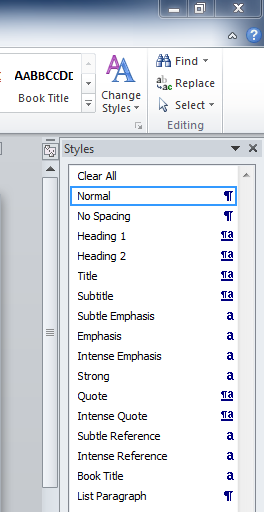
Styles Location

Styles Options

Find the three buttons at the bottom of this new window. The left button lets you create a new style. When you create the new style, give the style a name that will help you remember which style is which. Choose which current style the new style will be based on.

MICROSOFT WORD’S STYLES

The Normal style is designed for the majority of your body text paragraphs, though you’ll want to modify the settings of this style before using it. You may need one or more variations of the Normal style, for example a similar style for the first paragraph of each chapter (e.g. if you don’t want to indent the first paragraph of each chapter, as is common among most traditionally published books).

Use Heading 1, Heading 2, Heading 3, etc. styles to format headings that you’d like to be used in navigation. Kindle tends to automatically use your heading styles for built-in navigation (though it may take some time after publishing before this is done). You may want to use the Heading styles for chapter headings (like Chapter 1, Chapter 2, etc.) and some front or back matter sections (e.g. Introduction, Appendix), for example.

Think about other kinds of paragraphs that you may want to be formatted differently. For example, you might want a block of text for quotes that is indented from both the left or the right. Or you might want a centered line for figures or for text that you don’t want to be used in navigation.

Modify the Normal, Heading 1, and Heading 2 styles, and then create new styles—as described in the previous section. Once you have all the styles for the variety of paragraphs that are used in your book (including “paragraphs” that only consist of a few words or an image on one line, or lines from your table of contents, for example), then you just need to apply the appropriate style to each paragraph.

Except for the Normal style, you can check a box so that any changes you make to that style automatically apply to every paragraph of that style when you modify the style. Otherwise, and for the Normal style, if you want to update every paragraph of that style, open the style box on the right of the screen (see the instructions in the previous section), place your cursor on a paragraph of the style you want to modify and update, right-click the style in the box at the right (not the top), choose Select All, click Modify, and then update the style and the changes should propagate throughout.

FORMATTING WORD’S STYLES

For each style (Normal, Heading 1, Heading 2, and variations of these that you use), you need to modify the style to adjust the font and paragraph settings.

Leave the color set to automatic, except where you need to create text a different color. For example, if you want a heading to appear in red or blue, you can change the color for that heading style. Don’t set the color to black for body text; leave it set to automatic. (Note that colored text may not appear as nice on black and white devices; for example, red stands out in color, but appears gray on black and white devices).

The default Word font style (Times New Roman or Calibri) is simplest. This will allow the user to choose a font to his or her liking. There is a better way to treat the fonts, as I’ll describe later.

Font size is something that you must set in Word if you intend to upload a Word doc, but which the user will ultimately take control over. So font size is relative. The points don’t translate perfectly from Word to Kindle. Kindle doesn’t discriminate between some close font sizes. If you use 12 pts for body text and want a heading to appear twice as large, you might try 24 pts, for example. Some trial and error is wise. If the font for a heading is too large, for example, a long word (like INTRODUCTION) might not fit on a single line on some devices (though when a user chooses a very large font on a cell phone, that’s virtually unavoidable), so it pays to test it out. There is a better way to set font size than by doing so within Word, as I’ll explain later.

To adjust the font in Word, don’t highlight an entire paragraph and change the font for that paragraph. Instead, right-click a style to modify it, click Format, choose Font, and modify the font for that style. Then simply associate that style with the desired paragraph(s).

You must similarly adjust the paragraph settings. Right-click a style, click Modify, choose Format, and select Paragraph.

This is where you can set Space Before (or After, but I prefer to use Before only), if you would like headings or the first paragraph of a chapter (only if you create a separate style for it) to have space above it. This is better than inserting blank lines with the Enter key. Why? Because it looks funny when a blank line happens to appear at the bottom or the top of a page, or a blank line that you’d like to serve as a section break may not be visible in such a case. (Using asterisks, * * *, centered on a line by themselves, or a glyph, provides a section break that won’t get lost. Pad your glyph with space on the sides so it doesn’t zoom to full-width on old devices, perhaps a clear background with a .gif, with black or sepia user options in mind.)

Instead of inserting manual page-breaks, you can include this in a style, too. You also find this in Modify > Format > Paragraph for a style, then choose the Line and Page Breaks tab, and check the box for Page Break Before (but note that most of the other options on that tab don’t propagate through to the Kindle; page-break works, though).

The paragraph setting is also what you need to use, within the style itself, to treat indents in a way that will work predictably and reliably.

HOW TO INDENT FOR KINDLE E-BOOKS

The wrong ways to indent lead to inconsistent indents in Kindle e-books:

  • Don’t use the tab key at all.
  • Don’t use the spacebar to create indents.
  • Don’t rely on automatic indentation.
  • Don’t go to the paragraph dialog box and set First Line for a particular paragraph. Close, but no cigar. You need to do this for a style instead to achieve the most reliable and predictable indents across all devices and the challenging, yet all-important, Look Inside.

Right-click a style to modify it, click Format, Select Paragraph, change Special to First Line, and enter a value for the indent there.

  • Do this for all non-centered styles, including justified and left-aligned (ragged right) styles.
  • Do this for Normal and variations of Normal that will be justified or left-aligned.
  • Set the indent to 0.2″ or 0.3″ for indented paragraphs. The default value of 0.5″ appears too large, especially on small devices like a cell phone. (There is a better way, which I’ll describe later.)
  • Don’t choose (None) for paragraphs that you want non-indented (like the first paragraph of a chapter, if you have a special style just for those paragraphs, or the lines of your table of contents page). This won’t work. Instead, set First Line to 0.01″ to create non-indented paragraphs.
  • For centered paragraphs, do set First Line to (None). This only works for centered styles. (You don’t want centered styles, like Heading 1, to include indents, otherwise they’ll appear off-center.)

OTHER FEATURES FROM WORD

There are two different ways to format a table of contents in Word for Kindle. There is a table of contents tool, or you can create bookmark hyperlinks. There is yet a third way to do it if you wind up exporting Word’s HTML to create an epub or mobi file. On top of this, Kindle may build in navigation (after a lengthy delay once your book is published) based on h1, h2, etc. tags (Heading 1, Heading 2 in Word).

You can also create other bookmarks for built-in navigation. For example, if you type “See Section 4,” you can use bookmark hyperlinks so that when the reader clicks Section 4, it takes the reader directly to that section. If you have external hyperlinks, e.g. the url to a website, you can similarly activate these.

Footnotes and endnotes in Word also propagate to Kindle.

MY KINDLE EXAMPLE

Below is a picture of how a portion of my sample e-book appears in Microsoft Word. If you look above Contents, you can see “pic 2” on a line by itself. Later, I turned that line into a picture. Remember, it’s not how the book appears in Word that matters, it’s how it appears in Kindle that counts. Later in this article, I’ll describe a few ways to improve the formatting from how it appears in Word.

Ebook Word

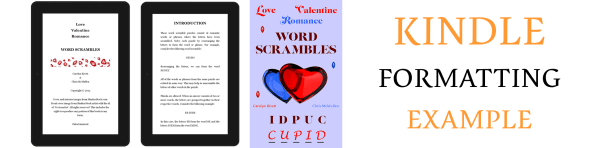
Here is how the beginning and introduction look in the actual Kindle e-book:

Ebook Kindle 3

I’ll discuss some design choices and a simple way to make further improvements. In case you may want to check out the free sample to see the example firsthand, click the image below:

Click the image to view at Amazon.

DESIGN ISSUES

DECORATIVE IMAGES

There are four decorative images in the front matter. The paperback edition includes some visual elements, so the hope was to incorporate a taste of that visual impression into the Kindle edition.

However, square images (like a heart), full-page images, or tall images take a great deal of room on a screen, which can impact the readability. For one, it serves as a long gap between the text that comes before and after the image. Also, you have limited control over where the paragraphs of text preceding and following the picture will appear. You can wind up with a lot of white space on the screen prior to the image, or you can have one line of text above or below the image, etc. When an image is a crucial part of the book, you do your best to work with it. But for decorative touches, I didn’t want to use an image that may cause such issues.

So I went with wide, short images. These don’t take up much space vertically. You can see one of these pictures in the previous section. (An alternative would be a glyph, padded on the sides so it doesn’t blow up to full-width on certain devices.)

FRONT MATTER CHOICES

Another design choice is which sections to include in the front matter. Some people move the copyright notice and table of contents to the back matter in order to maximize the potential of the Look Inside. A few cram extra stuff into the Look Inside, hoping to make it easier for customers to reach that 10% mark, so crucial for Kindle Unlimited. Neither of these reasons appealed to me.

I included a short, basic copyright notice in the front. I feel that customers generally expect to see this; it’s a standard part of a book; I didn’t want its absence to stand out, and I believe its inclusion, if done well, can help signify that professional touch. Virtually nobody will read the copyright page, but everyone will notice it briefly while passing by (except when they first open the book in a Kindle, where Amazon starts the book after this position; but I’m more worried about the customer on Amazon’s website, checking out the Look Inside).

I also opted to include the table of contents in the front. This book has 88 pages of puzzles. I didn’t want to include 88 entries in the table of contents. So I divided the table of contents up into Puzzles 1-8, 9-16, 17-24, etc.

FRONT MATTER ALIGNMENT

Both the copyright notice and table of contents in this book are centered. For a multi-level table of contents, I would format it left aligned (ragged right) instead, and use indents (through styles) for the various levels. I might use left alignment for most tables of contents, in general, but if you look at this puzzle book, very much of it is centered (including the puzzles), so this kind of fits.

Many traditionally published books center the copyright page, while others are justified and yet others are left aligned (ragged right). In the past, I’ve often used justified or left alignment for the copyright page, and I’ve often noted formatting issues on one or more devices. For example, the last word (like the line with the title or subtitle) might wind up on a line all by itself, or when justified, there can be some large gaps (or one line might not even justify, in the extreme cases). These problems tend to occur more with many copyright pages, and if you include it in the Look Inside, you want this section to look good. Some of these issues can be avoided with proper centering. (Don’t center each sentence of your notice; put it all in one centered paragraph; but the title lines and copyright date lines need to be on their own lines.)

HEADING & SUBHEADING ALIGNMENT

If you have any lengthy chapter titles, headings, or subheadings (for large fonts on small screens, it doesn’t have to really seem ‘lengthy’), you can run into similar issues, deciding between centered or left aligned. (Definitely, don’t justify the headings.) (Another thing to note is that left alignment, i.e. ragged right, can sometimes be a little tricky to pull off if you upload a Word document; it’s more reliable if you just go a quick step beyond Word, as shown later in this article.)

FORCED LINE BREAKS

Sometimes, it pays to force a break to avoid a bad break. For example, the authors are listed as Carolyn Kivett & Chris McMullen. I spread this onto three lines (with the & on its own line). Why? Because on a smaller screen or with a larger font size selected by the user, we could wind up with Carolyn Kivett & Chris showing on one line and McMullen on the next line, which would look unnatural. Separated on three lines avoids that possibility. You can’t do such things with body text, but everywhere else you can keep such things in mind.

But be careful. If you take something too long and break it in half, you might get bad breaks in between. For example, suppose you have two short sentences and decide to place each on its own line. This sounds good until you see the last word of the first sentence wind up on the second line all by its lonesome on a smaller screen or with a larger font.

Remember, don’t try to force breaks in body text paragraphs. It will surely backfire on some devices.

PARAGRAPH ALIGNMENT

Novels and most nonfiction should have indents, but no spaces between paragraphs, in the body text. (But the first chapter of each paragraph is ordinarily not indented.)

My example is a puzzle book. The puzzles themselves are centered, as is much of the front matter. I formatted the Introduction with block paragraphs, i.e. it has space between paragraphs, but no indents. This isn’t your standard nonfiction book, so these block paragraphs fit in with the design.

Definitely, don’t use indents and block paragraphs, or your book will stand out, probably not in a positive way; readers just aren’t accustomed to that.

Readers expect novels and most nonfiction to have indents, but no space between paragraphs. A few kinds of technical books, for example, tend to have block paragraphs (space between, but no indents). If you have a nonfiction book, see what’s common among very similar books.

DESIGN CHALLENGES

One of the challenges in designing a puzzle book or a workbook is that in print, answers are usually collected in the back. That’s just incredibly inconvenient in an e-book.

It’s more convenient to use footnotes for the answers. Unfortunately, if you publish a workbook or puzzle book with answers in both print and digital editions, this would entail much restructuring. (But if you’re really handy with programming, you might be able to restructure your book efficiently that way. I actually went into Excel and efficiently restructured the book there to move the hints and answers from the back of the book into their respective puzzles, but let me warn you, it’s much more straightforward to restructure this with programming than to do it with Excel.)

Another challenge with puzzles and workbooks is that you can’t write in an e-book (well, maybe you could create an ‘app’ instead of a ‘book’). A crossword puzzle, word search, or Sudoku puzzle can’t be ‘read’ as a ‘book,’ for example. But you can do a word scramble in your head.

My biggest struggle with this book was that each puzzle contains 6 word scrambles plus a theme (also scrambled). Since all 7 words go together, it really makes sense for all 7 words to lie on a single page. That’s the way it looks in print (the print edition also includes nice visual decoration). But it’s a big problem for Kindle.

The only way to guarantee that all 7 word scrambles for each puzzle would appear on a single ‘screen’ in Kindle is to format the entire page as an image, but then it wouldn’t likely be readable on a great many devices. Unfortunately, one or more words for a puzzle will go onto the following screen on smaller devices, or any device with a large enough font size selected.

I could have tightened the space between puzzles, but I preferred to add space between the lines of each puzzle (using Space Before, in the styles, not with the Enter key), as readability is important to help focus on one word scramble at a time.

I made a draft without using page-breaks at all, and I rather liked how that looked and read, but in the final product, I included page-breaks. Since each puzzle has a theme, a page-break seemed the natural way to collect the themes together.

IMPROVEMENTS

I took a few quick and simple steps to improve the Kindle formatting.

Below, I show you exactly what I did and how I did it.

You can follow the same steps. Really, there is nothing to learn. You just have to follow directions. 🙂

It will improve the formatting.

FILTERED WEBPAGE

In Word, Save As a filtered webpage (don’t choose single-file webpage), then open the file in Notepad. (An alternative is Sigil, which can help you create an epub, but there is a learning curve for using Sigil.) I’ll describe minimal changes to look for in Notepad. Don’t open the filtered webpage in Word.

If your file has images, there is another step to take before you open the file in Notepad. Find the file on your computer (in My Documents, or wherever you saved the filtered webpage). Right-click on the file, click Send To > Compressed (zipped) folder. This creates two folders: one with images and one zipped folder. Find the image folder (you may have scroll to the top) and drag it into the zipped folder (both folders have the same name as the filtered webpage file).

When you want to edit the file in Notepad, open the filtered webpage, and after saving the filtered webpage, find it and drag it into the zipped folder to replace the old file.

STYLES

When you open the filtered webpage in Notepad, you find the styles at the top.

I delete the font definitions: Everything beginning with /* Font Definitions */ and just before /* Style Definitions */.

I next improve the styles that you find under /* Style Definitions */.

Be careful to type everything exactly (or use copy/paste, as typos here can create havoc). Don’t forget the semi-colon (;) at the end of each line.

The top of each style (Normal, Heading 1, etc.) should include:

margin-top:0in;
margin-right:0in;
margin-bottom:0in;
margin-left:0in;

Exceptions: (1) When you want to include space before a paragraph, change margin-top from 0in to 2em, for example, where an ’em’ is a helpful unit in typography. (2) When you want to a create a block indent, e.g. for quotes, change margin-left and/or margin-right to 2em. This indents every line from the left (or right, or both), not just the first line.

For styles where you want a page-break before (perhaps a chapter heading style), include this line in the style definition:

page-break-before:always;

Control paragraph alignment and indents with lines like these in the styles:

text-align:justify;
text-indent:0;

The word justify could also be left or center, depending on how you want that style to be aligned. Heading styles are often centered. Most body text is usually justified.

Set text-indent to 0 for any paragraph that you don’t want to be indented. While zero doesn’t work in Word, it does work here.

For the Normal style or any other styles that you do want indented, I recommend 2em (two em’s), as in

text-indent:2em;

This way, your indent size will depend on the font size that the user selects. While a percentage seems like it would better match the screen size, it comes out way too big in the Look Inside, which is your main selling feature.

However, you should control the font size with a percentage, such as

font-size:100%;

Regular body text should be 100%. I used 150% for headings.

I remove all mention of font families by changing these lines to:

font-family:;}

You should only have the closing brace } if this is the last line of the style’s definition.

There are other changes that I make, and other things I do to clean up my file; I’m taking a minimalist approach here to keep things simple.

IMAGES

Find the paragraphs that call your images. One way to format them better is like this:

<img style=”width: 100%; height: auto;” width=”2048″ height=”342″ alt=”” src=”Filename/Picname.jpg”>

Only include the “width: 100%; height: auto;” if you want the image to fill the width of the screen. (Note that older Kindles automatically fill the width anyway, so if you don’t want an image to zoom full screen, you should pad it instead.)

Don’t use 2048 and 342. Use whatever size the image is (most likely, if you have multiple images, they will differ in size; find the sizes of your images).

It may seem redundant to also include the width and height size if also setting the width to 100%, but this may speed things up on some devices.

Word can resize your images on you, so you should check the point values in the HTML and also in your compressed image folder. If it was resized, you can delete an image from the compressed image folder within the compressed zipped folder and copy/paste it back in (based on your original).

If the src= part at the end doesn’t specify your file location correctly, the image won’t display in the Kindle e-book. (So you should check every picture when you preview it.)

The img style should be part of a paragraph, like:

You’ll probably have a p class instead of a div class. I use the Replace tool in Notepad to change every <p into <div and every </p into </div throughout the file.

OTHER

There are more things you can change, but again I’m trying to keep the changes to a minimum for simplicity.

If you want to see how clean your Word file is, try using the Find tool and looking for span, font, color, <br, clear all, and things like that. If you have a lot of spans (other than endnotes), it probably means you had a habit of highlighting text or paragraphs and applying formatting to what’s highlighted. The more you get in the habit of using styles for paragraph formatting, the more that will reduce those spans. Those breaks (br) and clear all’s can arise from manual page breaks, Enters, etc.; these come out cleaner when you build the page-break into the header style and when you use Space Before in the paragraph style instead of using the Enter key (don’t add these features to every style; just figure our which kinds of paragraphs should have space before and add it to paragraphs of those styles). If you find the word font (other than in your style definitions), it probably means that you highlighted text or paragraphs and selected a font style, size, or color. Try to break that habit (except when you need a portion of a paragraph, rather than the entire paragraph, to format differently).

CONSISTENCY AND PREDICTABILITY

It’s worth browsing through your p-tags. They begin <p class=, such as <p class=MsoNormal>, unless you changed all the p tags to div tags like I do, then you’ll have things like <div class=MsoNormal> or whatever you called the style.

Your HTML will tend to produce more consistent and predictable results if you don’t have overrides in your paragraph tags. Examples of overrides in your paragraph tags include <p class=MsoNormal align=center> or <p class=MsoNormal style=’text-indent:.3in’>. These are contradictions. The Normal style says to justify, while your p tag says to align center. Unfortunately, when you have contradictions like this, the Look Inside doesn’t always choose the way you’d like.

These contradictions come about when you don’t use the styles religiously. If you highlighted a paragraph and changed the alignment to center, you create a p tag like <p class=MsoNormal align=center>. What you should have done is create a centered style and simply associate that style with the paragraph to create a p tag like <p class=Center>. Similarly, don’t highlight a paragraph and change First Line for the highlighted text, as that creates a p tag like <p class=MsoNormal style=’text-indent:.3in’>. The better thing is to create a new style with the indent you need, then simply associate that style with the paragraph. If you see overrides in your paragraph tags, you want to change your habit of formatting highlighted paragraphs and use the styles instead. That will give you the most reliable formatting.

Chris McMullen

Copyright © Chris McMullen, Author of A Detailed Guide to Self-Publishing with Amazon and Other Online Booksellers

  • Volume 1 on formatting and publishing
  • Volume 2 on marketability and marketing
  • 4-in-1 Boxed set includes both volumes and more

A Kindle Facelift

Facelift

FACELIFT

I just finished updating my Kindle e-books on self-publishing. (The last one, Formatting Pages, won’t be live for at least 12 hours.)

Having spent much of the year testing out various ways to format Kindle e-books and researching subtleties of the craft (especially, tweaking the HTML), I was finally able to apply these goodies—some of them subtle—to my books. (I haven’t updated my science e-books yet, but they’re on my to-do list.)

Here are some of the changes that I’ve made:

  • Restyling the entire e-book for consistency across all devices (especially, that all-important Look Inside).
  • Updating the endnotes and bullets of my Detailed Guide (Vol. 1); it had been on my to-do list for far too long. (I put in a request for KDP to enable auto-updates for Vol. 1, but so far I haven’t heard back.)
  • Manually cleaning up the HTML. Actually, this turned out to be amazingly simple, using the Replace tool. (There are automatic cleaners out there, but I prefer to know exactly what’s going on. There are also some things you don’t want to clean.)
  • Setting the paragraph indents in em’s instead of inches so that it looks good on any device with any font size (this had already been done on most of my books). Also, certain values don’t translate well to older devices.
  • Defining font size as a percentage instead of a value in inches.
  • Using special HTML characters that wouldn’t work in Word (like spades, hearts, diamonds, and clubs).
  • Padding certain images so that they don’t enlarge on older devices. This also controls the percentage for which smaller images fill the screen consistently across all devices. A glyph or small logo, for example, shouldn’t blow up to fill the screen of an older Kindle.
  • Applying 100% width for larger images to make them fill the screen.
  • Changing some images from jpeg to gif. Resizing a few images.
  • Removing contradictions where a “style” or “span” statement overrides the class definition. (This can be avoided with proper styling in Word. The big problem is highlighting paragraphs and formatting that highlighted selection, instead of using styles to do all formatting). This is important for perfecting the subtle touches for the Look Inside.
  • Content-wise, I also made some minor changes to my Detailed Guide.

Of course, I have a step-by-step guide coming out that explains exactly how to do this, like a cookbook, so there is no guesswork. It will be available for pre-order soon.

I sell over 10 times as many paperbacks each month as Kindle e-books, which is one reason my attention has been diverted toward paperback editions for quite some time. This year, I resolved to turn the tables somewhat. Eventually, I intend for my Kindle sales to better compete with my paperback sales (ideally, without the print sales sliding to do it).

BOXED SET

I’ve been waiting to release my self-publishing boxed set until each Kindle edition had been updated.

It turns out that the easy way to create the Kindle edition of the boxed set was to first apply consistent styling to each of the e-books.

My boxed set is finally ready to hit the market. It will be available for pre-order shortly. A paperback will follow, hopefully later this month. It will be a mammoth paperback, instead of a boxed set of individual volumes (which I realize would be convenient; something to consider in the future).

DYNAMIC

Today’s publishing world is dynamic. I don’t think a book is ever finished. Especially, nonfiction, as the content itself must be updated periodically. In addition, formatting capabilities change as technology evolves. Then everyone, from top to bottom, learns new things or develops a different sense of style. Customers develop a different sense of style and develop new expectations, which also entails a response.

Do your best to perfect your book the first time. But what seemed perfect two years ago may cause you to smack your forehead now. Fortunately, your book isn’t chiseled in stone. Update it!

When sales aren’t so hot, another thing to consider updating is your blurb. A change freshens your product page, lets customer see your book with a new look, and helps you progress toward the ideal blurb that we strive for.

FREE HELP

Of course, I provide a wealth of free articles about self-publishing here on my blog. That’s the purpose of my blog: to help.

Chris McMullen

Copyright © 2014 Chris McMullen, Author of A Detailed Guide to Self-Publishing with Amazon and Other Online Booksellers

  • Volume 1 on formatting and publishing
  • Volume 2 on marketability and marketing

Follow me at WordPress, find my author page on Facebook, or connect with me through Twitter.

Comments

Click here to jump to the comments section:

https://chrismcmullen.wordpress.com/2014/10/04/a-kindle-facelift/#comments

Authors: Have Your Manuscript Ready for a… Surprise?

Cover Problems Pic

AMAZON PUBLISHING

It appears that Amazon is launching a new publishing program. Look for an announcement to come in the next couple of weeks.

The reason for this article is just to give a heads-up. If you happen to have a novel in the works and this program may be of interest to you, you have a chance to get your manuscript and packaging in gear.

The terms may not (but may) interest bestselling published authors or thriving self-published authors, but may attract midlist published authors and many self-published authors.

Evidently, the program will include Amazon-featured marketing. This is likely to draw huge interest, assuming that it means more than the usual customers-also-bought lists and such. For example, if it includes featured placement or small ads, that could make an incredible difference. Amazon will have a vested interest in these books, so there is compelling reason for Amazon to include featured marketing in the offer.

You might be wondering, “How do we know about this?”

  • Amazon sent an email to select authors, notifying them about the program. The email included a link to an Amazon page, allowing authors to sign up for additional emails.
  • The Digital Reader and Publisher’s Weekly made initial announcements about this program on September 22, 2014.
  • Amazon sent a follow-up email this morning.
  • (Well, if you want to be a pessimist, you’ll ‘know’ if and when Amazon makes an official announcement.)

Update: The program is now live. It’s called Kindle Scout: https://kindlescout.amazon.com/submit.

It will begin with just the following genres:

  • romance
  • mystery
  • thriller
  • science fiction
  • fantasy

This new Amazon publishing program will be like a publishing deal for Kindle. The terms are better than many traditionally published terms, though the royalty rate isn’t as high as self-publishing with KDP.

  • $1500 advance. (Many indie authors are already excited.)
  • 50% royalties for e-books. (20% less than self-publishing, but it includes Amazon-featured marketing, which may easily make up the difference.)
  • A 45-day exclusivity period and easy rights reversions (unlike many traditional publishing contracts that make reversions difficult to come by). (There are some conditions. You’ll want to read these carefully when the program launches.)
  • Amazon only wants exclusive rights for e-books and audio in all languages. You get to keep the print rights (so you can self-publish with CreateSpace and keep 100% of your usual print royalties.)

What exactly is Amazon-featured marketing?

That’s the big question. If it included on-site advertising, that would be awesome. If it just means customers-also-bought lists and the usual benefits of publishing with KDP, then it would be a dud. (Basically, you’d be trading 20% of your royalties for a $1500 advance.)

The Digital Reader defined Amazon-featured marketing to mean enrollment in KOLL and Kindle Unlimited (well, you could get that by self-publishing!) and eligibility for targeted emails and promotions. This sounds great, except for that tricky word, “eligibility.” You’d hate to get no extra on-site publicity or featured placement at all.

Well, Amazon would have a vested interest in the success of books in this program. It seems reasonable to expect Amazon-featured marketing to be more than what’s merely automatic with KDP. I think we need to wait for the program to launch and see how it goes.

Get ready!

Here’s what you’ll need:

  • Complete manuscript. (Never before published. Or self-published, I suspect, but you can ask Amazon for clarification.)
  • 500 character (or less) book description. (Does that include spaces? Probably.)
  • One-liner (45 characters or less) to grab interest.
  • Biography and picture.

Any author who’s interested in this program (even if you’re unsure), has a chance to get ready. Advance preparation could make the difference.

If you prepare now and decide later that it’s not for you, what have you lost? Everything you prepared will still serve its purpose when you instead self-publish or traditionally publish your book.

Here’s what I recommend:

  • Finish your manuscript. This is required.
  • Perfect the first 3000 words. This part will be publicly visible. Voting will be based on this. You want to show your best stuff early, and grab attention right off the bat.
  • Get a great cover that fits your book well. This will surely make a difference in catching interest. It will make a difference in selling the book, too, if published.
  • Perfect the blurb. Don’t summarize the book. Arouse interest. Keep it short.
  • Perfect your one-liner. Observe the character counts.
  • Get ample feedback on your cover, one-liner, title, blurb, and first 3000 words.
  • Build interest in your book and create buzz. Voting is involved in the process. (Not sure how this will be regulated or applied.)
  • I’m thinking minimal front matter (just whatever the program requires, if anything). It’s about creating interest in your story and selling your idea.

Effective marketing skills will surely help. You need good packaging (cover, blurb, look inside) and the ability to create interest in your book.

There will be a brief Q&A opportunity with readers to sell your story (and the story behind you coming up with the story—you know, like all those amazing success stories you read about).

Good luck!

Chris McMullen

Copyright © 2014 Chris McMullen, Author of A Detailed Guide to Self-Publishing with Amazon and Other Online Booksellers

  • Volume 1 on formatting and publishing
  • Volume 2 on marketability and marketing

Follow me at WordPress, find my author page on Facebook, or connect with me through Twitter.

Comments

Click here to jump to the comments section:

https://chrismcmullen.wordpress.com/2014/10/02/new-amazon-publishing-program/#comments

To Pre-Order, or not to Pre-Order

Pre Order

KINDLE PRE-ORDERS

Finally, Kindle has a pre-order option.

But should you use it?

That’s a good question!

SCHEDULING PRE-ORDERS

Making a Kindle e-book available for pre-order is easy:

  • Find this option in Step 4 when you publish with KDP. This is now called the Select Your Book Release Option.
  • Choose, “Make my book available for pre-order.”
  • Select a date. You can schedule your pre-order up to 90 days in advance of the release date.
  • You must upload a draft of your completed book at the time that you schedule your pre-order.
  • In Step 6, declare whether this is your draft or your final version.
  • Enter the description, choose your categories and keywords, upload a cover and the draft of your book, choose a price, and go through all of the usual steps to publish a book with KDP.
  • Click the “Submit for pre-order” button on page 2 of the publishing process.

IMPORTANT NOTES

The deadline for uploading and submitting the final version of your book is 10 days before the release date.

  • Upload the final version of your book at least 10 days before the release date. KDP will give you the precise date.
  • Check the option in Step 6 to indicate that this is your final version. Go onto page 2 and press the button to submit your pre-order.
  • Since this is your ‘final’ version, you shouldn’t expect to be able to make any further changes until your book goes live.
  • If you fail to upload your final version by the deadline, (1) your pre-order will be cancelled, (2) Amazon will notify customers that you didn’t publish your book, and (3) you will lose your pre-order privileges for one year.

You must be releasing a new book in order to take advantage of the pre-order option. Public domain books aren’t eligible.

PRE-ORDER BENEFITS

Here are ways that books can potentially benefit from pre-orders:

  • Scheduling a pre-order gives you a product page with your cover and description (but no Look Inside) for up to 90 days prior to the release date. This gives you something to link to when you proceed to build buzz for your book’s coming release.
  • You can preview how your description looks on the actual product page prior to the book’s release. Visit Author Central to update your description.
  • Your pre-order will show in Amazon search results. This helps customers discover your pre-order, and can help you build search visibility prior to your book’s launch.
  • Your book will show up in the Coming Soon filter (which appears beside the Last 30 Days and Last 90 Days filters). This gives your book a little extra exposure.
  • If you have other books, customers who discover your pre-order may also become interested in those books.
  • If you have an existing fan base, your following may give your book some initial support through pre-order sales.
  • If you succeed in generating many pre-order sales, your book can develop a strong sales rank to help give it some early momentum.
  • The more pre-order sales you make, the more customers who will read your book shortly after its release, which helps you get early reviews from actual customers. (Note that customer reviews can’t be posted until the book goes live.)
  • Highly successful pre-orders can gain additional exposure as Hot New Releases.

More than anything else, a pre-order provides you with a tool that you can use to help create buzz for your upcoming book. But much like sales, it takes effective marketing skills to reap the benefits.

PRE-ORDER DRAWBACKS

Not everything is golden in the pre-order world:

  • Sales rank is a double-edged sword. If you don’t succeed in generating many pre-order sales, a history of slow sales may hurt your book’s visibility.
  • If you upload a draft, what happens if some unexpected event comes up and prevents you from perfecting your book before the deadline (10 days before the release date)? That would be a disaster.
  • Deadlines can be quite stressful. Are you prepared for this?
  • There is a worst-case scenario. You may have read about an author on the KDP community forum whose draft evidently went live instead of the final version of the book. That would be a nightmare.

There is a simple solution to the last three points:

  • Don’t schedule your pre-order until you already have a ‘final’ version of your book.
  • This removes all the worry from pre-orders.

SHOULD YOU PRE-ORDER?

Whether or not you should schedule a pre-order for your Kindle book depends:

  • Do you have a large fan base? If so, these fans may help you with pre-order sales.
  • Do you have amazing promotional plans for creating buzz for your book? If so, this may also help with pre-order sales.
  • Is your book already finished? If not, I suggest perfecting your book before you schedule your pre-order.
  • Are you a new author? If you don’t have reason to expect pre-order support, it may be best not to do this. A history of slow or no sales can hurt sales rank.
  • Are you mostly relying on Amazon to sell the pre-order for you? If that doesn’t happen (there is much competition, and pre-orders don’t have a Look Inside), sales rank may count against you.

HOW LONG SHOULD YOUR PRE-ORDER BE?

You can schedule your pre-order up to 90 days in advance of the release date.

But that doesn’t mean you should.

  • The longer the pre-order duration, the more pre-order sales you must drive to build and maintain a strong sales rank.
  • You need a really large fan base or very powerful promotion in order to really benefit from a long pre-order duration.
  • If you schedule a pre-order for one month and just have a few sales, it won’t give you a very good sales rank.
  • If you schedule a pre-order for 10 days and generate many sales during this period, it will give you a healthy sales rank starting out.

Personally, I feel that some authors are going about this the wrong way:

  • I see some authors making the pre-order duration 30 to 90 days for the wrong reason: to give themselves more time to perfect their books.
  • Yes, they should take all the time they need to perfect their books. But they should do this before scheduling the pre-order.
  • More sales in less time gives you a better sales rank.
  • Now if you can really drive strong pre-order sales (large fan base or killer promotion), a high frequency of early pre-orders may help you drive more pre-orders and maintain this for a longer duration.

Gee, you could come up with a temporary, introductory low price and advertise the daylights out of this. If you have effective marketing skills, you can run a successful pre-order promotion.

PAPERBACK PRE-ORDERS

If you publish a print-on-demand paperback with CreateSpace, for example, you can schedule pre-orders through Amazon Advantage.

Visit the CreateSpace community forum. There is a very helpful, detailed post on how to do this by forum member Desire Success.

Chris McMullen

Copyright © 2014 Chris McMullen, Author of A Detailed Guide to Self-Publishing with Amazon and Other Online Booksellers

  • Volume 1 on formatting and publishing
  • Volume 2 on marketability and marketing

Follow me at WordPress, find my author page on Facebook, or connect with me through Twitter.

Comments

Click here to jump to the comments section:

https://chrismcmullen.wordpress.com/2014/09/22/to-pre-order-or-not-to-pre-order/#comments