The best things in life ARE free :-)

guitar 008

Forget the guitar. Just swim in the box. 🙂

There’s no I in EYE

Eye I

Image from ShutterStock


THERE’S NO I IN EYE

There’s no I in EYE,

But hear it I can’t DENY;

Nor an I to be found in FLY,

For which I must ask: WHY?

♦

I find no C in SEA,

As you can plainly SEE;

When I find no F in GRAPH,

It makes me want to LAUGH.

♦

There are no Y’s in HAWAII’s:

Do you think this is WISE?

I can’t find an A in WEIGH:

“Just the way it is,” say THEY.

♦

Even in names: JESUS has no G,

Nor has JEANNIE. Makes you wonder. Gee!

When there is no E in HUMPTY DUMPTY,

It makes me rather GRUMPY.

♦

Oddly, there’s a Q in queue, but not in CUE,

And it makes no sense that there’s no U in DO.

Even French has no O in L’EAU,

Yet it’s H2O! Go cry in a CHATEAU!

♦

There’s no X in WRECKS or Z in DAISY,

Yet there are two E’S in EYE. How crazy!

Language is nuts when CADE’S CAVE has no K’s.

Enough is enough. I rest my CASE.

♦

Copyright © 2015 Chris McMullen

Educators may use this poem for educational purposes, provided that proper credit is given to the author, Chris McMullen.

Strange Magic (the Movie)—and Marketing

Images from ShutterStock.

Images from ShutterStock.

STRANGE MAGIC

We saw the movie Strange Magic this weekend.

http://strangemagicmovie.com

And in addition to enjoying the movie very much… it got me thinking about marketing.

If you want to learn more about marketing, it helps to see and consider the marketing around you.

Not everything translates directly into book marketing, though. For example, paid advertising tends to be much more effective for paper towels than for books; and no wonder, there aren’t millions of paper towel rolls to choose from.

However, many of the main concepts do translate:

  • easily reading the brand on the label
  • visually appealing to the target audience
  • effective use of color in the packaging
  • text on the product label that not only informs, but sells
  • creating brand name recognition through just the right amount of repetition

Strange Magic, the movie, begins with a bright, colorful scene with a fairy flying. This was visually appealing for the target audience. With books, you want to show your target audience right off the bat (who may be reading the Look Inside as prospective shoppers) that this is very much what they were looking for. You want the beginning to put them in a good mood. Make the audience relax and enjoy the book, rather than thinking critically. Compel the audience to keep reading.

Sitting in the theater, we’d already bought our tickets, so it’s not quite the same thing as the Look Inside of a book, where customers may still be deciding. But if you ever produce a movie, you don’t want people walking out of the theater, and you want everyone to enjoy the movie enough to recommend it, so it’s still important to start out on a positive note. This movie had a great visual beginning.

Another thing you need when you write a book is to have elements of your book that really stand out. Something noteworthy (in a good way!) that may elicit recommendations. Strange Magic has an amazing soundtrack. I don’t normally notice the music much in the theater. This movie had many great tracks; good variety, too. Most played for a short duration, but the movie was packed with great music. That’s a cool feature, where if the audience likes it (a big IF whether producing a movie or writing a book), they might tell other people they know. “Hey, you gotta check this out.” Authors strive to put compelling features in their books. If it’s compelling enough to share with friends, it might lead to valuable recommendations.

Rather than, “That was a great book,” you’re hoping for, “Check this book out because…” An amazing feature can make a difference. The strengths of a book may sell it, but only if the weaknesses don’t prevent the readers from recommending it. Shore up the weaknesses and make the strengths wow. In long-term marketing, content is king.

The movie also has a unique style, artistically. The hairstyles are distinct, and they work. You have to create a distinctive brand, like Sherlock Holmes; something that distinguishes your brand from others. When you write a book, something must define your distinct style (in a good way!). It may be subtle. (If it’s drastic, you take a huge risk.)

The storyline sends a positive message, too. You can see the message as a byline right on the poster: “Everyone Deserves To Be Loved.” Strange Magic is a kids’ movie, but it must also appeal to parents, as they’re the ones who will buy the tickets. And parents (or grandparents) are likely to watch the movie with them. Similarly, books need great storylines, and children’s books need to not only appeal to children, but to parents, too. I enjoyed the storyline very much. So did my daughter.

I also like the title font on the movie poster. The words STRANGE MAGIC are written in a large font, it’s easy to read, the color works well and makes it really stand out, and the style fits the genre. The title font is very important on the packaging. With books, the font on the cover’s thumbnail may be even more important.

The movie poster’s visual image is pretty busy, and doesn’t reflect the bright, colorful imagery shown in the beginning. But maybe it would have been a mistake to base the poster design on the imagery from the movie’s beginning. That may have looked more girlish, whereas the movie isn’t intended just for girls. Similarly, with books, a cover should be striking, but even if it’s quite striking, it will fail if it doesn’t attract the precise target audience. The latter is more important than the former.

If you haven’t seen Strange Magic yet, I recommend it. My daughter does, too.

Copyright © 2015 Chris McMullen

How to Market Fiction Books (Show, don’t Tell)

aliens

Images combined from ShutterStock. Space Age font from mickeyavenue.com/fonts/spaceage.


FICTION BOOK MARKETING

I meet many amazing fiction writers here at WordPress. I’d like to see you sell more books.

Not by telling you what you should do. Though I have several book marketing posts that do just that.

But by showing you. I’m going to take the plunge and write, publish, and market fiction.

I’ve written, published, and marketed a variety of nonfiction books. So this will be a change.

More than that, I will show you how I go about the planning, writing, publishing, and marketing. Every step of the way.

I hope you’ll see that I do some things different. I hope you wonder, “Why didn’t I think of that?” (But if you do, it won’t be too late.) Or, “Oh, I want to try that, too.” I’ll also carefully consider the many decisions that authors must make as they write, publish, and market, and share my reasoning with you. Maybe this will help other writers with their decisions.

TIMELINE

I’m not going to rush. I don’t have any deadlines. I’m not trying to get a book out in one month or six.

I realize that time is on my side. I’m setting my goals long-term.

For one, I need time:

  • planning
  • research
  • writing
  • revising
  • editing
  • pre-marketing

Since I believe that this idea is worth writing, my goal is to try and do it ‘right.’

You want exposure for your book, right? So don’t rush. Take your time to help gain exposure along the way. It may pay off in big ways in the long run.

I don’t want the marketing to be an afterthought. If it’s worth writing, it’s worth finding readers.

My timeline is continued progress. I’ll show you that progress as I show you how I strive to make my book marketable, and strive to market my book.

This blog will remain focused on helping authors on their writing and publishing journeys. I’ll only mention my fiction books in posts that aim to show fiction book marketing firsthand. I’ll be adding a separate website to promote my fiction books.

I will try not to over-post on this blog. I’ll try to mix it up with my usual variety of posts.

CHALLENGE

Are you working on a book, too?

We can pursue our writing, publishing, and marketing journeys together. Follow along.

Wondering what to do with your book?

Struggling to make decisions?

Not sure what direction to head?

I’ll be facing these same questions along the way. I’ll show you how I made my decisions, which may help you make yours. Of course, you might not make the same choices, but that’s okay.

CONTENT

As you may have noticed, I’m trying not to reveal too much today.

I plan to reveal more as my journey unfolds, so that you can see my decisions as I make them and explain why I did what I did.

Though the cover pic for this post provides a hint. Not quite. Don’t take the pic too literally. Just a hint.

My next post will reveal the topic, why I chose that topic, and the important issue of my writing goals. I’ll try to show you what’s important about it. And this will already include some book marketing ideas. It’s never too early to start thinking about marketing.

Remember, you’re not advertising. You’re not marketing for immediate sales (think of those, if you get them, as a sweet bonus). You’re trying to attract readers. You’re showing that your book is worth marketing. You’re not trying to shove your book down peoples’ throats. You’re trying to get discovered, in subtle ways, branding an image for yourself, not tattooing your book on readers’ foreheads though. You’re trying to establish yourself as a professional writer. You’re trying to convey your passion for your book.

Your best bet is to think long-term.

CONFIDENCE & HUMILITY

I’m confident in my idea. I have to be. Otherwise, why bother? Get that self-confidence. Motivate yourself. You can do it. I believe it. But you’re the one who needs to believe it. Before your readers will.

Convince yourself that you have the:

  • relevant background
  • writing ability
  • storytelling ability
  • special ingredient readers will appreciate
  • right elements to make your book marketable

I’ll get more specific in another post, when I give reasons to believe in my project.

But you have to balance confidence with humility. It’s a tough combination, yet an important one.

Readers want you to believe in yourself and your book, but they don’t want you to come across as overconfident or egotistical. This is vital to your marketing.

STARTING OUT

In a way, I’m starting out as a new author. A new fiction author.

I’ve published and sold many books as a nonfiction author. But fiction is different.

In a couple of ways, I do have an advantage:

  • I have experience with writing, publishing, and marketing.
  • I have a nonfiction following, which is better than no following at all.

But even newbie authors can help to offset this:

  • Who says you can’t start building a following before you publish? Nobody! Start thinking of ways to build an audience for your book.
  • You can learn from the experience of others. Many authors share their experiences and provide helpful tips. Do some research.

Still, I need to build a new following. My fiction books will have a different target audience. (Well, of course, I’d be honored to have you read my book, too.)

I’ll show you how I go about this.

I’m not looking for a one-hit wonder. I plan to publish several similar books, perhaps in a series (that will be one of the decisions I must carefully consider). Obviously, not publishing all at once. It will take time to get there. But time is on our side, if we would simply let it play on our team. 🙂

I HOPE IT HELPS

I hope that my effort to not only write, publish, and market my fiction books, but also to show how I do it and my reasoning along the way will help other authors.

Maybe it will provide some helpful ideas.

Maybe it will help with motivation.

Maybe it will offer inspiration.

I hope it helps in some way.

Chris McMullen

Copyright © 2015

Chris McMullen, Author of A Detailed Guide to Self-Publishing with Amazon and Other Online Booksellers

  • Volume 1 on formatting and publishing
  • Volume 2 on marketability and marketing
  • 4-in-1 Boxed set includes both volumes and more

Follow me at WordPress, find my author page on Facebook, or connect with me through Twitter.

Comments

Click here to jump to the comments section:

https://chrismcmullen.wordpress.com/2015/01/25/how-to-market-fiction-books/#comments

How to Use Amazon’s New KINDLE TEXTBOOK CREATOR (Tutorial)

KTC

KINDLE TEXTBOOK CREATOR

Amazon just released a new FREE self-publishing tool for Kindle, called the Kindle Textbook Creator (KTC).

  • E-textbooks can help with highlighting, notes, flashcards, dictionary look-up, and portability of the book. These are features that students may appreciate (and so being aware of them may help you sell your book).
  • Kindle Textbook Creator homepage: This is where you can download the free tool and learn about system requirements. You can find FAQ at the bottom, too.
  • KDP EDU: This is a new site that KDP launched specifically for educators. It’s a lead-in to the Kindle Textbook Creator.

The new Kindle Textbook Creator creates a print replica file. Print replica is a basic fixed format designed to preserve the layout of a print book with a rich format.

Print replica is becoming increasingly popular among e-textbooks because it is a convenient way to reformat a richly formatted textbook for Kindle.

Textbooks often have numerous equations, diagrams, multiple columns, footnotes, and many other rich formatting features.

While reflowable Kindle e-books are better, in general, it can be a very tedious—or costly, if you hire a professional conversion service—for a richly formatted textbook.

The Kindle Textbook Creator makes it quick, convenient, and easy to convert a textbook to Kindle format. Regarding the conversion process itself, this tool is like waving a magic wand. There is virtually nothing to do. (But my free tutorial, in this article, will show you exactly what to do.)

I had the opportunity to beta-test this tool before it was released. I’ve also already published two books with this tool and have more in the works.

Want to jump straight to the tutorial? Scroll down and you’ll find it. It should be pretty easy to find if you scroll far enough. Look for the heading, Kindle Textbook Creator Tutorial.

WHAT DOES THE KINDLE TEXTBOOK CREATOR DO?

It creates a fixed format book, called print replica, for select Kindle devices.

The Kindle Textbook Creator also makes it super easy to convert textbooks to Kindle format. It really doesn’t get any easier than this. I’ve used many different tools and converted by hand, but I’ve never seen anything so simple when it comes to Kindle conversions.

What’s more amazing is that it’s designed to convert PDF files to Kindle format. PDF files are infamous for difficult conversion to reflowable format, but convert very well and easily to print replica format with the Kindle Textbook Creator. This is perfect for richly formatted print books. Just open the PDF file in the Kindle Textbook Creator and be amazed at how easily it converts to print replica format.

It only works on devices that support pinch-and-zoom (which I believe all happen to be color): Kindle Fire, Kindle Fire HDX, iPad, Android tablets, and smart phones. It will also work on PC’s and Macs.

The pinch-and-zoom feature is the key: If you simply turned each page of a print book into a picture and uploaded those images, the Kindle e-book would be very difficult to read on most devices. Pinch-and-zoom allows the user to zoom in up to 400%, and then use a finger to scroll around on the page. This way, the Kindle e-book functions sort of like reading the printed version of the book.

Since e-books created with the Kindle Textbook Creator will only work on devices that support pinch-and-zoom, by using this tool you can prevent customers from buying your richly formatted e-book from devices where the reading experience would be most challenging.

BENEFITS OF THE KINDLE TEXTBOOK CREATOR

  • Convenience. Convert your richly formatted book to print replica format for Kindle very quickly and very easily. It easily gets five stars for convenience.
  • Easy preview. This tool has a built-in preview. You don’t even have to upload your book to KDP to preview it on each device. That’s awesome!
  • PDF friendly. That’s right. Kindle usually isn’t PDF friendly, but the Kindle Textbook Creator is effective and efficient at creating a print replica format from a PDF file.
  • No HTML needed. Ordinarily, you would need to know HTML and CSS to create a fixed format book. This tool allows anyone to create a Kindle book from a PDF file without any HTML knowledge.
  • Layout control. If you have a richly formatted print layout that you’d like to preserve with the Kindle edition, this tool will preserve that layout for you.
  • Rich formatting. If you have rich formatting that you don’t want to lose in the conversion to Kindle, this tool will keep that for you, too.
  • Vertical centering. It vertically centers each page on the Kindle device automatically. (You can’t do this by uploading a Word document to KDP. You would have to work with HTML, and separate that into HTML pages, or convert to epub which does the same.)
  • Targeted devices. Books converted with the Kindle Textbook Creator only work on devices that have pinch-and-zoom and support color, so if you have a book that you don’t want to be read on black-and-white devices or which don’t support pinch-and-zoom, this is one way to target just devices with pinch-and-zoom.
  • Navigation. This tool supports navigation from the Kindle menu. In Word, for example, you can use bookmarks (Insert > Bookmark) to add navigation; be sure that this functionality is maintained in the conversion to PDF. Note: Bookmarks and hyperlinks won’t be clickable in a book made with the Kindle Textbook Creator. Rather, the bookmarks from your PDF will translate into chapters in the Kindle menu, i.e. inserting those bookmarks adds navigation from the Kindle menu. Update: The latest version of the Kindle Textbook Creator now supports hyperlinks (provided that you upload a PDF with fully functional hyperlinks).
  • PowerPoints & more. PowerPoints (popular with educators, for example) can now conveniently be converted to Kindle format. Just save as PDF first (you can even Insert > Bookmark to add navigation for the NCX). Formats that didn’t convert easily or well to Kindle format in the past can now be converted with ease.
  • Amazon now lets you insert audio and video with the Kindle Textbook Creator.

DRAWBACKS OF THE KINDLE TEXTBOOK CREATOR

  • Digital features. You can’t add pop-up text or hyperlinks. If you want clickable links, you must use a reflowable format (or use HTML and CSS to create a fixed format book, which is a lot more work). Update: The latest version of the Kindle Textbook Creator now supports hyperlinks (provided that you upload a PDF with fully functional hyperlinks). If you want pop-up text, an alternative is Amazon’s free Kindle Kids’ Book Creator tool. (However, the full launch will include additional features, such as audio and video. See the FAQ on the KTC homepage for more info. But interactivity doesn’t appear to be on the near horizon.) The Kindle Kids’ Book Creator also has an HTML view mode, which allows you to edit the HTML. The Kindle Textbook Creator doesn’t presently allow you to use HTML (its goal is to provide a convenient solution for those who wish to avoid learning HTML). Amazon now lets you insert audio and video with the Kindle Textbook Creator.
  • Fixed font size. Unlike reflowable e-books, the user won’t be able to adjust the font size. Most print books’ pages would have unreadable text if viewed with a Kindle device or tablet or cell phone. This will force the customer to pinch-and-zoom, then scroll around, to read the text. It’s not the ideal reading experience, especially if there are numerous pages of text that will likely be read while zoomed in and scrolling. You have to weigh the pros with the cons. (Or you could make a very large version of your print edition and simply convert that instead.)
  • No Look Inside. Yet. It may be coming soon. Presently, books created with the Kindle Textbook Creator don’t show a Look Inside. However, I’ve been told that this feature is coming. In the meantime, customers can still try a free sample from Kindle Fire devices. And if you have a print edition, once the Kindle and print product pages link together (this is automatic if the title, subtitle, and author names match exactly in spelling and punctuation; but if they don’t link, visit Kindle Direct Publishing and use the Contact Us option), customers can simply visit the print edition’s product page to see inside. Update: As of December, 2015, KTC published books are beginning to generate an automatic Look Inside for the Kindle edition.
  • Limited devices. Your e-book won’t work on devices that don’t support pinch-and-zoom. It won’t work on Kindle e-Ink devices. If you go to the trouble to convert your book to reflowable format, it will be available on more devices, which widens your market.
  • Text-based. If your book is primarily text-based, like a novel, the Kindle Textbook Creator is not for you. Create a simple reflowable format instead. If you have equations, charts, graphs, or other features that make the formatting more complex and you’d like a simple, efficient solution to preserving those features, then the Kindle Textbook Creator is for you.

KINDLE PACKAGE FORMAT

The Kindle Textbook Creator doesn’t export a .mobi format. It exports .kpf format, short for Kindle Package Format.

You can only upload .kpf files directly to Kindle Direct Publishing. You can’t publish them elsewhere (not even at Amazon Vendor Central).

Kindle Direct Publishing will accept your .kpf file when you upload it. It won’t let you export this as HTML or download it as a .mobi file after conversion. (So if you were hoping to get the result as a .mobi file and then look at the .mobi file with Calibre, for example, well, it won’t be so simple. All you get is .kpf. Also, the terms and conditions prohibit you from publishing KTC-created e-book with another platform besides Kindle.)

Note that the only input format accepted is PDF. Most print books require PDF format, so for most authors who have already published a print book, this shouldn’t be a problem. However, it’s very easy to convert Word or other formats to PDF. For example, Word 2007 and up have built-in Save As PDF features, and there are many free PDF converters available on the web (but have a good anti-virus program and find software from trusted sources and get it straight from the source).

SHOULD YOU USE THE KINDLE TEXTBOOK CREATOR?

That depends on the nature of your book and what your needs are.

Consider these questions to aid your decision:

  • Do you have a textbook, supplemental educational materials, a PowerPoint, or other book with a richly formatted layout?
  • Do you want a very quick and easy (and FREE) way to convert to Kindle?
  • Do you mind if the book will only be available on devices that support pinch-and-zoom?
  • Do you mind not having pop-up text?
  • Does your book have features like equations, charts, graphs, or rich formatting features, or does it consist mostly of text?
  • Do you want the option to insert audio or video?

It suits these kinds of books well:

  • Textbooks. Especially complex ones with many diagrams, equations, and rich layout or formatting.
  • PowerPoints. This is great for educators who wish to convert their PowerPoint lectures to digital books. (You may first want to change the aspect ratio. Not necessarily, but worth considering. A 3:4 aspect ratio is probably close enough.)
  • Supplemental educational materials that wouldn’t format well as (or easily be converted to) reflowable Kindle e-books, such as course notes or study guides.
  • Amazon now lets you insert audio and video with the Kindle Textbook Creator.
  • Other print books with a rich layout or formatting, except as noted below.

It doesn’t suit these types of books:

  • A novel. You should definitely make a reflowable book instead. That’s pretty simple for a basic novel. I have a detailed FREE tutorial on how to do that here.
  • An illustrated children’s book. Consider the free Kindle Kids’ Book Creator tool.
  • A comic book. Consider the free Kindle Comic Creator.
  • Mostly text. If your book mostly consist of text, make a reflowable book instead. That’s pretty easy for a book that mostly consists of text.

WHAT’S THE BEST WAY TO FORMAT YOUR KINDLE E-BOOK?

The optimal way to format a Kindle e-book involves using HTML and CSS in either a reflowable format or a fixed format. Reflowable is generally best, except for books that really require a fixed layout.

But just using HTML and CSS doesn’t guarantee that a Kindle e-book will be formatted well. There is a formatting art to sizing images best and for designing a good layout for a Kindle e-book. And if you really want the book to look optimal on all devices, you can use media queries. It can get complex, and it’s not easy to pull off.

It’s like printed books. Typographers know about kerning, widows, orphans, tracking, scaling, and a host of tricks for optimal formatting. The art of typography, whether printed or digital, can get highly complex, and very tedious to implement if you go all-out.

If you just stick with the basics, formatting can be much simpler and the results can still be pretty good. If you try to implement the advanced techniques without really mastering the art, it’s also possible to do more harm than good.

Print or digital, you can get pretty good results yourself, without too much effort, by learning and applying basic principles. This saves time, effort, learning, and expense (as professional conversions can be pricey).

What the Kindle Textbook Creator does is provide a FREE, convenient, and quick way to convert a PDF into a Kindle e-book. It’s not designed to be the Cadillac of book formatting. But it’s such a simple tool to use, it would only take a few minutes to find out if it suits your needs.

If you have a simple book like a novel, you should take a few minutes to learn how to format that as a reflowable format in order to provide a much better reading experience for novels. If you have a textbook or richly formatted book, the Kindle Textbook Creator is a simple solution for PDF to Kindle conversions (whereas other methods of converting PDF to Kindle, such as a direct upload to KDP, often don’t translate well to Kindle).

Do you have compelling reason to expect numerous sales? If so, investing time or money to create a professional reflowable design may pay dividends down the road. For books where sales may be scarce, or where you don’t know what to expect, it might not be worth the risk. You’d hate to pour weeks into formatting or hundreds of dollars into professional conversion only to see dismal sales. Using a free tool reduces this risk.

Here is another way to look at it: The Kindle Textbook Creator lets you quickly and easily produce a digital version of an educational text, so that you can spend more time writing and less time formatting.

Also, see my tips toward the end of this article for improved formatting and marketing with books created by the Kindle Textbook Creator. (But if you’re interested in reflowable layout, check out my free tutorial. If you want to use advanced HTML and CSS features, you’ll need to supplement that with an HTML tutorial from Google.)

KINDLE TEXTBOOK CREATOR TUTORIAL

Download the Kindle Textbook Creator tool (it’s FREE) from Kindle Direct Publishing:

https://www.amazon.com/ktc

PDF FILE

First, you need to convert your book to PDF. If you don’t already have a PDF file for your book, you’ll need to convert it first. Many programs, like Word (2007 and up), PowerPoint, PhotoShop, etc. offer a Save As PDF (or Export As PDF) option. There are also many free PDF converters online (make sure your anti-virus software is up-to-date, find a trusted source, and download directly from the source—of course, anything you download from the internet is at your own risk).

You can (and should) include an active table of contents. In Word or PowerPoint, for example, use Insert > Bookmark to add hyperlinks (choose Place in the Document) and link them to your table of contents entries. Ensure that these bookmarks are preserved when you Save As PDF. (That’s the case with the built-in option in Word, but with other converters, you must check the settings.)

Note that the links won’t be clickable. The point of adding the bookmarks to the PDF is to help the Kindle device create navigation. Customers will be able to navigate through the book using the Kindle menu if you bookmark the table of contents. Update: The latest version of the Kindle Textbook Creator now supports hyperlinks (provided that you upload a PDF with fully functional hyperlinks).

Get your PDF exactly the way you want it. You won’t be able to reformat your file with the Kindle Textbook Creator (except for adding pages, changing page order, or deleting pages), so if there is anything you want to change in your PDF, do it now.

NEW BOOK VS. OPEN BOOK

Open the Kindle Textbook Creator. (When I installed it, an icon appeared on my desktop and it also showed up on the Start menu.)

Go to File > New Book. Find the PDF file of your book on your computer.

Note that New Book is for opening a PDF, whereas Open Book is to open a .kcb file. (When you save a file with the Kindle Textbook Creator, it creates a new folder with a .kcb file.)

SAVING PROGRESS

Use File > Save Book to save your progress. This creates a folder with the .kcb file in it (along with a resources folder).

PAGES PANEL & DOCUMENT WINDOW

When you open a file (or when you use New Book to open your PDF), you’ll see thumbnails of all your pages on the left (the Pages Panel), and you should see the current page in the main workspace (the Document Window).

Note: Occasionally, the current page doesn’t show in the Document Window. When that happens, try highlighting a different page in the Pages Panel, then going back to that page (by again selecting the page from the Pages Panel).

VIEW/ZOOM

Go to View to adjust the view in the Document Window. I normally use the Fit to Window option, but you may want to zoom in more for a close-up once in a while.

ADD, REMOVE, OR REORDER PAGES

Really, there is only one thing you can do with the Kindle Textbook Creator in the way of formatting: Add pages, remove pages, and reorder pages.

But that’s okay. If you want to reformat your book, the logical thing to do is make another PDF. For example, just go back to your source file (e.g. Word or PowerPoint), reformat your file, and make a new PDF.

The Kindle Textbook Creator is designed for easy conversion from PDF to Kindle print replica format. It isn’t designed for reformatting the PDF.

Go to Edit to insert pages, remove pages, or change the order of pages. Just grab a thumbnail (on the left) and drag it to reposition it. You can highlight several pages and drag a group of pages instead of moving them one at a time. Click thumbnails on the Pages Panel while holding down the Ctrl button on your keyboard to select multiple pages; then you can drag them.

If you want to add a page, you first need to make that page into PDF, then you can insert it. You can’t insert jpegs, for example. But you can convert the jpeg to PDF and then insert it.

Note: Sometimes the arrow keys on the keyboard work for navigation, but not always. If the keyboard arrow keys don’t seem to be working, just click on what you want with the mouse.

If you want to drag one or more pages far, you must drag your cursor to the top or bottom of your view of the Pages Panel and position it carefully at the top or bottom. Until you get your cursor in the right position, it won’t seem like anything is happening. Once you hit the sweet spot, it will zoom along. Short drags are more obvious (so in the worst case, you can just drag it a few pages, then drag it a few more pages, etc. and you’ll eventually get there).

Remember, you can delete or insert pages. This is helpful, for example, if you’d like to create a new page for your book explaining that your book works with pinch-and-zoom. You just have to create the PDF for that page first (which is easy to do, for example, from Word).

LANDSCAPE IMAGES?

Watch out for any pages that need to be rotated into landscape view (see the tips section later in this article).

PREVIEW

When you’re happy with the page order, click on the Preview button. You can find the Preview button way over to the right side of the screen, near the top right corner.

This opens two new windows:

  • a smaller inspector window to switch devices, control navigation, or zoom.
  • a preview window that simulates the actual device.

With the inspector, you can select the following devices:

  • Kindle Fire HDX
  • Kindle Fire HDX 8.9″
  • iPad
  • Android tablet

The other devices are grayed out. Books created with the Kindle Textbook do not work on the grayed out devices. Exception: It will work on smart phones, PC’s, and Macs.

Note: The online previewer at KDP is different. The online previewer includes devices where the book won’t actually be available. The previewer that is built into the Kindle Textbook Creator, on the other hand, grays out devices that won’t support the e-textbook (except for smart phones, PC’s, and Macs—it will work on those). It won’t work on Kindle e-Ink devices.

You can zoom in up to 400% using the inspector window.

While you are zoomed in, place your cursor within the preview window, grab part of the screen, and drag the mouse to scroll around on the screen.

Actual customers will achieve the zoom and scroll effects using the pinch-and-zoom feature of the device. The preview lets you simulate this effect with the zoom setting and grab-and-drag with your mouse.

The inspector window also lets you advance from one page to another, or type in a number (and press Enter) to jump to a specific page. (The percentage may help authors who enroll in KDP Select predict where that critical 10% mark is for Kindle Unlimited, though it’s possible that the actual 10% mark in the end product won’t correspond exactly.)

Note: Sometimes the arrow keys on the keyboard work for navigation, but not always. If the keyboard arrow keys don’t seem to be working, just click on the arrows on the inspector window with your mouse.

Simply click on the X at the top right of the preview window to close the preview.

PACKAGE

When your file is ready to publish, first you need to package it for publishing.

If you haven’t already done so, click Save. This creates a folder with the .kcb file in it (along with a resources folder).

Click the Package button at the far right of the screen, or use File > Package for Publishing.

This converts your .kcb file to a .kpf file (Kindle package format).

You upload the .kpf file to Kindle Direct Publishing.

KEEPING TRACK OF THE KINDLE FILE TYPES

You begin with a PDF file. You uploaded that with File > New Book.

When you save a book with the Kindle Textbook Creator, using File > Save, this creates a folder. Inside that folder, you find a .kcb file and a resources folder.

When your .kcb file is ready to publish, you click the Package button at the far right (or File > Package for Publishing). This creates a .kpf file (Kindle Package Format).

The .kpf file is what you want to upload to Kindle Direct Publishing.

(You don’t get a .mobi file when you use the Kindle Textbook Creator. Use the .kpf file instead.)

PUBLISHING YOUR KINDLE E-TEXTBOOK

Visit Kindle Direct Publishing (KDP):

https://kdp.amazon.com

Login to KDP. If you already have an Amazon account, you can just use that.

Visit your Bookshelf.

Click the Add New Title button on the left.

Complete all of the fields.

Step 6 at the bottom is where you upload the .kpf file that the Kindle Textbook Creator made. (Don’t upload the .kcb file. You want .kpf.)

It may take a while, depending on your computer and browser (and internet traffic at the time). If you have functionality issues, try switching browsers (e.g. from Explorer to FireFox or Chrome); make sure that your browser is up-to-date.

If you receive an error message, try again. (I received error messages a few times while I was beta testing. That might be cleared up by now. I was able to resolve the issue simply by trying again.)

PROBLEMS

If you encounter problems, visit the KTC homepage and scroll to the bottom of the FAQ. There is currently a link to provide feedback.

If you have an issue with uploading the .kpf file to KDP, sometimes just trying again resolves the issue. Otherwise, try switching browsers (e.g. Explorer to FireFox or Chrome) and make sure that your browser is up-to-date.

UPDATE

Amazon now lets you insert audio and video with the Kindle Textbook Creator.

KTC SHORTCUTS

The Kindle Textbook Creator supports keyboard shortcuts.

WINDOWS

Ctrl + N to begin a new book with an existing PDF.

Ctrl + O to open an existing project (a .kcb file).

Ctrl + W to close the book.

Ctrl + S to save the book (.kcb format).

Ctrl + Shift + S to save as a new filename (.kcb format).

Ctrl + Shift + P to package the book for publishing (.kpf format).

Ctrl + Z to undo the last change.

Ctrl + Shift + Z to redo the change.

Delete to delete the current page from the Pages Panel.

Ctrl + = to zoom in.

Ctrl + – to zoom out.

Ctrl + 0 (zero) to fit to window (zoom).

Ctrl + 2 to fit to the page width (zoom).

MAC

The keyboard shortcuts are the same as for Windows, but use CMD instead of Ctrl.

KINDLE TEXTBOOK CREATOR FORMATTING AND MARKETING TIPS

READABILITY

If you’re a Kindle owner (or if you’re reading a Kindle e-book on an iPad or smart phone, for example), readability is important.

The longer the book and the more challenging it is to read the text, the more important readability becomes.

What kind of book do you have? Will reading one page of the PDF be difficult to do on the screen of any of the supported devices? If so, how many pages are like this?

If a customer has to read hundreds of pages, and if that customer has to pinch and zoom, and then scroll around the page to read it, that can become frustrating fast.

If it’s a shorter book, say 40 pages, reading one book that way isn’t too bad.

Or maybe most of the pages can be read well, and pinch, zoom, and scroll is only needed on selected pages. That’s much more readable.

Or maybe users will mainly need to just focus on one page at a time. Imagine students consulting the e-textbook to find homework problems on their smart phones, for example. With limited reading at one sitting, pinch, zoom, and scroll isn’t a problem.

But extended, continuous reading like that could become frustrating.

Who is your target audience? Students who already spend a great deal of time on cell phones might adapt to this reading experience better than others.

What is gained from the Kindle edition that may permit a small sacrifice in readability? Imagine an expensive print textbook that a student really needs. By making the e-textbook available, the student gains a much more affordable alternative. (The Kindle edition also makes it easy to highlight, collect notes from the textbook, study, read anywhere and on multiple devices, and look up words with a dictionary or Wikipedia. Students may not think of these things on their own, but you could use them as selling points.)

But any customer who is frustrated with the reading experience can still say so in a review.

So if there may be a convenient way of improving the reading experience, why not do it?

One way is to make the print larger, such that it can be read without zooming on all of the supported devices.

This entails creating a new PDF, and it may involve some changes to the layout. Ask yourself if you can change the font size in the source file and adjust the layout without much trouble. You don’t need to go overboard (e.g. in print, if you adjust kerning, tracking, widows, orphans, etc., this can be very time-consuming). It might not be too hard to increase the font size for body text and adjust the layout just enough so it’s reasonably presentable. You don’t want to publish a mess, of course; it needs to still look nice.

FONT SIZE

Is the font already large enough to read the converted e-book on all of the supported devices? It’s really easy to upload your current PDF. Then you can try to gauge how it looks. While the Kindle Textbook Creator has a built-in previewer, it might be worth testing it out on the same devices with KDP’s online previewer (the display size may be more realistic there). Nothing beats the actual device, of course, so after you publish, try to find out how your book looks on a variety of devices.

If you have a size 12 font in your PDF file, that may turn out to be too small to read on many devices without having to pinch-and-zoom and then scroll through every page.

The larger the font size, the more likely the book will be easier to read on more devices.

If you’re publishing PowerPoint lectures, if those lectures were displayed in a large classroom and students at the back of the class were able to read them, there is a much better chance that your font size is already large enough.

To increase the font size, go back to your source file (Word, PowerPoint, or whatever). If you use Select All, this will also impact headings and other text. (If you used Word’s built-in styles, changing the font size of each style is a piece of cake. Keep that in mind for future projects.) One way or another, you can increase the size of body text (and probably headings, too). You’ll probably have to adjust your layout somewhat to make it look more presentable (e.g. move figures around).

You don’t necessarily need to adjust the font size of all the text. It depends. If you have figures, you could leave the text as it is and customers can pinch-and-zoom for a better view. The fewer pictures you have, the less of an issue that will be (but then it’s also less work to adjust your images, since you have fewer of them).

Try to get feedback from customers you interact with, as that will help you gauge features that may or may not be worth improving. It’s best to have it perfect before you publish, but it’s always worth thinking of how it could be better.

LANDSCAPE

Every image needs to have the correct orientation in your digital book. In print, you can rotate an image 90 degrees and the customer can simply rotate the book to view it correctly, but this doesn’t work in Kindle. If you rotate a Kindle 90 degrees, the image rotates with it, so it’s either always correct or never correct (and the latter is quite frustrating to customers).

In the example below, I want Saturn to appear in landscape. In the print edition, I would do that by rotating Saturn 90 degrees. But in the Kindle edition, I had to rotate Saturn back. If you want it to have landscape orientation, it needs to look like landscape in the Pages Panel. If you’re facing your computer screen and you don’t have to twist your neck to see it right, that’s how it should look.

Test it out in the preview. The best thing is if you can try an actual Kindle device.

KTC Landscape

LOOK INSIDE

Amazon’s Look Inside feature can be a powerful selling tool. (But it can also be a sales detractor. The potential is there, however.)

Unfortunately, books created with the Kindle Textbook Creator presently do not display a Look Inside. I was informed that this may change soon.

Update: As of December, 2015, KTC published books are beginning to generate an automatic Look Inside for the Kindle edition.

Don’t count your chickens until they hatch, though.

With that in mind, don’t rely on the Look Inside to come later. What if it doesn’t? And what about now?

In the meantime, customers can download the free sample to their actual Kindle device. Many customers instead shop on Amazon and send the book to their device if they make a purchase.

Make a print edition and get it linked to the Kindle edition. That way, customers can visit the print edition’s product page to get some idea of what to expect. That’s better than nothing.

ADD INSTRUCTIONS

Not all customers understand their devices well.

Your book has pinch-and-zoom. Amazon will mention the print replica format on the product page.

Yet some customers won’t realize that they can pinch the screen to zoom in on images, or that once they do so they can then scroll around on the page.

It doesn’t hurt to help educate your customers.

What can you do? Create a page that briefly explains that this book is equipped with pinch-and-zoom. Briefly describe what this means.

Even better if you can use a picture to illustrate this. (Marketing tip: Use a picture from one of your other books and you get yourself a little exposure for another book.)

Make sure that these instructions show up past the start position. When a customer opens a new book in a Kindle device, it doesn’t start at the very beginning. Often, it jumps straight to Chapter 1. If you put this note on the page after Chapter 1’s beginning, customers are more likely to find it. (Is it worth interrupting the text? Good question. You have to decide that.)

Note that reading on smaller screens, like some smart phones, is optimized if the device is read in landscape orientation. (If this point is critical for your specific book, it might also be worth mentioning in a brief note.) Students often read with cell phones, but have the habit of holding the device in portrait orientation.

EXPLORE YOUR OPTIONS

I know, you’re eager to try this new tool out and publish your book.

But there is something so very simple that you can do to try and improve your book’s chances for success.

Browse through the educational market in the Kindle store for print replica books. Try these books out. See how they work. See what other authors and publishers have done.

When is the font size too small? Which books are more readable? Why? Look for possible features that you hadn’t thought of.

List things you like. List things you don’t like. If you were a student, what would you prefer?

After you publish, view your book on a variety of devices to find out exactly how well it came out. Get feedback from your audience.

EXAMPLE

Here are two of my shorter books (40 to 50 pages) where I converted the PDF of the print edition to Kindle using the Kindle Textbook Creator.

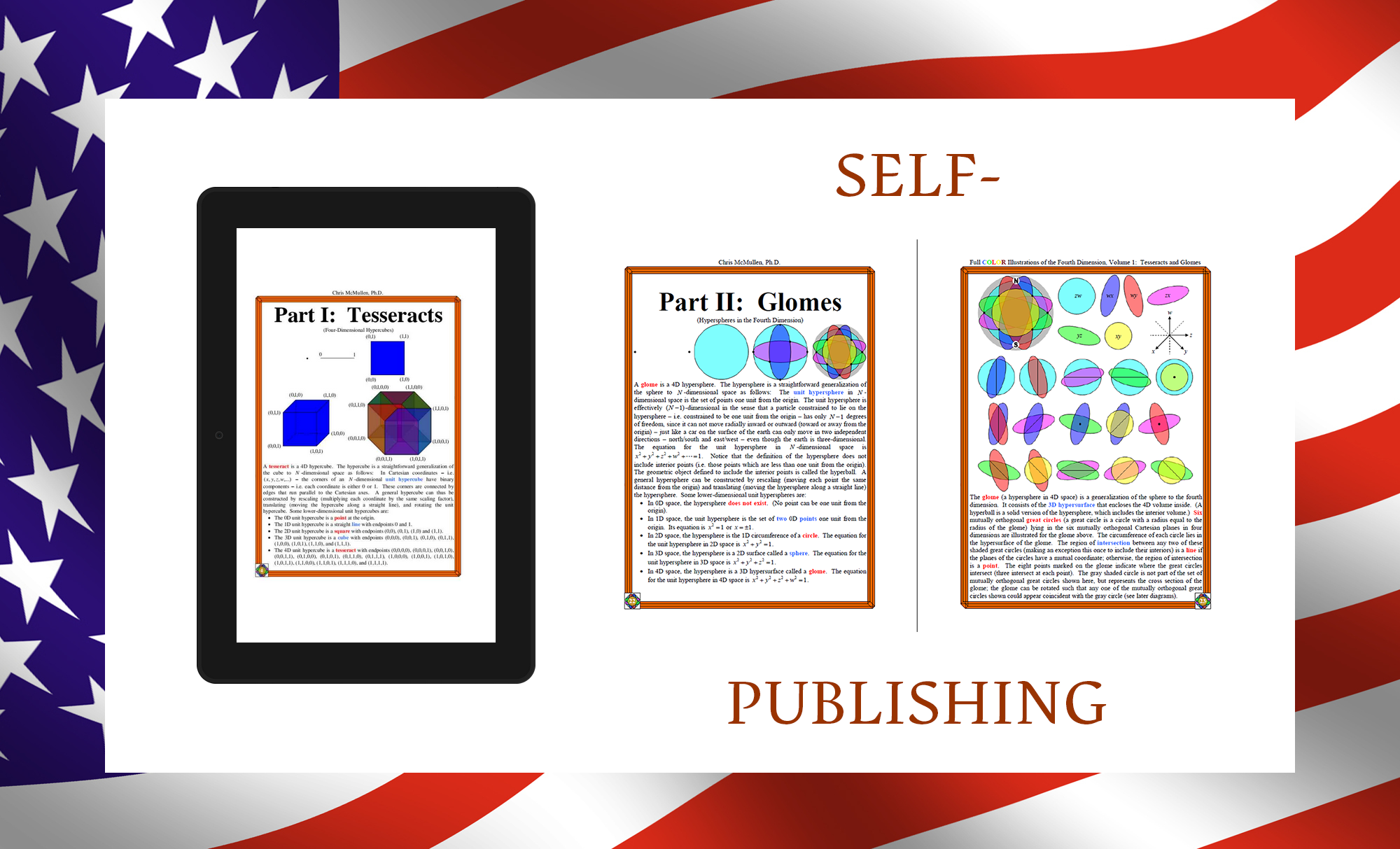
These are just the basic conversion (presently; I may improve them further), so you can see how this came out. Ask yourself if you might have changed the layout and design to make them more readable. The astronomy book has a larger font; the book on the fourth dimension is much smaller (though that book is largely visual, and was designed for the reader to spend time contemplating the images on each page, i.e. not to be read straight through).

You don’t actually have to buy these books to check them out. If you have a supported device (not just Kindle Fire, but also smart phone, tablet, Kindle for PC, Kindle for Mac), try downloading the free sample.

Full Color Illustrations of the Fourth Dimension: Tesseracts and Glomes


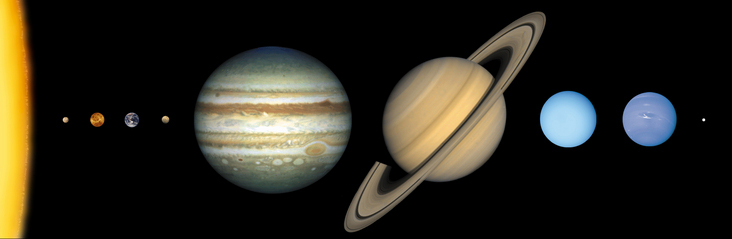
Basic Astronomy Concepts Everyone Should Know (With Space Photos)

For comparison, I have a more detailed astronomy book in reflowable format. Back then, I had actually uploaded a Word file (if I ever revise this book, I’ll go into the HTML and make some improvements).

Chris McMullen

Copyright © 2015

Chris McMullen, Author of A Detailed Guide to Self-Publishing with Amazon and Other Online Booksellers

  • Volume 1 on formatting and publishing
  • Volume 2 on marketability and marketing
  • 4-in-1 Boxed set includes both volumes and more

Kindle Ebook Formatting Example

Ebook

KINDLE FORMATTING EXAMPLE

I just published a new Kindle e-book and it occurred to me that it might be helpful to show on my blog how I formatted it.

This way, you can see an actual example of the formatting in action. You can also check out the free sample if you have a Kindle to see how it turned out. (Or the whole book, free if you have Kindle Unlimited; just 99 cents to buy.)

It’s a fun little book (by fun, I mean it involves puzzles—word scrambles, but not the usual variety: these have a Romance theme). But even if you don’t like the book, you can still check out the free sample to explore the features and how they were made. After all, this article isn’t about word scrambles; it’s about formatting Kindle e-books.

Formatting a puzzle book or a workbook for Kindle poses several formatting challenges. We’ll explore some of these in this article.

If you’re self-publishing a novel or nonfiction book, even though it’s somewhat different from a word scramble book, it involves many of the same formatting features. So this article and the book itself serving as an example can help you see firsthand how to implement those features on Kindle.

It’s 2015 and publishing is dynamic. What worked well for Kindle in 2009 or 2012, for example, may not be quite the same in 2015. Some things have stayed the same, but much has changed.

Plus, the more books you design for Kindle, the more your eye for the design of digital books changes.

This book has a different look and style compared to my other e-books. It has some features that I feel are better. I’ll describe a few design choices along the way, and a few features of Kindle design that I’ve come to regard as ‘better.’ But remember, when it comes to style, ‘better’ is just an opinion. One designer’s ‘better’ is another designer’s ‘worse.’ 🙂

CONTENTS

I’ll begin with some basic Word formatting for Kindle. If you already know how to format a Word document for Kindle, you can skip the first sections below (though you never know when you may learn something you didn’t know before).

Then I’ll introduce a book to serve as an example of my Kindle formatting, and I’ll discuss a few design issues. I’ll also describe a few improvements that can be made rather quickly beyond Word to Kindle formatting, showing my recent book as an example.

You’ll find specific directions for how to quickly implement some formatting tricks toward the end.

MICROSOFT WORD KINDLE PREP

I began the Kindle formatting with a simple plain text version of the book. (It’s also available in paperback, so ultimately I needed one file for Kindle and a totally different file for print. Yet at the same time, it’s important to have identical content for both.)

I used the Replace tool in Word to remove:

  • two consecutive spaces. I put two spaces in the Find field and one space in the Replace field. I continued to hit Replace until there were no matches found.
  • blank lines. I typed ^p in the Find field and deleted everything from the Replace field. There isn’t a single blank line in the book, yet there is space between some lines which creates the same effect. More on this later. You may also want to put ^l (lowercase L) in the Find field in case you have another kind of line break.
  • tabs. Type ^t in the Find field and make sure that the Replace field is empty. (There were none to be found, of course, as I know not to use the tab key in the first place.)
  • page breaks. Put ^m in the Find field to remove ordinary page breaks. (If you have section breaks that are also page breaks, you want to remove those, too.) My book does have page breaks, but I make them a different way in the Kindle edition.

I don’t have headers, page numbers, or other print-only formatting features in my original Word file for Kindle.

You also have to be careful not to use any unsupported symbols.

What about the formatting? Don’t worry; we’ll get to that.

IMAGES IN WORD

I even removed all of the images from the Word file. You can leave them in Word, but I like to apply a simple trick to improve the way that pictures are displayed (revealed later in this article), and as long as I’m doing that, I just save all the pictures for later. I just write things like “Pic1” or “Pic5” on their own lines where I want the pictures to go later. Well, I did put one figure in, just so that Word would recognize the file as containing images, which I replaced later. (If my trick is new to you, things will be simpler if you leave the images in Word.)

If you prefer to leave the images in Word, or if you intend to upload a Word document to KDP, here are a few things that you may wish to know:

  • Word may reduce the size of your image when you insert it. Word wants your picture to fit in the margins shown on the screen, so if necessary, it will reduce the width. Right-click on the image, choose Size and Position, find the Size tab, and enter 100 for the width (and height). This may cause your image to appear larger than the page in Word, but don’t worry about that, as that isn’t how it will look on a Kindle.
  • Setting the width to 100% in Word does NOT make the image appear full-screen on Kindle devices.
  • Right-click the image and change Wrap Text to In Line With Text. Place the image on its own line.
  • Use Insert > Picture to insert your images; don’t use copy/paste from outside of Word.
  • Crop, size, and format the picture with image-specific software before inserting into Word. If you do these things within Word, note that these features won’t be saved and propagated through to Kindle with Word’s default settings.
  • If you upload a Word file, sometimes a drop shadow appears along the edge of one or more images. If so, the simple solution is to upload a compressed zipped folder instead (described later in this article). If you opt to do this, it also gives you the flexibility to make your images display better.

WORD FORMATTING FOR KINDLE

The key to predictable and consistent formatting from Word is religious use of the paragraph styles.

In Word 2010 (and 2007 and 2013) for Windows, these appear on the top right half of the Home ribbon at the top of the screen.

It’s a mistake to highlight a paragraph and apply formatting directly to what’s highlighted. If you’ve already done that, you can find a Clear Formatting button on the Home tab.

The way to format a paragraph is to create a style, format the style just the way you want, and simply associate that style with the desired paragraph(s). Place your cursor within the paragraph and simply click the style button to apply that paragraph style to the paragraph.

You can highlight a word, phrase, or sentence that’s part of a paragraph and apply formatting, like italics or boldface, to that. But don’t do this for an entire paragraph. To format an entire paragraph (or a chapter heading, like Chapter 1, which is a paragraph), instead format a style and apply the style to the paragraph.

The Normal style is the default for body text. Once you’re typing body text with the Normal style, simply pressing the Enter key will let you type another paragraph with that same Normal style.

Right-click a style to modify it. Click the funny-looking little arrow-like icon in the bottom-right corner of the group of styles on the Home ribbon. This opens up a window of styles at the right side of the screen.

Styles Location

Styles Options

Find the three buttons at the bottom of this new window. The left button lets you create a new style. When you create the new style, give the style a name that will help you remember which style is which. Choose which current style the new style will be based on.

MICROSOFT WORD’S STYLES

The Normal style is designed for the majority of your body text paragraphs, though you’ll want to modify the settings of this style before using it. You may need one or more variations of the Normal style, for example a similar style for the first paragraph of each chapter (e.g. if you don’t want to indent the first paragraph of each chapter, as is common among most traditionally published books).

Use Heading 1, Heading 2, Heading 3, etc. styles to format headings that you’d like to be used in navigation. Kindle tends to automatically use your heading styles for built-in navigation (though it may take some time after publishing before this is done). You may want to use the Heading styles for chapter headings (like Chapter 1, Chapter 2, etc.) and some front or back matter sections (e.g. Introduction, Appendix), for example.

Think about other kinds of paragraphs that you may want to be formatted differently. For example, you might want a block of text for quotes that is indented from both the left or the right. Or you might want a centered line for figures or for text that you don’t want to be used in navigation.

Modify the Normal, Heading 1, and Heading 2 styles, and then create new styles—as described in the previous section. Once you have all the styles for the variety of paragraphs that are used in your book (including “paragraphs” that only consist of a few words or an image on one line, or lines from your table of contents, for example), then you just need to apply the appropriate style to each paragraph.

Except for the Normal style, you can check a box so that any changes you make to that style automatically apply to every paragraph of that style when you modify the style. Otherwise, and for the Normal style, if you want to update every paragraph of that style, open the style box on the right of the screen (see the instructions in the previous section), place your cursor on a paragraph of the style you want to modify and update, right-click the style in the box at the right (not the top), choose Select All, click Modify, and then update the style and the changes should propagate throughout.

FORMATTING WORD’S STYLES

For each style (Normal, Heading 1, Heading 2, and variations of these that you use), you need to modify the style to adjust the font and paragraph settings.

Leave the color set to automatic, except where you need to create text a different color. For example, if you want a heading to appear in red or blue, you can change the color for that heading style. Don’t set the color to black for body text; leave it set to automatic. (Note that colored text may not appear as nice on black and white devices; for example, red stands out in color, but appears gray on black and white devices).

The default Word font style (Times New Roman or Calibri) is simplest. This will allow the user to choose a font to his or her liking. There is a better way to treat the fonts, as I’ll describe later.

Font size is something that you must set in Word if you intend to upload a Word doc, but which the user will ultimately take control over. So font size is relative. The points don’t translate perfectly from Word to Kindle. Kindle doesn’t discriminate between some close font sizes. If you use 12 pts for body text and want a heading to appear twice as large, you might try 24 pts, for example. Some trial and error is wise. If the font for a heading is too large, for example, a long word (like INTRODUCTION) might not fit on a single line on some devices (though when a user chooses a very large font on a cell phone, that’s virtually unavoidable), so it pays to test it out. There is a better way to set font size than by doing so within Word, as I’ll explain later.

To adjust the font in Word, don’t highlight an entire paragraph and change the font for that paragraph. Instead, right-click a style to modify it, click Format, choose Font, and modify the font for that style. Then simply associate that style with the desired paragraph(s).

You must similarly adjust the paragraph settings. Right-click a style, click Modify, choose Format, and select Paragraph.

This is where you can set Space Before (or After, but I prefer to use Before only), if you would like headings or the first paragraph of a chapter (only if you create a separate style for it) to have space above it. This is better than inserting blank lines with the Enter key. Why? Because it looks funny when a blank line happens to appear at the bottom or the top of a page, or a blank line that you’d like to serve as a section break may not be visible in such a case. (Using asterisks, * * *, centered on a line by themselves, or a glyph, provides a section break that won’t get lost. Pad your glyph with space on the sides so it doesn’t zoom to full-width on old devices, perhaps a clear background with a .gif, with black or sepia user options in mind.)

Instead of inserting manual page-breaks, you can include this in a style, too. You also find this in Modify > Format > Paragraph for a style, then choose the Line and Page Breaks tab, and check the box for Page Break Before (but note that most of the other options on that tab don’t propagate through to the Kindle; page-break works, though).

The paragraph setting is also what you need to use, within the style itself, to treat indents in a way that will work predictably and reliably.

HOW TO INDENT FOR KINDLE E-BOOKS

The wrong ways to indent lead to inconsistent indents in Kindle e-books:

  • Don’t use the tab key at all.
  • Don’t use the spacebar to create indents.
  • Don’t rely on automatic indentation.
  • Don’t go to the paragraph dialog box and set First Line for a particular paragraph. Close, but no cigar. You need to do this for a style instead to achieve the most reliable and predictable indents across all devices and the challenging, yet all-important, Look Inside.

Right-click a style to modify it, click Format, Select Paragraph, change Special to First Line, and enter a value for the indent there.

  • Do this for all non-centered styles, including justified and left-aligned (ragged right) styles.
  • Do this for Normal and variations of Normal that will be justified or left-aligned.
  • Set the indent to 0.2″ or 0.3″ for indented paragraphs. The default value of 0.5″ appears too large, especially on small devices like a cell phone. (There is a better way, which I’ll describe later.)
  • Don’t choose (None) for paragraphs that you want non-indented (like the first paragraph of a chapter, if you have a special style just for those paragraphs, or the lines of your table of contents page). This won’t work. Instead, set First Line to 0.01″ to create non-indented paragraphs.
  • For centered paragraphs, do set First Line to (None). This only works for centered styles. (You don’t want centered styles, like Heading 1, to include indents, otherwise they’ll appear off-center.)

OTHER FEATURES FROM WORD

There are two different ways to format a table of contents in Word for Kindle. There is a table of contents tool, or you can create bookmark hyperlinks. There is yet a third way to do it if you wind up exporting Word’s HTML to create an epub or mobi file. On top of this, Kindle may build in navigation (after a lengthy delay once your book is published) based on h1, h2, etc. tags (Heading 1, Heading 2 in Word).

You can also create other bookmarks for built-in navigation. For example, if you type “See Section 4,” you can use bookmark hyperlinks so that when the reader clicks Section 4, it takes the reader directly to that section. If you have external hyperlinks, e.g. the url to a website, you can similarly activate these.

Footnotes and endnotes in Word also propagate to Kindle.

MY KINDLE EXAMPLE

Below is a picture of how a portion of my sample e-book appears in Microsoft Word. If you look above Contents, you can see “pic 2” on a line by itself. Later, I turned that line into a picture. Remember, it’s not how the book appears in Word that matters, it’s how it appears in Kindle that counts. Later in this article, I’ll describe a few ways to improve the formatting from how it appears in Word.

Ebook Word

Here is how the beginning and introduction look in the actual Kindle e-book:

Ebook Kindle 3

I’ll discuss some design choices and a simple way to make further improvements. In case you may want to check out the free sample to see the example firsthand, click the image below:

Click the image to view at Amazon.

DESIGN ISSUES

DECORATIVE IMAGES

There are four decorative images in the front matter. The paperback edition includes some visual elements, so the hope was to incorporate a taste of that visual impression into the Kindle edition.

However, square images (like a heart), full-page images, or tall images take a great deal of room on a screen, which can impact the readability. For one, it serves as a long gap between the text that comes before and after the image. Also, you have limited control over where the paragraphs of text preceding and following the picture will appear. You can wind up with a lot of white space on the screen prior to the image, or you can have one line of text above or below the image, etc. When an image is a crucial part of the book, you do your best to work with it. But for decorative touches, I didn’t want to use an image that may cause such issues.

So I went with wide, short images. These don’t take up much space vertically. You can see one of these pictures in the previous section. (An alternative would be a glyph, padded on the sides so it doesn’t blow up to full-width on certain devices.)

FRONT MATTER CHOICES

Another design choice is which sections to include in the front matter. Some people move the copyright notice and table of contents to the back matter in order to maximize the potential of the Look Inside. A few cram extra stuff into the Look Inside, hoping to make it easier for customers to reach that 10% mark, so crucial for Kindle Unlimited. Neither of these reasons appealed to me.

I included a short, basic copyright notice in the front. I feel that customers generally expect to see this; it’s a standard part of a book; I didn’t want its absence to stand out, and I believe its inclusion, if done well, can help signify that professional touch. Virtually nobody will read the copyright page, but everyone will notice it briefly while passing by (except when they first open the book in a Kindle, where Amazon starts the book after this position; but I’m more worried about the customer on Amazon’s website, checking out the Look Inside).

I also opted to include the table of contents in the front. This book has 88 pages of puzzles. I didn’t want to include 88 entries in the table of contents. So I divided the table of contents up into Puzzles 1-8, 9-16, 17-24, etc.

FRONT MATTER ALIGNMENT

Both the copyright notice and table of contents in this book are centered. For a multi-level table of contents, I would format it left aligned (ragged right) instead, and use indents (through styles) for the various levels. I might use left alignment for most tables of contents, in general, but if you look at this puzzle book, very much of it is centered (including the puzzles), so this kind of fits.

Many traditionally published books center the copyright page, while others are justified and yet others are left aligned (ragged right). In the past, I’ve often used justified or left alignment for the copyright page, and I’ve often noted formatting issues on one or more devices. For example, the last word (like the line with the title or subtitle) might wind up on a line all by itself, or when justified, there can be some large gaps (or one line might not even justify, in the extreme cases). These problems tend to occur more with many copyright pages, and if you include it in the Look Inside, you want this section to look good. Some of these issues can be avoided with proper centering. (Don’t center each sentence of your notice; put it all in one centered paragraph; but the title lines and copyright date lines need to be on their own lines.)

HEADING & SUBHEADING ALIGNMENT

If you have any lengthy chapter titles, headings, or subheadings (for large fonts on small screens, it doesn’t have to really seem ‘lengthy’), you can run into similar issues, deciding between centered or left aligned. (Definitely, don’t justify the headings.) (Another thing to note is that left alignment, i.e. ragged right, can sometimes be a little tricky to pull off if you upload a Word document; it’s more reliable if you just go a quick step beyond Word, as shown later in this article.)

FORCED LINE BREAKS

Sometimes, it pays to force a break to avoid a bad break. For example, the authors are listed as Carolyn Kivett & Chris McMullen. I spread this onto three lines (with the & on its own line). Why? Because on a smaller screen or with a larger font size selected by the user, we could wind up with Carolyn Kivett & Chris showing on one line and McMullen on the next line, which would look unnatural. Separated on three lines avoids that possibility. You can’t do such things with body text, but everywhere else you can keep such things in mind.

But be careful. If you take something too long and break it in half, you might get bad breaks in between. For example, suppose you have two short sentences and decide to place each on its own line. This sounds good until you see the last word of the first sentence wind up on the second line all by its lonesome on a smaller screen or with a larger font.

Remember, don’t try to force breaks in body text paragraphs. It will surely backfire on some devices.

PARAGRAPH ALIGNMENT

Novels and most nonfiction should have indents, but no spaces between paragraphs, in the body text. (But the first chapter of each paragraph is ordinarily not indented.)

My example is a puzzle book. The puzzles themselves are centered, as is much of the front matter. I formatted the Introduction with block paragraphs, i.e. it has space between paragraphs, but no indents. This isn’t your standard nonfiction book, so these block paragraphs fit in with the design.

Definitely, don’t use indents and block paragraphs, or your book will stand out, probably not in a positive way; readers just aren’t accustomed to that.

Readers expect novels and most nonfiction to have indents, but no space between paragraphs. A few kinds of technical books, for example, tend to have block paragraphs (space between, but no indents). If you have a nonfiction book, see what’s common among very similar books.

DESIGN CHALLENGES

One of the challenges in designing a puzzle book or a workbook is that in print, answers are usually collected in the back. That’s just incredibly inconvenient in an e-book.

It’s more convenient to use footnotes for the answers. Unfortunately, if you publish a workbook or puzzle book with answers in both print and digital editions, this would entail much restructuring. (But if you’re really handy with programming, you might be able to restructure your book efficiently that way. I actually went into Excel and efficiently restructured the book there to move the hints and answers from the back of the book into their respective puzzles, but let me warn you, it’s much more straightforward to restructure this with programming than to do it with Excel.)

Another challenge with puzzles and workbooks is that you can’t write in an e-book (well, maybe you could create an ‘app’ instead of a ‘book’). A crossword puzzle, word search, or Sudoku puzzle can’t be ‘read’ as a ‘book,’ for example. But you can do a word scramble in your head.

My biggest struggle with this book was that each puzzle contains 6 word scrambles plus a theme (also scrambled). Since all 7 words go together, it really makes sense for all 7 words to lie on a single page. That’s the way it looks in print (the print edition also includes nice visual decoration). But it’s a big problem for Kindle.

The only way to guarantee that all 7 word scrambles for each puzzle would appear on a single ‘screen’ in Kindle is to format the entire page as an image, but then it wouldn’t likely be readable on a great many devices. Unfortunately, one or more words for a puzzle will go onto the following screen on smaller devices, or any device with a large enough font size selected.

I could have tightened the space between puzzles, but I preferred to add space between the lines of each puzzle (using Space Before, in the styles, not with the Enter key), as readability is important to help focus on one word scramble at a time.

I made a draft without using page-breaks at all, and I rather liked how that looked and read, but in the final product, I included page-breaks. Since each puzzle has a theme, a page-break seemed the natural way to collect the themes together.

IMPROVEMENTS

I took a few quick and simple steps to improve the Kindle formatting.

Below, I show you exactly what I did and how I did it.

You can follow the same steps. Really, there is nothing to learn. You just have to follow directions. 🙂

It will improve the formatting.

FILTERED WEBPAGE

In Word, Save As a filtered webpage (don’t choose single-file webpage), then open the file in Notepad. (An alternative is Sigil, which can help you create an epub, but there is a learning curve for using Sigil.) I’ll describe minimal changes to look for in Notepad. Don’t open the filtered webpage in Word.

If your file has images, there is another step to take before you open the file in Notepad. Find the file on your computer (in My Documents, or wherever you saved the filtered webpage). Right-click on the file, click Send To > Compressed (zipped) folder. This creates two folders: one with images and one zipped folder. Find the image folder (you may have scroll to the top) and drag it into the zipped folder (both folders have the same name as the filtered webpage file).

When you want to edit the file in Notepad, open the filtered webpage, and after saving the filtered webpage, find it and drag it into the zipped folder to replace the old file.

STYLES

When you open the filtered webpage in Notepad, you find the styles at the top.

I delete the font definitions: Everything beginning with /* Font Definitions */ and just before /* Style Definitions */.

I next improve the styles that you find under /* Style Definitions */.

Be careful to type everything exactly (or use copy/paste, as typos here can create havoc). Don’t forget the semi-colon (;) at the end of each line.

The top of each style (Normal, Heading 1, etc.) should include:

margin-top:0in;
margin-right:0in;
margin-bottom:0in;
margin-left:0in;

Exceptions: (1) When you want to include space before a paragraph, change margin-top from 0in to 2em, for example, where an ’em’ is a helpful unit in typography. (2) When you want to a create a block indent, e.g. for quotes, change margin-left and/or margin-right to 2em. This indents every line from the left (or right, or both), not just the first line.

For styles where you want a page-break before (perhaps a chapter heading style), include this line in the style definition:

page-break-before:always;

Control paragraph alignment and indents with lines like these in the styles:

text-align:justify;
text-indent:0;

The word justify could also be left or center, depending on how you want that style to be aligned. Heading styles are often centered. Most body text is usually justified.

Set text-indent to 0 for any paragraph that you don’t want to be indented. While zero doesn’t work in Word, it does work here.

For the Normal style or any other styles that you do want indented, I recommend 2em (two em’s), as in

text-indent:2em;

This way, your indent size will depend on the font size that the user selects. While a percentage seems like it would better match the screen size, it comes out way too big in the Look Inside, which is your main selling feature.

However, you should control the font size with a percentage, such as

font-size:100%;

Regular body text should be 100%. I used 150% for headings.

I remove all mention of font families by changing these lines to:

font-family:;}

You should only have the closing brace } if this is the last line of the style’s definition.

There are other changes that I make, and other things I do to clean up my file; I’m taking a minimalist approach here to keep things simple.

IMAGES

Find the paragraphs that call your images. One way to format them better is like this:

<img style=”width: 100%; height: auto;” width=”2048″ height=”342″ alt=”” src=”Filename/Picname.jpg”>

Only include the “width: 100%; height: auto;” if you want the image to fill the width of the screen. (Note that older Kindles automatically fill the width anyway, so if you don’t want an image to zoom full screen, you should pad it instead.)

Don’t use 2048 and 342. Use whatever size the image is (most likely, if you have multiple images, they will differ in size; find the sizes of your images).

It may seem redundant to also include the width and height size if also setting the width to 100%, but this may speed things up on some devices.

Word can resize your images on you, so you should check the point values in the HTML and also in your compressed image folder. If it was resized, you can delete an image from the compressed image folder within the compressed zipped folder and copy/paste it back in (based on your original).

If the src= part at the end doesn’t specify your file location correctly, the image won’t display in the Kindle e-book. (So you should check every picture when you preview it.)

The img style should be part of a paragraph, like:

You’ll probably have a p class instead of a div class. I use the Replace tool in Notepad to change every <p into <div and every </p into </div throughout the file.

OTHER

There are more things you can change, but again I’m trying to keep the changes to a minimum for simplicity.

If you want to see how clean your Word file is, try using the Find tool and looking for span, font, color, <br, clear all, and things like that. If you have a lot of spans (other than endnotes), it probably means you had a habit of highlighting text or paragraphs and applying formatting to what’s highlighted. The more you get in the habit of using styles for paragraph formatting, the more that will reduce those spans. Those breaks (br) and clear all’s can arise from manual page breaks, Enters, etc.; these come out cleaner when you build the page-break into the header style and when you use Space Before in the paragraph style instead of using the Enter key (don’t add these features to every style; just figure our which kinds of paragraphs should have space before and add it to paragraphs of those styles). If you find the word font (other than in your style definitions), it probably means that you highlighted text or paragraphs and selected a font style, size, or color. Try to break that habit (except when you need a portion of a paragraph, rather than the entire paragraph, to format differently).

CONSISTENCY AND PREDICTABILITY

It’s worth browsing through your p-tags. They begin <p class=, such as <p class=MsoNormal>, unless you changed all the p tags to div tags like I do, then you’ll have things like <div class=MsoNormal> or whatever you called the style.

Your HTML will tend to produce more consistent and predictable results if you don’t have overrides in your paragraph tags. Examples of overrides in your paragraph tags include <p class=MsoNormal align=center> or <p class=MsoNormal style=’text-indent:.3in’>. These are contradictions. The Normal style says to justify, while your p tag says to align center. Unfortunately, when you have contradictions like this, the Look Inside doesn’t always choose the way you’d like.

These contradictions come about when you don’t use the styles religiously. If you highlighted a paragraph and changed the alignment to center, you create a p tag like <p class=MsoNormal align=center>. What you should have done is create a centered style and simply associate that style with the paragraph to create a p tag like <p class=Center>. Similarly, don’t highlight a paragraph and change First Line for the highlighted text, as that creates a p tag like <p class=MsoNormal style=’text-indent:.3in’>. The better thing is to create a new style with the indent you need, then simply associate that style with the paragraph. If you see overrides in your paragraph tags, you want to change your habit of formatting highlighted paragraphs and use the styles instead. That will give you the most reliable formatting.

Chris McMullen

Copyright © Chris McMullen, Author of A Detailed Guide to Self-Publishing with Amazon and Other Online Booksellers

  • Volume 1 on formatting and publishing
  • Volume 2 on marketability and marketing
  • 4-in-1 Boxed set includes both volumes and more

We Had a Publishing Dream

Flag

Flag border from ShutterStock.


Who doesn’t dream of freedom?

Though no dream of freedom may be more famous than the one by Martin Luther King, Jr.

With no intention of taking away from the holiday related to King’s famous dream, I wanted to write a humble poem about another kind of freedom that has come about recently.

∗

We had a dream of writing,

Of putting pen to paper,

Of sharing our written words with others,

Of publishing.

∗

We had a dream of publishing,

Without fear of rejection,

Without jumping through hoops,

Without knowing the right people,

Without wasting energy on queries and proposals.

∗

We had a dream of publishing freedom,

Where all books are given opportunity,

Where all authors have potential,

Where readers decide what is or isn’t worthy.

∗

And then one day, several years ago,

I was shopping at Amazon,

I discovered a link to CreateSpace,

I learned about Kindle Direct Publishing,

I tried out self-publishing,

And I found that some dreams do come true.

∗

Self-publishing brings authors together,

Connects readers with authors.

Self-publishing is open to everyone,

No matter who you are.

(And if you don’t want to publicize who you are,

You can even hide behind a pen name.)


Copyright © 2015 Chris McMullen

Kindle Unlimited Myths

Kindle Myths

KINDLE UNLIMITED MYTHS

There are many myths about KDP Select floating around.

We now have several months of data, including data released directly from KDP.

In some cases, these facts debunk popular myths.

Let me begin by answering a question that may be on many authors’ minds, and then I’ll get to the myths vs. facts about Kindle Unlimited.

WHAT DID KINDLE UNLIMITED PAY IN DECEMBER, 2014?

Kindle Unlimited paid $1.43 per download read to 10% in December, 2014.

This brings me to the first myth.

MYTH #1: KINDLE UNLIMITED IS GOING DOWN EVERY MONTH

Actually, it’s gone up a little the past two months.

In October, 2014, it was $1.33. It climbed up to $1.39 in November, 2014, and again to $1.43 in December, 2014.

Despite the extra holiday traffic in December—especially, the after-Christmas traffic with people who received new Kindles—the Kindle Unlimited payments went up.

I think that’s a great sign.

MYTH #2: MANY AUTHORS ARE DROPPING OUT OF KDP SELECT BECAUSE THE ROYALTIES ARE TOO LOW

Amazon released data today (January 15, 2015) that contradicts this myth.

According to Amazon’s announcement, the renewal rate for KDP Select has remained above 95% each month in 2014.

Have you heard that 25%, 50%, or even 70% of KDP Select authors are dropping out of Select? Have you heard that soon there won’t be any good books to read in Kindle Unlimited? Wrong!

Fewer than 5% are dropping out.

This also shows that the vast majority of KDP Select authors are content (at least) with the KOLL payments.

At least, many feel that the benefits of staying in outweigh the cons of leaving, or continue to wait one more month to see which way things are headed.

With another month of the KOLL payments increasing, they’re headed in a positive direction.

MYTH #3: AUTHORS ARE LOSING MONEY WITH KINDLE UNLIMITED

In an announcement released by Amazon today (January 15, 2015):

  • KDP Select authors have seen faster “a la carte sales growth” than both KDP overall and Kindle overall during the five full months of Kindle Unlimited.
  • The total royalties paid to KDP Select authors for the full five months of Kindle Unlimited “more than doubled” in comparison to the same data from 2013.

No wonder there is a 95% renewal rate.

For every author who is losing money with Kindle Unlimited, there are several others whose books are thriving in the program.

MYTH #5: KINDLE UNLIMITED FAVORS 99-CENT E-BOOKS

This myth comes from the notion that 99-cent e-books earn the same Kindle Unlimited royalty as $9.99 e-books. In fact, for a 99-cent e-book, the KOLL payment actually exceeds the list price. Imagine earning $1.43 for a 99-cent book, instead of the usual 34 cents.

The worry is that more authors will put out less effort, writing shorter and shorter books.

But wait! That doesn’t mean that Kindle Unlimited subscribers are suddenly going to start preferring e-books that reflect less effort! Most authors who write shorter e-books will discover that the shorts market isn’t easy to crack.

Here’s the FACT:

According to Amazon’s announcement today, “total earnings on titles priced $2.99 or greater are growing faster than the overall average. The same is true for titles 150+ pages in length.”

Aha! Kindle Unlimited subscribers aren’t diving down for shorter e-books after all. They’re looking for a good value, just as might be expected.

A related worry is that authors of $2.99 and higher e-books will put out of the program, so all that will be left are shorter e-books.

But here’s another FACT: There is a 95% renewal rate. With KDP Select authors seeing the fastest Kindle growth, many will be staying in the program.

MYTH #6: AMAZON DOESN’T CARE IF THE KINDLE UNLIMITED PAYMENTS GO DOWN

Back in the days where there was only Prime, the KDP Global Select Fund was around $1,000,000.

This jumped up to a few million when Kindle Unlimited came out.

In December, 2014, the KDP Global Select Fund started at $3,000,000.

Amazon added another $4,250,000 on top of this.

This brings the December, 2014 KDP Global Select Fund up to $7,250,000.

They more than doubled the three-million dollar starting value.

That’s a lot of money.

Amazon paid a huge sum of money, much more than originally announced.

Amazon did this to raise the KOLL payments up to $1.43 from November.

They could easily have dropped it down to the $1.20’s, not much lower than it had been, and this small difference would have saved Amazon a very large sum of money.

To me, this shows that Amazon wants to retain the authors who’ve remained in KDP Select, by trying to prevent the KOLL payments from dropping too low.

MYTH #7: AMAZON DOESN’T CARE ABOUT AUTHORS

I know, Amazon is first and foremost a business. The number one priority is profit, right?

But the customer is paramount toward long-term profit, and Amazon has proven itself to be focused more on long-term gains than short-term gains (sometimes to the dismay of its investors).

Amazon has also demonstrated itself to be strongly oriented toward customer satisfaction.

Amazon rolled out its red carpet to indie authors who were being rejected time and again. Amazon has thrived from this decision, and continues to do so.

Amazon pays upwards of 70% royalties to indie authors for sales.

Kindle Unlimited is benefiting indie authors. KDP Select authors are seeing faster growth than non-Select Kindle authors. Amazon released data to support this today.

In Amazon’s announcement today, they specifically mentioned great feedback that they have received from authors, and that they are considering this feedback and how to continue to improve Kindle Unlimited for both authors and readers.

Amazon needs the support of both authors and readers to make Kindle Unlimited work.

Amazon just poured $7.25 million into the KDP Global Select Fund for December to raise the KOLL payments to $1.43 per borrow. That’s a big investment in the program.

MYTH #8: AUTHORS ARE LOSING MONEY BY ENROLLING IN KDP SELECT

If your book is priced $2.99 or higher, your royalty is $2 or more (unless you have a huge delivery fee).

Some argue that if a customer borrows your book through Kindle Unlimited and you earn, say, $1.43, you’re losing money because a sale pays $2 or more.

But here’s the thing: The customer who borrowed the book probably wouldn’t have bought the book.

I’m a Kindle Unlimited subscriber myself. In the past month, I turned down several books that I was strongly considering, but which weren’t in Kindle Unlimited. If they had been in Kindle Unlimited, I would have borrowed them. But they weren’t and I passed.

There are now three main markets:

  • Customers who aren’t in Kindle Unlimited who buy Kindle e-books.
  • Customers who subscribe to Kindle Unlimited who borrow Kindle e-books.
  • Customers who buy non-Kindle e-books.

KDP Select authors reach two of these markets.

The Kindle Unlimited market is a huge potential asset for indie authors. Customers might be willing to try a book they normally wouldn’t have read because they incur no additional cost to take a chance on that book.

MYTH #9: KDP SELECT WAS BETTER WHEN IT WAS ONLY AMAZON PRIME

The KOLL payments were higher when it was only Amazon Prime. The KOLL payment was usually $2 or a little more.

But Amazon Prime customers can only borrow one free book per month.

This means that most books didn’t receive many borrows when it was only Prime.

Kindle Unlimited is paying about 30% less, presently, than in the days of only Amazon Prime.

But there are many, many more borrows through Kindle Unlimited than there ever were through Amazon Prime.

Many KDP Select books are benefiting from these additional borrows. Not everyone, of course.

But according to Amazon’s announcement today, KDP Select authors are seeing the fastest growth, and most authors are content or happy enough to renew their enrollment.

MYTH #10: KINDLE UNLIMITED DOESN’T HAVE MANY CUSTOMERS

Amazon just put $7.25 million into the KDP Select Global Fund for December, 2014.

Yet the KOLL payment was $1.43 per download read to 10%.

That’s a very large customer base. There are millions of downloads read to 10% each month.

The KDP Select Global Fund continues to rise, a sign of a growing customer base.

Chris McMullen

Copyright © 2015

Chris McMullen, Author of A Detailed Guide to Self-Publishing with Amazon and Other Online Booksellers

  • Volume 1 on formatting and publishing
  • Volume 2 on marketability and marketing
  • 4-in-1 Boxed set includes both volumes and more
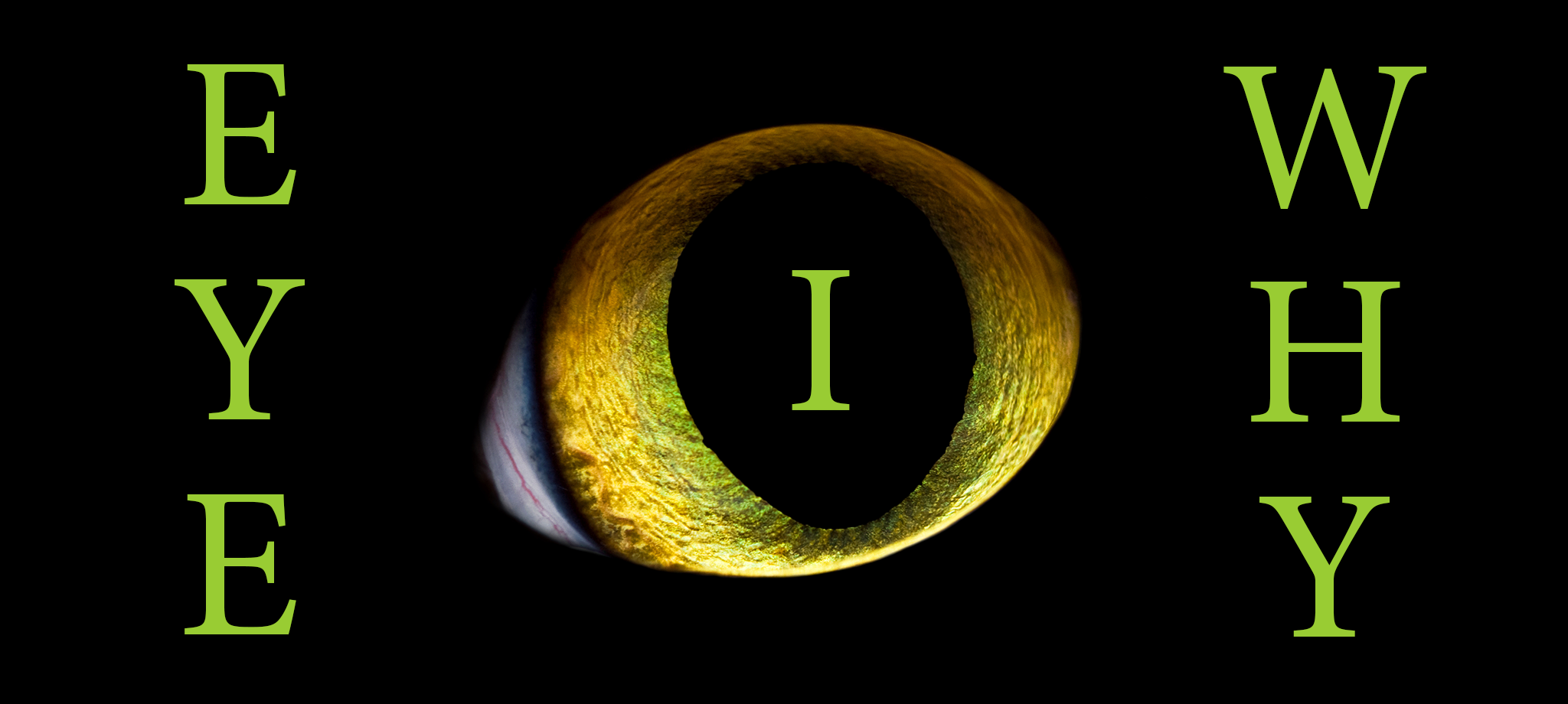
Follow me at WordPress, find my author page on Facebook, or connect with me through Twitter.

Comments

Click here to jump to the comments section:

https://chrismcmullen.wordpress.com/2015/01/16/kindle-unlimited-myths/#comments

How to Remove the Background from an Object (PhotoShop Tutorial)

Background Jupiter

HOW TO REMOVE A BACKGROUND IN PHOTOSHOP

Sometimes, you find the perfect image for your needs, but it’s part of another picture.

You don’t want to use the entire picture. A simple crop won’t suffice. You’d really love to extract just that image from the background.

Similarly, if you shop for a stock image at ShutterStock or iStockPhoto, sometimes you can purchase a whole set of similar objects in a single picture, instead of buying each one individually. When the images are packed tightly, sometimes a simple rectangular crop won’t work to extract just one image. What you need to know is how to remove one object from the background.

There are several ways that you might remove an image from its background (or remove the background from an image) using Adobe PhotoShop.

I will discuss two different ways to approach this, and discuss both simple and complex cases.

The process is easiest when the background consists of a single solid cover, but in practice, that’s often not the case.

It’s good to know a variety of methods, so you can use the simplest method when it works, but have back-up plans for when it doesn’t.

Just in case your version of Adobe PhotoShop may be a little different, you may want to know that I’m using Adobe PhotoShop CC (i.e. through the Creative Cloud).

QUICK SELECTION

When the quick selection tools work the way you’d like them to, they’re fantastic.

The idea is to quickly grab one object that you “see” in the picture, and then you can simply cut it (Edit > Cut), open a new file, and paste it in (Edit > Paste).

The problem is that PhotoShop doesn’t always “see” the same sets of objects that you see with your eye and interpret with your mind.

If the background is a solid color that contrasts well with the image, the quick selection tool often proves to be very convenient.

But if the background is complex or blends in part with the image you want to grab, you might discover that this tool doesn’t always grab things the way you’d like.

Fortunately, it’s easy to test this tool out and see if it will work easily for your task. If not, you can try something else.

Find the quick selection tools on the toolbar (which appears in a column on the left of my screen). For me, it’s the fourth icon down from the top.

PhotoShop Quick Selection

There are two tools in one: A quick selection tool and a magic wand tool. Click on whichever icon appears in the toolbar and hold it down for a moment (or just right-click the icon) to display both choices, then you can switch to the other tool.

I use the quick selection tool to try and grab the object. I sometimes find the magic wand tool helpful to grab one small part of an image (or several small pieces) that I couldn’t grab all together with the quick selection tool. Despite its name, the “magic wand” tool doesn’t simply read your mind and do whatever you hope for; but the “magic” comes in when it succeeds in grabbing a small, odd shape that’s otherwise hard to select.

When you choose the quick selection tool, another toolbar appears (in my case, it shows horizontally at the top of the screen). One of these icons has a number, and allows you to choose the brush picker. Click this icon and adjust the pixel size. I usually work with 100% roundness. If it’s not doing what you want, other things you can play with include hardness and spacing.

My first goal is to get the pixel size just right. When you hover over the image, you’ll see a circle appear with cross-hairs in the middle. As you vary the pixel size, the circle resizes accordingly. I first want as large a circle as I can make without any part of the circle extending into the background. Then I position the cross-hairs over the object with the complete circle within the object, and left-click once.

You’ll see a selection path appear on the screen. If this path happens to be exactly what you want, then ta-da, you can simply go to Edit > Cut to put your image onto the clipboard.

If the selection path extends into the background, then if you cut the object out, it will include part of the background along with it. If you want to avoid grabbing part of the background, too, then you want to be careful that the selection doesn’t extend into the background. (However, in complex cases, sometimes it pays to select the object along with a little of the background, put this image into a new canvas, and then work on removing that little bit of excess background.)

If the selection path includes less than what you want to select, you can increase the selection path by placing the cross-hairs at another position in the image and left-clicking again. You can resize the circle before making the second selection. You can click a third, fourth, fifth, etc. time, as needed, to try and build up exactly what you want.

But sometimes, PhotoShop just doesn’t see the object the way you that you do, and no matter how you try to select the object, the quick selection tool just doesn’t provide the convenient option you’re looking for.

Note that you can press Ctrl + Alt + Z to go a step backward, and press it repeatedly to undo several steps (but note that there is a limit to how far you can go back, so be careful not to go too far forward if you’re just experimenting).

In the example below, I used the quick selection tool to easily remove Jupiter from the solar system picture.

Background Jupiter Before

Background Jupiter After

It wasn’t as easy to remove Saturn from this photo, however, as the dark shadows from and within the rings blend with the background. I used the quick selection three times: Once to grab the planet, and twice (with much smaller sized circles) to grab the two sides of the rings. Below it looks like it came out well because I pasted it onto a black background:

Background Saturn

However, the following picture shows that this technique didn’t work perfectly. In this case, I could use the background eraser (with a fine scale) to wipe off the little background that came with the image.

Background Saturn 2

BACKGROUND ERASER

If you’re not having luck trying to select an object with the quick selection tools, you may have better luck removing the background.

The eraser tools can help you do this. For me, the eraser tools are the 11th icon down the toolbar.

These include the eraser, background eraser, and magic eraser tools. Right-click the eraser icon to see the alternatives (or hold it down for a moment).

I usually begin with the background eraser.

PhotoShop Eraser

The background eraser can be convenient when you have an image that is distinct from a simple background.

The erasers can also be useful (though not necessarily convenient) for complex images or backgrounds. Some cases are simpler than others. The more complex cases can involve some work and patience.

Let’s look at the simple case first.

In the image below, I first attempted to remove the earth with the quick selection tool (followed by a cut and paste).

Earth 2

It looked pretty good at first, but when I pasted it into a new file, I noticed some imperfections. It’s not smooth. Look closely and you can see the inconsistency along the border.

Earth Clipped

So next I used the background eraser tool.

First, adjust the size of the background eraser. Look for the icon on the top toolbar (when the background eraser is already selected) that has a number in it. I like as large a circle that I can use that won’t create problems.

Don’t place the cross-hairs in the image that you’re trying to keep. Place the cross-hairs over the background. It’s okay for the circle to extend onto the object you’re trying to preserve in the foreground, provided that the color of the background is distinct enough from the colors in the foreground. When you have whites or grays in your image, and white on the background, for example, then the background eraser can remove the light colors from your foreground. In that case, you must be careful not to let the circle extend into those similar colors of the foreground.

It takes a little trial and error to get the size just right, and sometimes you need to use a large size for parts of the background, and a smaller size for other parts. You can eliminate a huge part of the background with an extremely large circle, but often need a smaller circle if precision removal is needed near the foreground object (but if the foreground and background colors are distinct enough from one another, you don’t need those smaller circles—precision isn’t called for).

I set the roundness to 100% for most jobs. Also play with the tolerance to get that right (is it removing too much? too little?).

I usually like to have Limits set to Find Edges, but on complex backgrounds, PhotoShop can find edges that you’d like to ignore. In that case, try adjusting the tolerance, or try contiguous or discontiguous.

Below, you can see how I used the background eraser to remove the background near the earth. (Note that with large circles it would be very easy to remove the rest. I left it like this so you can see how I got the process started.)

Earth Background

Compared to the quick selection tool, the outline of earth’s atmosphere is much smoother.

It helps to pay attention to detail when using the erasers. Sometimes, you wipe out a lot of background and wipe out just a little foreground along with it, and it’s not always easy to notice that little bit of foreground that disappeared. Watch closely.

The eraser tools don’t always work so easily. It depends on the complexity of the background and whether or not parts of the foreground and background can easily get confused by PhotoShop.

Sometimes, it’s a challenge to remove the part of the background adjacent to parts of the foreground. This often happens when there are similar colors in both.

In that case, I first trim away as much of the background as I can easily without interfering with the foreground.

Then I use the regular eraser (not the background eraser) to do some precision trimming. (Or sometimes, after removing much of the background, the quick selection tool works better than it had originally. It doesn’t hurt to try, as long as you don’t go more steps forward than you can undo.)

After selecting the regular eraser, on the horizontal toolbar at the top, a tiny drop-down arrow (at the left of this toolbar) lets you choose a chiseled or pencil eraser. The mode options include brush, pencil, or block. I find the block convenient for cutting out straight sections (and you can go to Edit > Transform to rotate the image so that the part you want to trim is perfectly horizontal or vertical). I don’t hold it down and drag the block; I cut out one block at a time (click, move, click, move, etc.), careful to line up each cut (and press undo if it’s slightly off). If it’s not straight, I may use something other than the block, and then I try dragging to erase. I do it in stages, unclicking to save one section when I’m happy with it. Precision erasing can get tedious, especially with complex boundaries.

Let me illustrate erasing with the following picture of dice that I took for my math blog.

Dice

I first cut out the purple die with the quick selection tool, but that included the shadow along with it.

Die

So then I wanted to remove the shadow. It proved not to be easy, as PhotoShop easily confused the dark purple of the die itself with the dark shadow.

I used Edit > Transform to free rotate the image until the bottom edge appeared horizontal (I later realized that the cut shown wasn’t quite parallel to that edge), and then I used the eraser tool in block mode to cut across.

Die Clipped

I next made the right edge vertical to clip up the right side, and finally cut out the corner.

Die Clipped 2

The cuts shown aren’t perfect. If I needed more precision, I could continue with precision erasing, or I could try to blur these edges to match the fuzziness of the others, etc.

The blue die was easier to extract with the background eraser, as it was easier for PhotoShop to discriminate between the blue faces and dark shadow. If you look closely, though, you’ll see that it didn’t erase completely (but that light mess could be cleaned up with some more work).

Die Rotated and Clipped

ALTERNATIVES

PhotoShop is loaded with options, from masks to clipping paths to filters. There usually are several ways to do something, not just one or two ways.

Do you have another method of extracting an image from a picture that you prefer? Please share your idea in the comments. 🙂

Image credits

All of the images used in my examples are from NASA’s website (except, of course, for the dice photo that I took myself).

Chris McMullen

Copyright © 2015

Chris McMullen, Author of A Detailed Guide to Self-Publishing with Amazon and Other Online Booksellers

  • Volume 1 on formatting and publishing
  • Volume 2 on marketability and marketing
  • 4-in-1 Boxed set includes both volumes and more
Follow me at WordPress, find my author page on Facebook, or connect with me through Twitter.

Comments

Click here to jump to the comments section:

https://chrismcmullen.wordpress.com/2015/01/11/how-to-remove-the-background-from-an-object-photoshop-tutorial/#comments