Kindle Unlimited per-page rate for January, 2018

Background image from ShutterStock.

KINDLE UNLIMITED PER-PAGE RATE FOR JANUARY, 2018

In January, 2018 the Kindle Unlimited per-page rate was $0.00448.

It has dropped down a bit, after a steady climb for several months, which culminated in a brief appearance above half a penny per page ($0.00506) in December, 2017.

It isn’t unusual for the per-page rate to drop from December to January:

  • December, 2016 paid $0.00524, dropping to $0.00457 for January, 2017.
  • December, 2015 paid $0.00461, dropping to $0.00411 for January, 2016.
  • Prior to that, KDP Select didn’t use the per-page model, yet it was still common for January’s royalties to drop compared to December.

So you shouldn’t PANIC. This is normal.

Why does January typically pay less than December? Amazon sells a ton of Kindle devices for the holidays, and many customers try their free month of Kindle Unlimited. More customers are probably reading a high volume of pages at this time, too. Whatever the reason, the per-page rate is still looking good compared to six months ago, when it had dwindled down close to $0.004 per page. Amazon introduced KENPC 3.0 and the per-page rate recovered nicely. It’s still up 12% over that low point.

On a related note, the KDP Select Global Fund hit a record high, $20.9 million, the first time it has ever climbed over $20 million, and up a clear million from December.

So even though the per-page rate is down, Amazon still paid a million more dollars in royalties for Kindle Unlimited (and Amazon Prime) borrows of KDP Select books (and that’s on top of what they paid for sales, and also on top of the All-Star bonuses which are awarded separately).

Two years ago, January, 2016, the per-page rate had dropped down to what was at the time a record low (and it has since only returned to that point once). In comparison, January, 2018 is looking pretty good. While it has taken a typical drop from December, bear in mind that December was at a relative high, a rare appearance above $0.005. It’s more that December was unusually high than January is atypically low.

Write more books, write engaging content, learn effective long-term marketing strategies, and little fluctuations in per-page rates will hardly seem to matter.

Write happy, be happy. 🙂

Copyright © 2018


Chris McMullen

How to Format a Textbook or Workbook for Kindle

FORMATTING A TEXTBOOK FOR KINDLE

I’ve published several workbooks and a few textbooks in both print and Kindle, and I’ve written a few detailed articles about using Amazon’s free Kindle Textbook Creator.

Today’s article adds something new: I’m using my experience to compare three different methods of formatting a textbook or workbook as a Kindle eBook.

Let’s suppose that you wrote a textbook or workbook using Microsoft Word and have already formatted it as a print-ready PDF, and now you wish to convert it to an eTextbook for Kindle.

There are three viable ways to go about this:

  1. Simply run your PDF through Amazon’s free Kindle Textbook Creator. Like magic, in a few moments you will have a KPF file that you can preview within the Kindle Textbook Creator and then upload to KDP. This is by far the most convenient option for the author or publisher. However, a book that looks good on paper and runs through the Kindle Textbook Creator is often inconvenient to read, especially on smaller screens, and the eTextbook won’t be available across all devices. If the customer must pinch-and-zoom frequently to read the text, this will become tedious quickly.
  2. Modify your Word file and create a new PDF file optimized for the Kindle Textbook Creator. This isn’t as convenient for the author, but it’s not too inconvenient, really. Once you convince yourself that it’s worthwhile and get started, it isn’t that bad. The benefit is that it can improve the customer’s reading experience. Back in Word, you can set all of your page margins to zero, since that just wastes space on a Kindle device. As a result, it makes the text slightly easier to read. If it’s viable, you can consider significantly increasing the font size and reformatting the pages to accommodate the change (as it will alter the page layout significantly). If the text is large enough, customers may be able to read your eTextbook on more devices without using pinch-and-zoom. Also, if you have images that include text, see if it may be viable to make the text larger in those images.
  3. Create a reflowable eTextbook. Most Kindle eBooks are reflowable. The few exceptions include fully illustrated children’s books, comic books, and richly formatted eTextbooks. All novels and text-heavy nonfiction books are reflowable eBooks, meaning that the customer can adjust the font size, font style, and line spacing. If it’s formatted well, this can make for the optimal reading experience. The main reason that eTextbooks are often formatted as fixed-format rather than reflowable format is that it’s much more convenient to run a PDF through the Kindle Textbook Creator than it is to reformat a textbook as a reflowable eBook. Plus, a richly formatted textbook presents more formatting challenges: If you don’t navigate the reflowable Kindle design challenges well (including bullet points, equations, callouts, sidebars, multiple columns, tables, figures, and page layout), any formatting mistakes can make the result worse than what you would get with the Kindle Textbook Creator.

EXAMPLE 1: REFLOWABLE VS. KINDLE TEXTBOOK CREATOR

In my first example, I will compare options 1 and 3.

My most recent math workbook, Fractions Essentials Workbook with Answers, includes 20 chapters and 256 pages.

Each chapter begins with a concise review of essential concepts and fully-solved examples with explanations.

There are several equations that wouldn’t format well in Kindle without turning them into pictures.

Every chapter ends with a set of practice exercises.

At the back of the print edition is an answer key with the answer to every problem plus intermediate steps, hints, and explanations.

This definitely qualifies as a richly formatted textbook.

I formatted this book two different ways:

  • I ran my print-ready PDF through Amazon’s free Kindle Textbook Creator.
  • I converted my Word document into a reflowable eBook using the same methods described in my Word to Kindle Formatting Magic book (to be published later in February, 2018, hopefully). I also moved the answers to the end of each chapter instead of putting them all at the back of the book. This makes it easier for the reader to find the answer key in the eBook (and I also added each chapter’s answer key to the active table of contents).

After creating both versions of the eTextbook, I decided to publish the reflowable version.

Above, you can see two sample pages of the preview of the KPF file shown in the Kindle Textbook Creator.

Here are a few features that I like about the version I created with the Kindle Textbook Creator (shown above):

  • It was quick and convenient for me to make.
  • The pages are well-defined. Sometimes, it’s nice to control the page layout and make content “fit” on a page. An entire problem set or example can be made to fill all of the space on a page.
  • I can refer to figures, equations, or sections by page number (like “see page 94”).
  • The Look Inside would look fine on Amazon, basically showing how the book looks on printed pages.

Here are a few features that I don’t like about the Kindle Textbook Creator version (shown above):

  • It’s inherently much harder to read. On many devices, some of the content requires using pinch-to-zoom, which would be inconvenient for customers.
  • Customers can’t adjust the font size, font style, or line spacing. This is the main limitation with trying to make a fixed format book easily readable.
  • The eTextbook wouldn’t be available on all devices. This limits your audience (and occasionally upsets customers).
  • It’s not as easy to make hyperlinks work. Plus, the last time I tested internal hyperlinks (like for an active table of contents), the hyperlinks didn’t work in the published eTextbook. Device navigation does work though (and you can enter the table of contents for device navigation directly in the Kindle Textbook Creator). Unfortunately, a few customers are used to finding a page of clickable hyperlinks, and either don’t know how to find device navigation or don’t want to do that (or have an older device).
  • It’s black and white. (But that’s my fault and would have been easy to fix. I could easily change the pictures to color in Word and create a new print-ready PDF.)
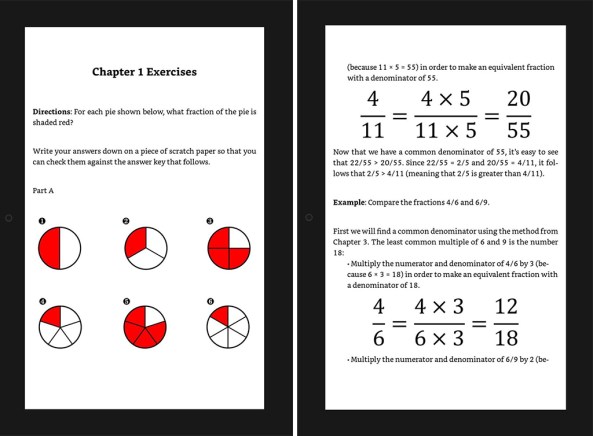
Above, you can see two sample pages of the preview of the converted MOBI file in the KDP previewer.

Here are a few features that I like about the reflowable version (shown above):

  • It’s easy to read on any device with any size screen.
  • For any equation that was too complex to simply type on Kindle, I reformatted the equation as a picture so that it would be easily readable across all devices (you can see the large equations in the picture above).
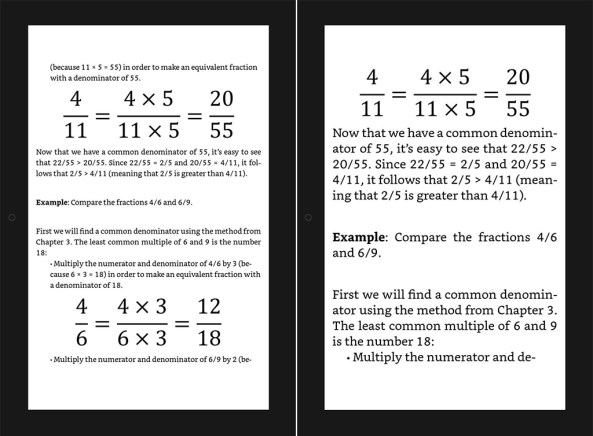
  • Customers can adjust the font size, font style, and line spacing to their liking. You can see this in the picture below, where I show the effect of adjusting the font size. The customer can’t do that when you use the Kindle Textbook Creator.
  • It’s available on every device, so any customer who owns a Kindle device, Android tablet, Android phone, PC, laptop, Mac, iPad, or iPhone can read the eTextbook.
  • Creating all kinds of hyperlinks, internal and external, is easy. Both kinds of hyperlinks work, and you can easily make an active table of contents with clickable hyperlinks.
  • A few pictures show in color on devices with color displays. Since I took the time to reformat all of the pictures for Kindle, I added color shading to the pie slices.

Here are a few features that I don’t like about the reflowable version (shown above):

  • It took much more time to format the eBook (but it wasn’t insurmountable).
  • Depending on the display size and the reader’s choice of font size, font style, and line spacing, you never know when a page break may occur. This can begin a new example at the bottom of a screen, or it can leave a lot of blank space when a large figure doesn’t fit on the current page, for example. Overall, I think it came out well in many cases, but this is the main design challenge with the reflowable format: You can’t control the pagination or page layout nearly as well as you can with fixed format.
  • The pictures don’t scale with font size. (It is possible to do that with SVG images, but not all devices support SVG, so you have to do that with media queries, which entails extra work, and even then some customers will still see it without scalable images.)
  • I had to find any references to specific page numbers and find another way to say where that section, figure, table, or equation is. (You could achieve this with hyperlinks though.)
  • Since I made equation pictures large enough to read on any device, in the Look Inside feature at Amazon, and with the default font settings of certain devices, I don’t like how the equation pictures have text that is much larger than the font size. As you can see below, in some cases it is more pronounced than others: It varies with the customer’s choice of font size. But I felt that easy readability on any device was important: That was a major benefit of choosing the reflowable layout.
EXAMPLE 2: REFLOWABLE VS. KINDLE TEXTBOOK CREATOR VS. OPTIMIZED KTC

This example will compare eTextbooks made using all three options:

  1. Simply run your PDF through Amazon’s free Kindle Textbook Creator.
  2. Modify your Word file and create a new PDF file optimized for the Kindle Textbook Creator.
  3. Create a reflowable eTextbook.

This time, instead of adding sample pictures of each case to my article, I will include a link to an example at Amazon.

You can explore Amazon’s Look Inside for free, or you can read the free sample using a free Kindle app (like Kindle for PC or Kindle for iPad) or a Kindle device. The free sample will let you better preview how it looks as an eBook. (You don’t need to buy the book to see how it looks.)

For Option 3, you can click the Free Preview button in the picture. Unfortunately, for Options 1 and 2, this button doesn’t work in Amazon’s Free Preview picture. However, you can view the free preview by clicking the hyperlink below the figure to visit Amazon and then viewing Amazon’s Look Inside.

Note that the Look Insides of Options 1 and 2 look fine when you view them on a PC, laptop, or other device with a large screen.

However, if you read these eBooks on most Kindle devices or the actual eBooks with one of Amazon’s free reading apps, then the text for Option 1 is much harder to read.

The text for Option 3 is easy to read on any device or app, though it doesn’t come out as good in the Look Inside. That’s one of the misleading quirks of Amazon’s Look Inside feature displaying a Kindle eBook as a scrollable webpage on a PC or laptop display. It’s surprising that they don’t show all Kindle Look Insides for reflowable eBooks using Page Flip or the way that you see Option 3 when you click the Free Preview button. While that isn’t perfect, it portrays a reflowable eBook more realistically.

Option 1: Simple PDF conversion using the Kindle Textbook Creator.

For the following book, I took the print-ready PDF and simply ran it through the Kindle Textbook Creator with minimal changes.

This is the most convenient option for the author, but it’s not as easy for the customer to read.

Trigonometry Essentials Practice Workbook with Answers

Option 2: Optimized Word file for the Kindle Textbook Creator before creating a PDF.

For the following book, I zeroed the page margins, changed the page size and aspect ratio, and significantly enlarged the font size. After this, it took some time to improve the page layout.

Then I ran the new PDF file through the Kindle Textbook Creator.

The result is easier to read across all devices without having to pinch-and-zoom.

However, as with all fixed format eBooks, the customer can’t adjust the font size, font style, or line spacing, and with the Kindle Textbook Creator, the eTextbook isn’t available across all devices and apps.

Learn or Review Trigonometry: Essential Skills

Option 3: Converted Word file to reflowable format.

For the following book, which I just published two days ago, I invested a great deal of time converting my Word document to a reflowable Kindle eBook (following the instructions in my book, Word to Kindle Formatting Magic, to be released later in February, 2018, hopefully).

It wasn’t as convenient for me, but the result is readable across all devices, the eBook is available across all devices, and the customer can adjust the font size, font style, and line spacing. Plus, there is an active table of contents with clickable hyperlinks that work.

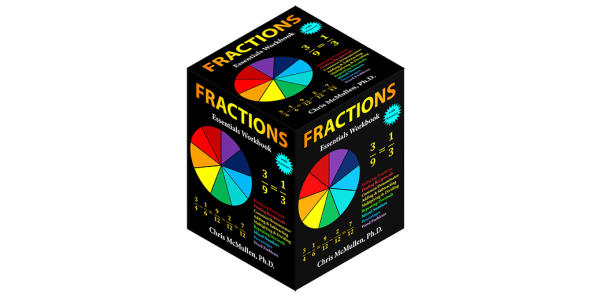
Fractions Essentials Workbook with Answers

Write happy, be happy. 🙂

Chris McMullen

Copyright © 2018

Author of A Detailed Guide to Self-Publishing with Amazon and Other Online Booksellers

  • Volume 1 on formatting and publishing
  • Volume 2 on marketability and marketing
  • 4-in-1 Boxed set includes both volumes and more
  • Kindle Formatting Magic (coming soon)

Follow me at WordPress, find my author page on Facebook, or connect with me through Twitter.

Recent Changes to CreateSpace and Kindle Direct Publishing Paperbacks

CreateSpace and Kindle Direct Publishing

Recent Updates to Paperback Features

Amazon has recently added new features to KDP’s paperback self-publishing option:

  • You can now order printed proofs from KDP. This is a vital step toward ensuring that your book is ready to publish.
  • You can similarly order author copies from KDP. This makes it viable to stock your book in local stores and libraries, and creates marketing opportunities like advance review copies, paperback preorders (through Amazon Advantage), press release packages, paperback giveaways, and book signings.
  • UK and Europe authors should be particularly excited, as KDP introduced a new feature that you can’t get at CreateSpace: author copies and proofs printed and shipped from Europe.

The first two changes simply bring KDP up to speed to make it a viable alternative to CreateSpace and Ingram Spark.

But the last change offers authors in the United Kingdom and continental Europe something that they can’t get from CreateSpace.

Meanwhile, CreateSpace has also experienced some changes:

  • CreateSpace will be eliminating paid services in a few months. I don’t see this as an issue really, as I’ll explain below.
  • Links to the CreateSpace eStore now redirect traffic to Amazon.com. Most authors are completely unaffected by this, as most authors get almost all of their paperback sales from Amazon.com anyway. The rare author who was capable of not only generating traffic to their eStore but who could also get many of those customers to overcome the CreateSpace shopping hurdles (like having to create a new account and pay for shipping) will need an alternative, such as BookBaby’s BookShop, Lulu’s storefront, or their own website with payment features.
  • Books automatically receive distribution to Amazon.ca (Canada) within 30 days if the Amazon.com sales channel is enabled. This isn’t that new (although it’s not as well-known as it could be), but I mention it because it’s a distinct advantage that CreateSpace currently retains over Kindle Direct Publishing.

Regarding CreateSpace’s paid services, in many ways it was always better to find a third party. Some third parties offer a portable file or a finished product that lets you edit your own file in the future, whereas CreateSpace’s services required paying for corrections in the future. Some third parties are also more flexible, offer economic (or even free) samples of their work, and offer better communication with the actual editor or designer. If you do thorough homework on finding a third party, it may turn out better than what CreateSpace offered. The main advantage CreateSpace had for their paid services (like copyediting or cover design) was the backing of Amazon’s name and their satisfaction guarantee. If you’re looking for paid services from a print-on-demand publisher, one option is BookBaby.

Does this mean that KDP is the better POD option now?

It depends on your needs.

Here are advantages that Kindle Direct Publishing currently has over CreateSpace:

  • Convenience: You can use a single account, you get consolidated reporting for both paperbacks and Kindle eBooks, and the setup of both print and Kindle editions occurs on the same site.
  • UK and Europe: You can order printed proofs and author copies and have them printed and shipped from within Europe. This feature isn’t available at CreateSpace, though hundreds of authors have asked for it.
  • Japan: You gain distribution to Amazon.co.jp (Japan).

Here are advantages that CreateSpace retains over KDP:

  • Distribution to other countries: CreateSpace offers better Expanded Distribution. For one, CreateSpace offers distribution to Canada (and those sales are reported and paid as Amazon.com sales, not at the lower Expanded Distribution royalties, which is a nice bonus) and to Mexico.
  • Distribution to bookstores: CreateSpace offers expanded distribution to bookstores and non-Amazon websites. KDP doesn’t provide this option yet.

So which is better for you?

  • Most self-published authors sell almost all of their paperback copies on Amazon.com. In that case, KDP is now the better option.
  • If you ordinarily get significant sales through the Expanded Distribution channel, I would hold off on migrating your titles to KDP.
  • If you’re new to the self-publishing industry, I now recommend KDP over CreateSpace unless you have solid, thoroughly researched plans to use CreateSpace’s Expanded Distribution effectively to get your book stocked in local stores or libraries (though selling author copies rather than using the Expanded Distribution channel is in some cases the better way to achieve this—in that case, KDP works just fine, and gives you an advantage if you reside in the UK or continental Europe).
  • If you reside in the United Kingdom or continental Europe, KDP has the advantage of printing and shipping proofs and author copies from within Europe.

Another consideration is the future:

  • KDP has been adding features to their POD service, while CreateSpace recently removed the eStore option and will soon eliminate paid services.
  • It looks increasingly like KDP will eventually become CreateSpace’s equal sister company. (Perhaps the two companies will be consolidated, or perhaps all CreateSpace titles will migrate to KDP. I’m not worried about that, as I expect KDP to accommodate the transition well. They’ve gotten some experience with authors who have already made the transition.)

Kindle Direct Publishing is now one of the three major print-on-demand services, two of which are Amazon companies:

Ingram Spark is the main alternative to using an Amazon company. CreateSpace and Kindle Direct Publishing provide the natural feed to Amazon.com, and most indie authors sell their paperbacks primarily on Amazon.com. For the rare author who has thoroughly researched effective ways to take advantage of bookstore and library distribution possibilities, Ingram Spark may offer better worldwide distribution, and for the author who has a significant following outside of the United States, Ingram Spark may have an advantage. CreateSpace and Kindle Direct Publishing offer a more natural feed to Amazon.com, and they also make self-publishing more affordable (Ingram Spark has higher setup fees).

Two alternatives to the Big Three include BookBaby and Lulu. If you’re looking for paid services or if you’re one of the rare authors who could make effective use of an eStore, these options may be worth considering. For example, check out BookBaby’s editing options and BookBaby’s BookShop.

Write happy, be happy. 🙂

Chris McMullen

Copyright © 2018

Author of A Detailed Guide to Self-Publishing with Amazon and Other Online Booksellers

  • Volume 1 on formatting and publishing
  • Volume 2 on marketability and marketing
  • 4-in-1 Boxed set includes both volumes and more
  • Kindle Formatting Magic (coming soon)

Follow me at WordPress, find my author page on Facebook, or connect with me through Twitter.

Wow: Kindle Unlimited Clears Half a Penny per Page (December, 2017)

KINDLE UNLIMITED UPDATE FOR DECEMBER, 2017

The Kindle Unlimited per-page rate finished 2017 with a Bang, paying over $0.005 per page read ($0.00506394 to be precise).

The per-page rate has climbed above half a penny per-page a few times in the past, but usually it is under $0.005.

Part of the explanation appears to be KENPC v3.0. Amazon KDP introduced the new KENPC calculation when the per-page rate had dropped to the low $0.004’s in July. The per-page rate has climbed steadily ever since.

Part of the explanation may also be that December is a very busy holiday sales month.

The KDP Select Global Fund also increased to $19.9 million. While the KDP Select Global Fund has consistently increased over the life of the Kindle Owners’ Lending Library, what’s different now is that for five months the per-page rate and global fund have both increased together. It’s a nice trend.

While it’s nice to see the per-page rate and global fund both rising, be prepared. The per-page rate is generally a bit of a roller coaster ride, and when it peaks above $0.005 per page, it may not last long. Be prepared in case it dips back below $0.005 per page, but be hopeful that it stays above $0.005.

The global fund tends to climb over time (with only an occasional exception), but history suggests that the per-page rate won’t continue to climb forever (though I’d love to see it prove me wrong).

Enjoy it while it lasts, hope it continues, and realize that it has been fairly stable in its oscillation between $0.004 and $0.005 ever since the per-page concept was introduced.

Really, neither the per-page rate nor the global fund are the points to worry about.

The trick is to get more people to read more of your books. 🙂

Copyright © 2018

Chris McMullen

How to Add X-Ray to Your Kindle eBook

X-ray picture licensed from ShutterStock.

X-RAY FOR KINDLE

Authors can add X-ray to their Kindle eBooks via KDP.

Here is how to do it:

  • Visit Kindle Direct Publishing at kdp.amazon.com.
  • After you login, visit your KDP Bookshelf.
  • Hover your cursor over the gray button with three dots (…) near the right of one of your book titles.
  • If available, you will see an option to Launch X-Ray. Click this link.
  • This will open the X-Ray page for your Kindle eBook, but you won’t be able to do anything yet.
  • Click the yellow button to Request X-Ray. The window will automatically close 20 seconds later and return you to your Bookshelf.
  • You should receive an email once X-Ray is prepared for your Kindle eBook. Although it says it can take a few hours, my emails came within minutes.
  • Now you need to return to your KDP Bookshelf and Launch X-Ray again with the gray (…) button. This time you will be able to do something.
  • I recommend the yellow Begin Tutorial button. It’s very quick and pretty effective.
  • Select the items on the left one at a time. If the item is irrelevant or you just don’t want it to show to readers, click No for the first question and it will be excluded. I had to do this for some terms because a few of the terms were not related to my book, but most of the terms were relevant.
  • Each item must be a character (like Harry Potter) or a term (like astrophysics). Check one.
  • Tip: Click the number of occurrences link and it will show you the terms in context. It’s pretty cool and can help you decide if it’s worth displaying to readers.
  • Either write a custom description or choose a relevant Wikipedia article. For many standard terms, it will automatically select a Wikipedia article. Beware that the article might not be a good fit for the term. It’s up to you to read the article to make sure, or select a different article (or instead enter your own custom text).
  • Click the button at the bottom so that it says Item Reviewed if you wish to keep it. Otherwise, select No for the first question. If it doesn’t say Item Reviewed, the changes won’t be published.
  • Sometimes, you may have a few terms linked together for the same item. In this case, if you click Remove, it won’t actually delete the term. What Remove does is separate the term to be its own item (you can find it somewhere on the list at the left, sometimes far from the other item). I had to do this for a few items.
  • Think: Are there any terms or characters that you would like to add which weren’t automatically included? If so, click the Add New Item link at the top of the list on the left. You won’t be able to see occurrences (or know how many there are) until you publish the changes (though once you publish the changes and they finally go live—it didn’t take too long for me, just a few minutes, but it can be longer—then you will be able to see the occurrences).
  • There may be a few standard terms for which you can’t click the button to say Item Reviewed. This happened to me with Albert Einstein, for example. If that happens, don’t worry. It will be included automatically. If you don’t want it included, click No for the first question (as with any other items that you don’t want displayed to readers).
  • MOST IMPORTANT STEP: Click the yellow button at the top right corner to Review and Publish X-Ray. Otherwise, all your effort will be wasted.
  • You should receive an email when the changes go live.
  • After I received my email (it only took minutes for me, but it can take longer), I opened my book on my Kindle Fire HD, and X-Ray was already enabled (even though I had purchased the book months ago, but only enabled X-Ray minutes ago—indeed, it already had definitions that I had just typed). Below I will describe a bit how it works. The picture below shows X-Ray in action.

First, I checked my product page. I scrolled down to Product Details, where I found X-Ray: Enabled. Click the little arrow next to Enabled to see which devices support X-Ray (there is also an elaborate list on one of the KDP help pages that I link to later in this article).

On my Kindle Fire HD 8.9″, when the book is open and the menu ribbon shows at the top of the screen, I see a little rectangle with an X, which is the X-Ray icon. When I click on that X-Ray icon, it opens a page with Notable Clips, People, and Terms. Click either People or Terms. I selected Terms.

One of my terms was Solar System. There were 52 mentions. I clicked on this item on the list. It doesn’t show me the text that I typed for Solar System (not yet). This just shows the paragraph in my book that mentioned that instance of Solar System. I clicked the link called Go to Loc 34 (the number will vary) in the bottom left corner. This brings me to that actual location in my book. Now on my touchscreen device, I placed my thumb on the first S of Solar, held my thumb down for a moment, and rubbed my thumb across the screen to the M in System. This highlighted the term Solar System, and the X-Ray window popped up, showing me the definition that I had typed for it in KDP. You can see it in the picture above. (You can’t see the highlighted term. I had to zoom in or you wouldn’t be able to see the X-Ray text well.)

The picture above shows how the X-Ray tool looks after you access it from your KDP Bookshelf.

Learn more about X-Ray for authors via the following KDP help page:

X-Ray for Authors

Also see the X-Ray Tips and Tricks page at KDP:

X-Ray Tips and Tricks

Write happy, be happy. 🙂

Chris McMullen

Copyright © 2018

Author of A Detailed Guide to Self-Publishing with Amazon and Other Online Booksellers

  • Volume 1 on formatting and publishing
  • Volume 2 on marketability and marketing
  • 4-in-1 Boxed set includes both volumes and more
  • Kindle Formatting Magic (coming soon)

Follow me at WordPress, find my author page on Facebook, or connect with me through Twitter.
Amazon’s Choice

AMAZON RECOMMENDS

For several months now, I’ve seen the Amazon’s Choice label beside select products in search results at Amazon.

So far, I haven’t seen it for book results. For example, I just searched for dictionary, but none were Amazon’s Choice.

Evidently, for the time being, it is just for certain types of products, which doesn’t include books.

Specifically, it appears to be for common everyday items.

As an example, when I searched for toothbrush, one of the top results was labeled as Amazon’s Choice (see the picture for this post).

HOW DO YOU GET YOUR PRODUCT LABELED AS AMAZON’S CHOICE?

According to Amazon’s Seller Central discussions, sellers can’t request this.

Rather, Amazon selects their “choice” based on ratings (not the same thing as reviews), price (“well-priced” products), and Prime shipping.

When you proceed to leave a product review, in addition to rating the product, you sometimes get the chance to rate it based on other criteria.

For example, if you leave a customer review for a pair of pants, you may be able to rate “How does the product fit?”

So if Amazon has data on other types of ratings for a product, it’s possible that the product rating (the stars left with reviews) may not be the only rating to make a difference.

FEATURED PRODUCTS

Obviously, having a product labeled as Amazon’s Choice is a huge advantage.

But it’s not the only way that products get featured on Amazon.

Being the bestseller in a category or subcategory also gets a product featured in search results (even for books).

The Bestseller label that appears in search results is just as prominent as the Amazon’s Choice label.

The Amazon’s Choice label says, “Amazon recommends this product.”

The Bestseller product says, “Customers prefer this product.”

Even the “small guys” can get featured in a variety of ways.

On most product pages, you can find “Customers Also Bought” lists.

When you purchase a product, you find other product recommendations.

In general, Amazon recommends products (via Customers Also Bought lists, for example) that have good ratings, are priced “well” (not necessarily the cheapest, but affordable may help), have a proven track record of organic sales (as opposed to referrals from external websites), and have a history of customer satisfaction (Amazon tracks customer satisfaction metrics, a point that is made clear in the Seller Central help pages).

ADVANTAGE, YES; BUT IT ISN’T EVERYTHING

Obviously, not every customer will go with Amazon’s Choice.

It’s certainly a big advantage for a product to be featured on Amazon (whether it’s Amazon’s Choice, a Customers Also Bought list, or some other way).

But it’s not the only criteria.

In fact, on several occasions I have discovered products that were Amazon’s Choice, but which weren’t the Bestseller in their category.

It is possible for similar products to compete with Amazon’s Choice, at least to a degree.

Sometimes, customers purchase many similar items at once.

I sometimes wind up purchasing Amazon’s Choice, but I sometimes prefer a different product.

I’m a customer who tends to take my time making a decision.

I like to look at a variety of products, then give my favorites a closer inspection.

One thing I like about Amazon’s Choice is that I trust Amazon more than a review left by someone I don’t know.

I still read some reviews to get an idea for the kinds of things that have appealed (or not appealed) to other customers.

But all other things being equal, I’m more apt to trust Amazon’s Choice.

The good news for other sellers is that very often, all other things aren’t equal.

Sometimes another product has a feature that I’m looking for. Sometimes another design appeals to me more.

There are many different factors that go into buying decisions. Amazon’s Choice, though it is prominently placed, is just one factor.

YOUR CHOICE

It’s ultimately your decision.

It’s interesting to compare perspectives.

Do you like Amazon’s Choice as a customer? If you were selling a product on Amazon, how would you feel about it?

Write happy, be happy. 🙂

Chris McMullen

Copyright © 2018

Author of A Detailed Guide to Self-Publishing with Amazon and Other Online Booksellers

  • Volume 1 on formatting and publishing
  • Volume 2 on marketability and marketing
  • 4-in-1 Boxed set includes both volumes and more
  • Kindle Formatting Magic (coming soon)

Follow me at WordPress, find my author page on Facebook, or connect with me through Twitter.

Video

Amazon Nailed This Holiday Commercial – “Give”

I never thought I’d be praising a commercial, but I absolutely love Amazon’s “Give” holiday commercial.

(@Amazon video shared via YouTube.)

Chris McMullen (author)

Hope, Fear, and… Shopping for Books at Amazon

SHOPPING AT AMAZON

When browsing for a book (or other product) at Amazon, it’s amazing how much hope, fear, and other emotions factor into the shopping experience.

Whether you’re a customer, an author, or an Amazon seller, it may be worthwhile to take a moment to try to understand the psychology of Amazon sales.

Imagine yourself staring at a book detail page at Amazon.com, considering a book that caught your attention.

There are two types of criteria that may influence whether or not you purchase the book:

  • You may apply logical reasoning.
  • You may be influenced by your emotions.

For most customers, both aspects may factor into the purchase decision. Some customers generally rely much more on one aspect than the other.

It may not even be a conscious decision. Many people are influenced by emotional responses without even realizing it. Sometimes the emotional aspect is subtle. Sometimes it may impact us on a subconscious level.

Also, note that logical reasoning can’t decide everything. Sometimes, after a person who relies heavily on logic applies logic as far as he (or she) can take it, the person still isn’t sure. In that case, the person might use some emotional aspect to break the tie (or flip a coin).

If you’re a customer, you might learn to make wiser buying decisions by trying to understand how various aspects of the product page may influence you emotionally.

If you’re an author or an Amazon seller, you may wish to better understand how sales psychology may benefit you both short-term and long-term. (Note that what benefits you in the short-term may hurt in the long-term. They don’t always go hand in hand.)

A LITTLE SALES PSYCHOLOGY

Let’s break down an Amazon product page, considering how each element may influence a customer’s buying decision.

  • Book cover (or product photo). This may send a strong visual signal, but may also suggest subtle emotional responses. You might think that the main message should be “Look at me,” but it’s actually better for the signal to be “Wow, that looks appealing.” An effective image does more than this: the subtler messages can carry influence. A picture can send a “positive” signal, inspiring the customer be in a better emotional state. A picture can have a “professional” tone. It can strive to earn “trust.” It can say “I look like the type of product you’re looking for.”
  • Reviews. Many reviews (both good and bad) carry marketing influence. Good reviews play on customers’ hopes, while critical reviews play on customers’ fears. Most of the time, it isn’t intentional, but of course there are both good and bad reviews that have been written with the intent of playing on hopes or fears. As a customer, it’s a challenge to glean helpful information from reviews without being influenced on an emotional level. As an author or Amazon seller, you must consider that many customers are skeptical to some extent about customer reviews. One possible fear is that the seller recruited reviews, so if the first 20 reviews are all glowing and the last 10 reviews are mostly bad, that by itself may act to “confirm” a customer’s fear that the seller recruited good reviews for a not-so-good product. In addition to customer reviews, there may be quotes from editorial reviews, and there may be review quotes in the description or Look Inside. There is another important aspect of reviews: If a product page plays on customer hopes by making a product seem better than it actually is, customer reviews help to offset this marketing tactic. Reviews are a strong reason that all authors and sellers should focus on long-term success (writing a great book or delivering a great product helps to get favorable reviews in the long run).
  • Description. Marketing copy is one of the most challenging forms of writing—and the proof of its effectiveness isn’t when several people tell you how impressed they are with what you wrote, but in what percentage of customers who read it proceed to purchase the product. An effective product description must be concise because most customers won’t read a long description in full (and if the description is long, most customers won’t even bother to click the Read More link to see the remainder of it). The few sentences that customers can see before the Read More link appears is valuable real estate: There is so much an author or seller needs to accomplish with a minimum of words. In terms of marketing influence, sellers want to create “customer engagement,” “arouse curiosity,” “inspire interest,” and perhaps even “create a sense of urgency” (but you’re not supposed to mention limited-time offers or pricing here). But the description also needs to provide valuable information about what to expect from the book (or other product). It may also need to create a sense of professionalism and trust. It needs to help create appeal. On top of that, the words need to flow well, be a good fit for expectations, and avoid spelling and grammar mistakes. There is one thing that a description shouldn’t do: It shouldn’t give the story away.
  • Title. Even the title can carry emotional influence. Have you ever read a title that had a little jingle that you got a kick out of, maybe put you in a good mood? The title needs to reinforce the visual message that the book cover (or product phot) sends. With fiction books, very short titles tend to be more effective (1 to 3 words). That’s partly because the eye is drawn to a short title in search results, and partly because many customers just look at the first few words when looking at search results. A title can help to create appeal (or just the opposite). Appeal is an important criteria, since appeal helps to put the customer in a happier state when making a purchase decision.
  • Look Inside. This can be the most valuable real estate on the product page. The customer must already be interested in order to be looking inside. This means that every other aspect of the product page has done its job: Now it’s up to the Look Inside to close the deal. The Look Inside has one important job to do: It just needs to send the message, “This book is everything you hoped it would be—based on the cover, description, title, and reviews—and MORE.” If it sends that message, the customer will almost certainly Buy Now. (But again, if the rest of the book doesn’t live up to the expectations created by the Look Inside, this will be exposed in customer reviews, and fewer customers will Look Inside in the future.) The Look Inside contains visual elements and writing, both of which need to help deliver the right messages. As with the description, the Look Inside must engage the customer and arouse curiosity (but without giving the story away), and like the book cover, the Look Inside needs to send the right visual signals.
  • Bio. A biography (or about me) section is a chance to demonstrate expertise or knowledgeability, but it’s also a chance to show humanity, individuality, and professionalism. For authors, if you can write an interesting biography, that bodes well for having written an interesting story (since very often readers aren’t interested in biographies). A picture that accompanies the biography offers another opportunity to send the right visual message.
  • Colors. There is even a psychology for interpreting colors. For example, a good cover designer selects a color scheme that is appropriate for the subject matter or story. Certain colors are better for attracting males or females, some colors work better for romance while others work better for mystery, some colors suggest professionalism, and some colors convey emotions (like happy or sad). Amazon uses color in text labels, prices, stars, buttons, and other elements of a product page. The prices are in red, which not only stands out well against a white background but may aid in creating a buying impulse (many stores use red for one of these two reasons: let’s assume they are using it for contrast and to catch attention, and if it happens to help a little to create a buying impulse, it’s just a happy bonus for the store).

We humans don’t always make the best decisions. Even humans who spend their lives solving very difficult problems quite skillfully can be prone to making a stupid everyday decision.

If humans tended to be better decision-makers, a lot of successful talk-show hosts would be out of business!

So when you’re shopping for a product, try to think about how you might make a wiser purchase decision. Try to think of which factors may be trying to influence you emotionally. Try to force yourself to rely somewhat more on logical reasoning and somewhat less on emotions.

Or forget it… just act impulsively and enjoy the splurge. You know you want to. 😉

If you’re an author or Amazon seller, try to think about how your Amazon product pages might influence customers emotionally. Don’t try to think of ways that you might take advantage of this in the short run because such ploys tend to backfire in the long run (killing sales later): For example, if the product page plays on the customer’s hope that it’s the most amazing product ever, disappointed customers will post critical reviews (which will play on future customers’ fears) and will return the product (and Amazon uses customer satisfaction metrics in its algorithms).

So you don’t want to oversell a product, making it seem way better than it is. But you do want to make it sound as good as it is. If it does deliver on customer hopes, the product page should show this.

You can also think about how your product page delivers both visually and in words important messages, such as “professional,” “positive,” “trust,” “expertise,” “creative,” or a particular subject matter or topic (like “romance” or “country”).

What is your customer hoping to get from your product? Among these hopes, what does your product actually deliver? You want to show the customer that your product delivers on the right hopes, and you want to disclose when it doesn’t deliver on other hopes.

What does your customer fear he or she may get from your product? You need to apply a similar reasoning here.

Write happy, be happy. 🙂

Chris McMullen

Copyright © 2017

Author of A Detailed Guide to Self-Publishing with Amazon and Other Online Booksellers

  • Volume 1 on formatting and publishing
  • Volume 2 on marketability and marketing
  • 4-in-1 Boxed set includes both volumes and more
  • Kindle Formatting Magic (coming soon)

Follow me at WordPress, find my author page on Facebook, or connect with me through Twitter.
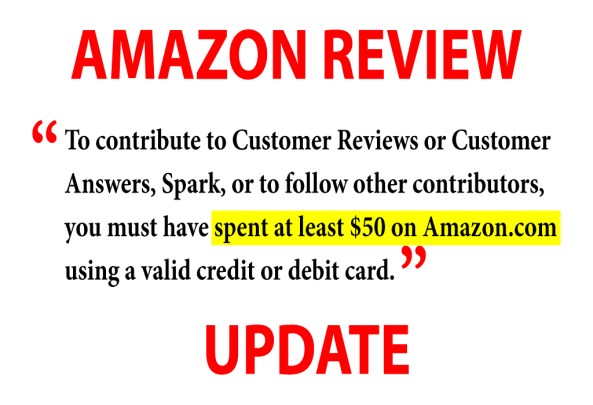
Amazon Reviews Now Require a $50 Minimum Customer Spend

NEW $50 MINIMUM FOR AMAZON CUSTOMER REVIEWS

Customers used to be able to write a review at Amazon as long as they had made a purchase.

Amazon now requires customers to spend a minimum of $50 using a valid credit/debit card before they can write a customer review.

https://www.amazon.com/gp/help/customer/display.html?nodeId=201929730

This is one of several steps that Amazon has made over the years in an effort to improve the customer review system.

Amazon strives for organic customer reviews.

Organic reviews are the best reviews you can get.

For years, Amazon has effectively blocked reviews that are posted by friends and family of authors.

Verified purchase reviews now have an advantage over non-verified reviews when it comes to visibility on Amazon.

Amazon uses machine learning to help determine how prominently a review will display on a product page.

This new $50 minimum customer spend is another of many steps in the right direction.

Amazon’s customer review system has never been (and may never be) perfect, but Amazon is working to make it better.

Remember the days when you walked into a bookstore, and the only reviews you saw were glowing reviews on the back cover and front matter?

Write happy, be happy. 🙂

Chris McMullen

Copyright © 2017

Author of A Detailed Guide to Self-Publishing with Amazon and Other Online Booksellers

  • Volume 1 on formatting and publishing
  • Volume 2 on marketability and marketing
  • 4-in-1 Boxed set includes both volumes and more
  • Kindle Formatting Magic (coming soon)

Follow me at WordPress, find my author page on Facebook, or connect with me through Twitter.

Goodreads Giveaways: Important Changes Effective January 9, 2018

Image from ShutterStock.

GOODREADS GIVEAWAY CHANGES

Like many authors and publishers, I have used Goodreads giveaways for years to help with discovery, create buzz, and seek honest reviews for newly released books.

I have been a big fan of the Goodreads giveaway, having written a few articles about it on my blog.

I’m still a fan, but there are some important changes coming January 9, 2018:

  • All KDP authors/publishers will be able to offer eBook giveaways. Previously, this was only open to traditional publishers.
  • It will cost a minimum of $119 to run a Goodreads giveaway. That’s in addition to the cost of purchasing and sending physical copies (if you choose to run a contest for print books). Until now, there has been no fee to run a Goodreads giveaway.
  • Entrants will have the book automatically added to their Want-to-Read lists (which friends potentially see through their update feeds).
  • You will gain additional exposure, as Goodreads will notify the author’s followers and anyone who has already added the book to their Want-to-Read list about the new giveaway.
  • Initially, Goodreads giveaways will only be open to residents of the United States. (This restriction applies to entrants, not to authors.)
  • It’s possible to gain premium placement among Goodreads giveaways by paying $599 (instead of $119) for a Premium Giveaway (instead of a Standard Giveaway).
  • You will need to link an Amazon account to your Goodreads account in order to run a Goodreads giveaway. (You can create a new Amazon account if you don’t already have one.)

Are these changes good or bad?

Like most changes to the publishing world, it will be better for some authors than others.

Let’s start with the bad. There are really only two things that I don’t like:

  • It’s no longer free. Having to spend $119 seems a bit pricey. And if you run a print giveaway, it costs even more, as you must pay for author copies plus shipping and packaging.
  • Only residents of the United States may enter the giveaway, at least initially. It’s not a big issue for me, personally, since most of my book traffic comes from the United States, but I have acquaintances in the United Kingdom and Canada who feel left out.

The real question is this:

Will the benefits of a Goodreads giveaway offset the cost?

Keep in mind that with the changes to the Goodreads giveaway program, it’s possible that it will be more effective now than it has been in the past.

How might it be more effective starting January 9, 2018?

  • There might be less competition from other giveaways, making it easier for readers to discover your book. Not as many authors/publishers will be willing to pay the fee.
  • The giveaway might gain more exposure since the book will be automatically added to Want-to-Read lists, and since Goodreads will notify the author’s followers and anyone who has already added the book to their Want-to-Read list that a giveaway is available for the book.

Note also that the cost of the giveaway has not necessarily increased as much as it may seem.

Starting January 9, 2018, you can run a Standard Giveaway for $119. However, if you choose to run an eBook giveaway instead of giving away print books, you will save on the cost of author copies, shipping, and packaging. I’ve actually paid more than $119 for a Goodreads giveaway when it was FREE: I’ve spent over $50 on author copies and over $80 on shipping for several giveaways, which comes to over $130. In those cases, I would have saved money by paying $119 for an eBook giveaway.

The new cost of the Goodreads giveaway encourages authors/publishers to offer more prizes.

You pay the same $119 fee for a Standard Giveaway, regardless of whether you offer a single book as a prize, or several copies of the same book.

If you only give away one book, $119 is a pretty steep price to pay. However, if you offer several copies of your book, the cost per book drops down dramatically.

Like all paid marketing, Goodreads giveaways are more likely to be cost-effective for authors who write compelling books. If you only sell a few books per month, paying $119 for a giveaway will come at a great loss. If your book sells thousands of copies per year, paying $119 is relatively cheap.

Are you upset that you won’t be able to run a free/inexpensive giveaway?

That’s ridiculous! Of course you can.

You can run an Amazon Giveaway directly from your book’s Amazon product page.

You just pay for the selling price of the book. For a print book, you must pay the shipping charges, too. In either case, you will be compensated partly later when you receive your royalty. You can even require entrants to follow you at Amazon. (When you publish a new eBook through KDP, Amazon notifies your Amazon followers of your new release.)

Learn more about the changes to Goodreads giveaways:

  • Click here to see the Goodreads giveaway help page.
  • Click here to read an article by David Wogahn.

Would you like to tell Goodreads how you feel about the new giveaway program?

  • Click here and scroll down to the bottom of the page to find the survey (if it’s still available). Look for “send us feedback” in bold letters.

Write happy, be happy. 🙂

Chris McMullen

Copyright © 2017

Author of A Detailed Guide to Self-Publishing with Amazon and Other Online Booksellers

  • Volume 1 on formatting and publishing
  • Volume 2 on marketability and marketing
  • 4-in-1 Boxed set includes both volumes and more
  • Kindle Formatting Magic (coming soon)

Click here to view my Goodreads author page.

Follow me at WordPress, find my author page on Facebook, or connect with me through Twitter.